1. Installation
Project Commander is a Jira Cloud app that can be accessed as a full-page app or as a dashboard gadget.
Installing from Atlassian Marketplace
- Go to the Atlassian Marketplace
- Search for "Project Commander"
- Click Get it now
- Select your Jira Cloud site
- Confirm the installation
Accessing the Full-Page App
- In Jira, click Apps in the top navigation menu
- Select Project Commander from the dropdown
- The full-page app opens with all features available
Adding the Dashboard Gadget
- Navigate to a Jira dashboard
- Click Add gadget
- Search for "Project Commander"
- Click Add gadget
- The gadget will appear on your dashboard with the same features as the full-page app
1b. Standalone Web App (Beta)
Don't want to install anything? The standalone web app lets you try Project Commander with your own Jira data directly in your browser — no Atlassian Marketplace installation required.
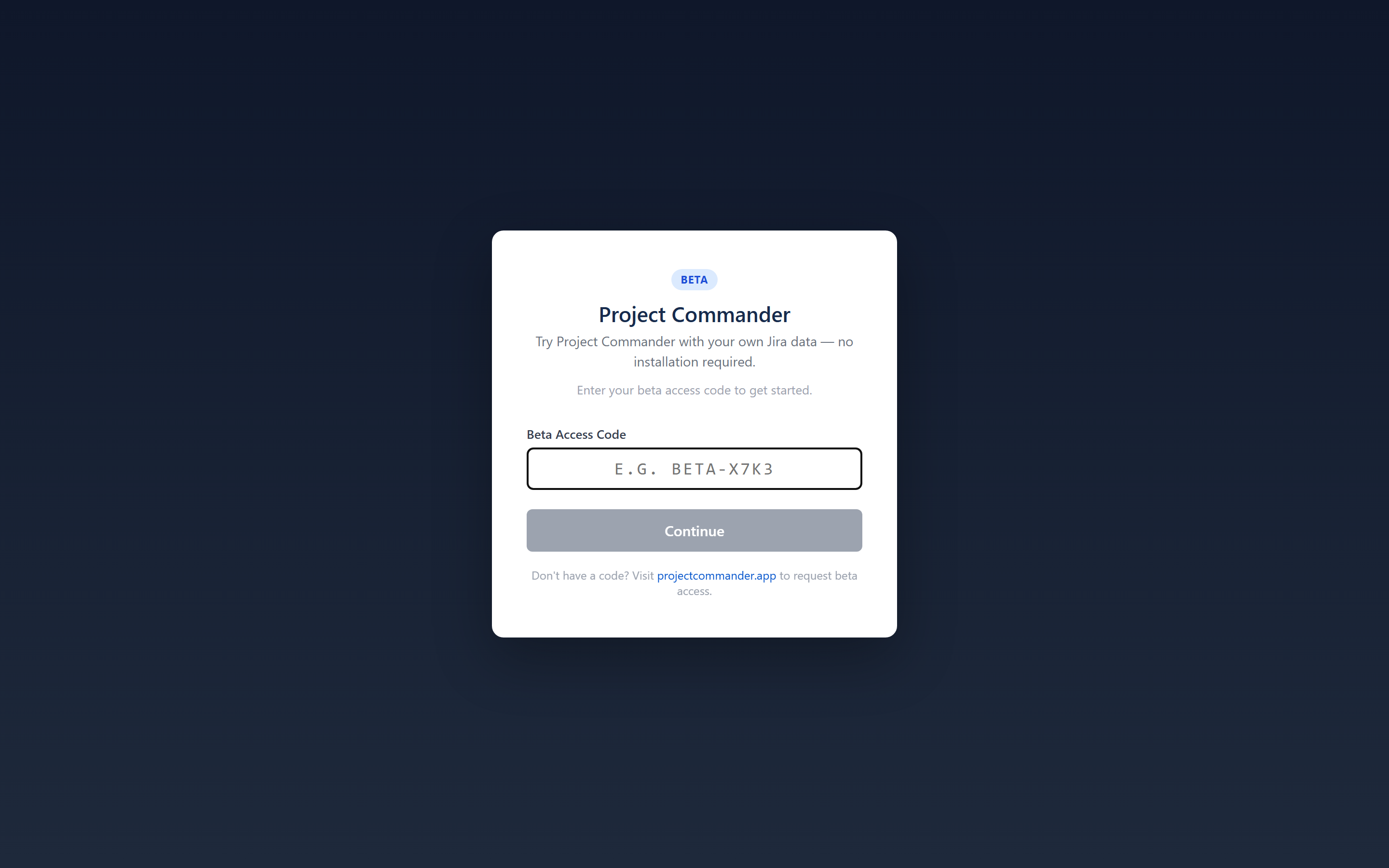
Step 1: Enter Your Beta Access Code
The standalone app is currently in beta. Visit projectcommander.app/app and enter your beta access code. To request a code, email support@projectcommander.app.
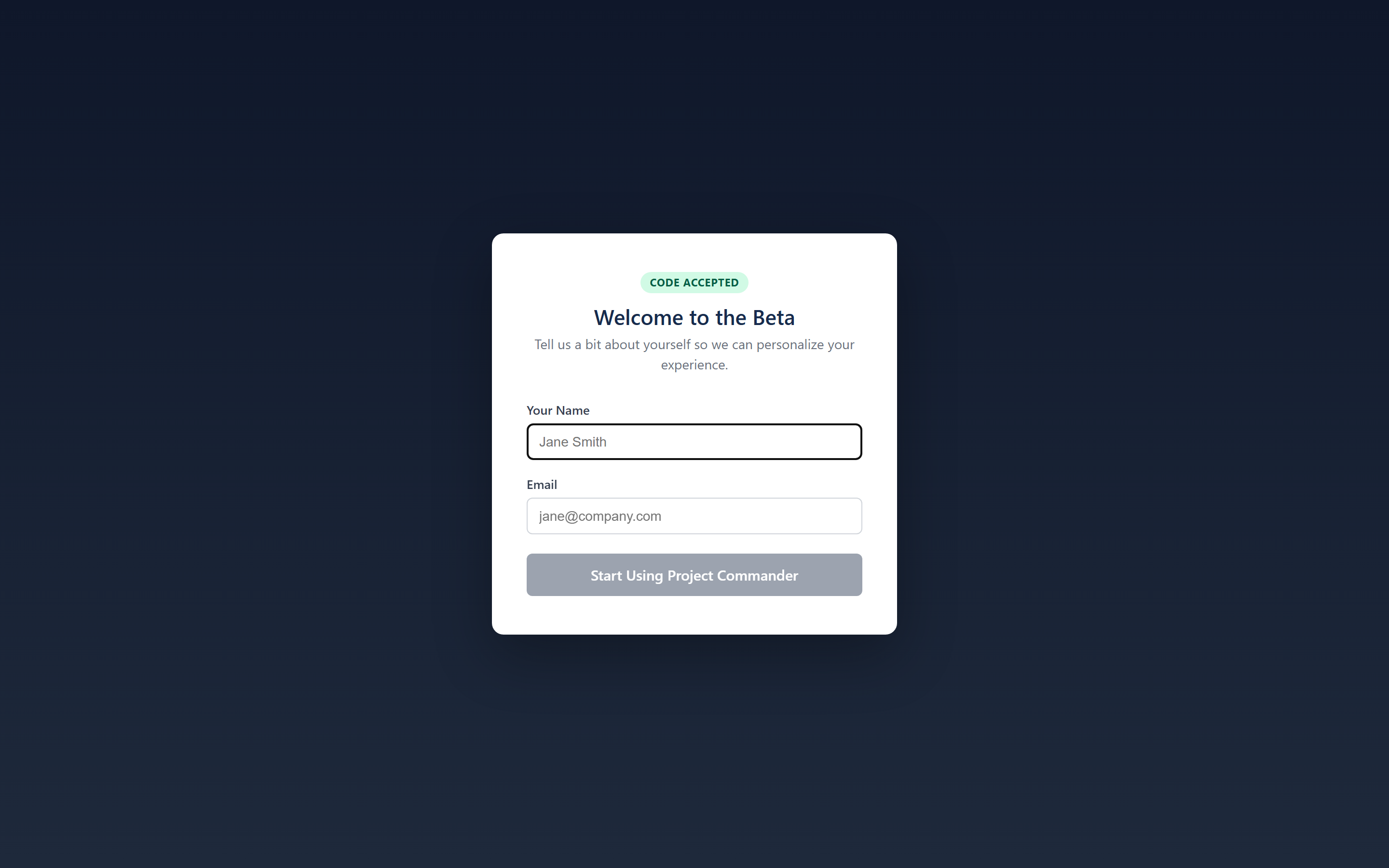
Step 2: Register
After entering a valid code, provide your name, email, and agree to the Terms of Service.
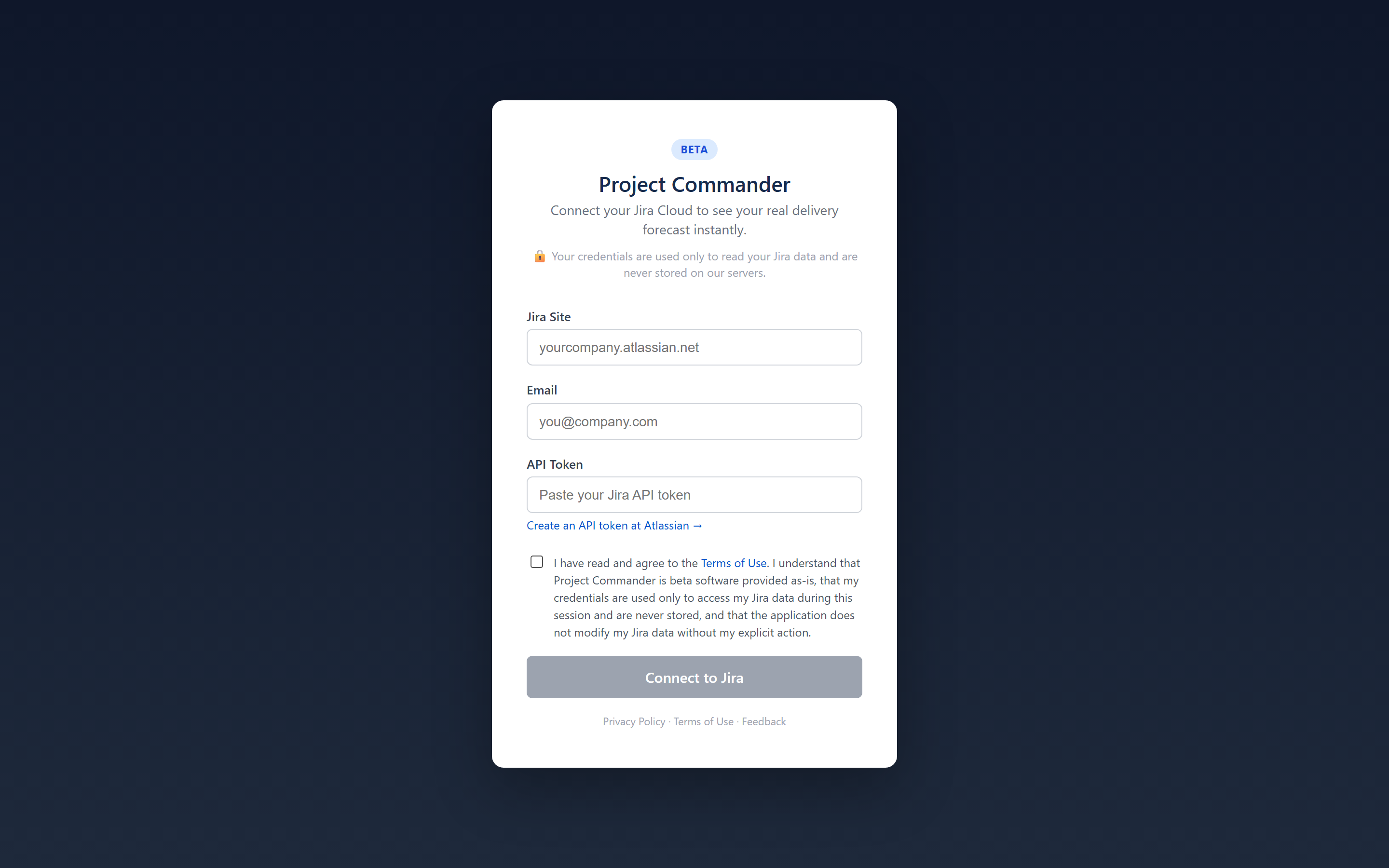
Step 3: Connect to Jira
Enter your Jira site URL, email, and an API token. Check the Terms of Use checkbox and click Connect to Jira.
Read-Only Mode
The standalone app starts in read-only mode for safety — it reads your Jira data to generate analysis but does not create, modify, or delete anything in Jira. When you're ready, enable write mode in Settings to unlock full functionality including drag-drop issue moves, Auto-Level, sprint creation, and more.
Security & Credentials
- Your credentials are stored only in your browser's session storage and are cleared when you close the tab
- Credentials are never transmitted to or stored on our servers
- The API proxy only forwards requests to
*.atlassian.netdomains - You can revoke your API token at any time at id.atlassian.com
Disconnecting
Click the Disconnect button in the top banner to end your session and clear your credentials from the browser.
1c. CSV Import (Standalone Only)
The standalone web app can import project data from any CSV file — no Jira required. On the Connect page, select the Upload CSV tab.
Step 1: Upload Your File
Drag and drop a CSV file or click to browse. The file must have a header row. Common formats from Jira, Azure DevOps, Asana, Monday.com, and spreadsheets are supported.
Step 2: Column Mapping
Project Commander auto-detects columns like Summary, Status, Story Points, Start Date, Due Date, Assignee, Priority, and Sprint. Review the mapping and adjust any fields that weren't detected.
A Summary column is required. All other columns are optional. If no Sprint column is present, the app switches to Tasks mode — a flat list with date-based planning instead of sprint lanes.
Step 3: Status Mapping
Map your status values (e.g., "Open", "In Review", "Closed") to three categories: To Do, In Progress, and Done. The app auto-guesses based on common status names.
Step 4: Confirm & Import
Review the summary and click Import. Your data is stored locally in the browser (IndexedDB) — nothing is sent to a server.
Tasks Mode (No Sprints)
When your CSV has no Sprint column, the Sprints tab becomes the Tasks tab. Issues appear as a flat list sorted by date. All other tabs (Dashboard, What-If, Team & Capacity, Scope, Alerts) work normally using weekly time buckets instead of sprints.
Work Leveling
In CSV mode, the Level Work banner appears above all tabs. Click it to automatically redistribute task dates so no single week exceeds your team's capacity. The algorithm respects priorities and dependencies. After leveling, you can Accept the changes or Cancel to revert. An Undo option is available after accepting.
Work Leveling can be disabled in Settings → Advanced → Enable Work Leveling.
2. Getting Started
When you first open Project Commander, click the Settings gear icon (⚙) in the tab bar to configure the app. Three settings determine what the app shows you.
Step 1: Set Your JQL Filter
The JQL filter defines which Jira issues appear across all tabs. Enter any valid JQL query, for example:
project = PROJ— all issues in a projectproject = PROJ AND sprint in openSprints()— only open sprint issuesproject = PROJ AND labels = "release-2.0"— issues with a specific label
All tabs share the same issue data from this filter.
Step 2: Enable Sprint Mode (Optional)
If your team uses Jira sprints, enable Sprint Mode and enter your Board ID. You can find the Board ID in your Jira board URL: /boards/123.
Sprint Mode unlocks the Sprints tab (sprint planning, drag-drop, auto-level) and the What-If tab. All other tabs work with or without Sprint Mode.
Step 3: Choose an Estimation Mode
Choose how your team measures work:
- Points — uses Jira story points. Capacity defaults to a manual limit, or can be auto-calculated from team Points Per Sprint.
- Time — uses Jira time tracking (remaining estimate). Capacity is auto-calculated from team availability configured on the Team & Capacity tab.
Step 4: Save
Click Save Configuration. The app will load your data and display the appropriate tabs.
Quick Start
At minimum you need a JQL filter. Sprint Mode and Board ID are only required if you want the Sprints tab. You can use the Team & Capacity, Scope, Alerts, and What-If (Project view) tabs with just a JQL filter.
Tab Overview
| Tab | Purpose | Requires |
|---|---|---|
| Dashboard | Single-screen project health overview with key metrics and navigation | Always visible |
| Sprints | Sprint planning with drag-drop, auto-level, and capacity tracking | Sprint Mode ON + Board ID |
| What-If | What-if analysis and Monte Carlo simulation — Sprint view (by sprint) and Project view (by week) | Always visible (Sprint view requires Sprint Mode ON) |
| Team & Capacity | Team capacity, time off, holidays, and demand vs capacity chart | Always visible |
| Scope | Scope and burndown timeline chart with delivery forecast | Always visible |
| Alerts | Issue problems and dependency analysis | Always visible |
| Epics | Epic progress, forecasts, scope growth, and cross-epic dependencies | Always visible |
3. Configuration
Click the Settings gear icon (⚙) in the tab bar to open the configuration panel. Settings are saved per Jira site and shared across all users.
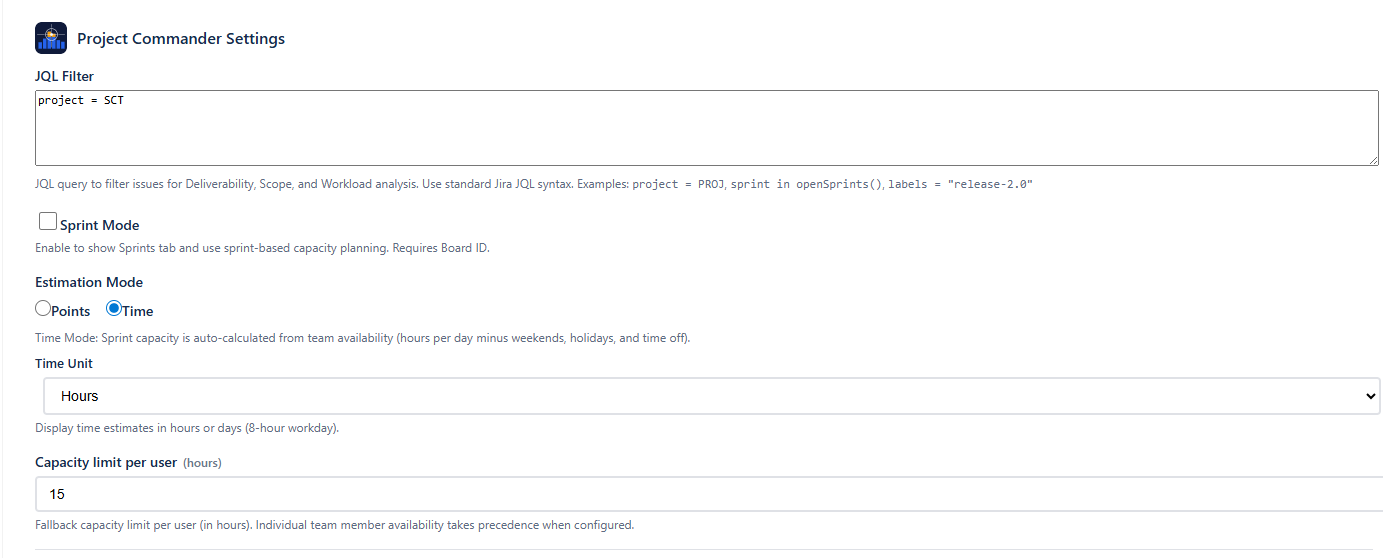
Settings Reference
Settings appear in this order. Some are only visible when certain conditions are met.
| Setting | Type | Default | Visible When |
|---|---|---|---|
| JQL Filter | Text area | Empty | Always |
| Epics | Checkbox | On | Always |
| Sprint Mode | Checkbox | On | Always |
| Board ID | Number | Empty | Sprint Mode ON |
| Include Backlog | Checkbox | On | Sprint Mode ON + Board ID entered |
| Capacity Mode | Radio: Per Sprint / Per User | Per Sprint | Sprint Mode ON |
| Progress Indicator | Dropdown | Points (Points Mode) / Estimate (Time Mode) | Sprint Mode ON |
| Capacity Limit | Number (min: 1) | 40 (sprint) / 20 (user) | Sprint Mode ON |
| Sprint Length | Dropdown: 2/3/4 weeks | 2 weeks | Sprint Mode ON |
| Velocity Lookback | Dropdown: 3 / 5 / 8 / 10 sprints | Last 5 sprints | Sprint Mode ON (also settable from Dashboard and What-If) |
| Estimation Mode | Radio: Points / Time | Points | Always |
| Time Unit | Dropdown: Hours / Days | Hours | Estimation Mode = Time |
| Display Columns | Multi-select with search | Key, Summary, Assignee, Story Points | Always |
| AI Features | Password field | Empty | Always |
Setting Details
JQL Filter
Standard Jira JQL syntax. This query fetches the issues used across all tabs (Team & Capacity, Scope, Alerts, What-If (Project view)).
Epics
Shows or hides the Epics tab. When enabled, you get high-level epic progress tracking, delivery forecasts, scope growth analysis, and cross-epic dependency views.
Sprint Mode
Enables sprint-based features. When on, seven sub-settings appear indented below. When off, the Sprints tab and What-If tab are hidden, but all other tabs continue to work using the JQL filter.
Board ID
Your Jira board number, found in the board URL (/boards/123). Required for the Sprints tab to load sprint data.
Include Backlog
When enabled, unscheduled backlog issues from the board appear below the sprint list. This setting only appears once you have entered a Board ID.
Capacity Mode
- Per Sprint — one capacity limit shared across the entire sprint. Demand is the sum of all issue estimates.
- Per User — individual capacity limits per team member per sprint. Auto-Level distributes work to balance each person's load.
Progress Indicator
Controls the small progress display in each sprint card header.
- Points (Done / Total) — available in Points mode. Shows completed story points as a percentage of total.
- Estimate (Remaining / Original) — available in Time mode. Shows how much remaining estimate has been worked off relative to original estimate.
- Work Ratio — available in Time mode. Shows time spent as a percentage of total effort (spent + remaining).
Capacity Limit
The Settings default capacity when no other source is active. The label changes based on your Capacity Mode:
- Per Sprint: "Capacity limit per sprint" — the Settings default capacity for each sprint as a whole
- Per User: "Capacity limit per user" — the Settings default capacity for each individual team member
This limit is used when Settings default is selected on a sprint's capacity dropdown. If you select Capacity settings (Per User) or Team (Per Sprint), team-based calculations take over. If you select Custom for sprint (Per User) or Custom (Per Sprint), you enter your own number. See How Capacity Works for the full explanation.
Sprint Length
Duration of new sprints created by Auto-Level: 2, 3, or 4 weeks. Auto-Level generates sequential, contiguous dates based on this setting.
Velocity Lookback
Controls how many past periods are included in velocity calculations and scope/burndown charts. This is a global setting that can be changed from four places: Settings, Dashboard (next to the velocity projection radio), Sprints tab (Velocity section), and What-If. The label adapts: "Last N sprints" when a Board ID is configured, or "Last N weeks" when using JQL only. Range: 3–10, default 5.
Estimation Mode
Controls how capacity is determined:
- Points — capacity defaults to the Capacity Limit setting, but can also be auto-calculated from team members' Points Per Sprint on the Team & Capacity tab.
- Time — sprint capacity is auto-calculated from team members' weekly capacity values configured on the Team & Capacity tab.
Switching Estimation Mode automatically adjusts the Progress Indicator. See Estimation Modes for the full cascade.
Time Mode requires team setup
In Time Mode, a warning appears if no team members are configured. Go to the Team & Capacity tab to add team members, set their hours, and configure holidays and time off.
Time Unit
Display time values in hours or days. Only visible in Time mode. Uses an 8-hour workday for conversion (1 day = 8 hours).
Display Columns
Choose which columns appear in sprint issue tables. The default set is Key, Summary, Assignee, and Story Points. There are 20 standard columns available:
Type, Key, Summary, Assignee, Reporter, Priority, Status, Story Points, Original Estimate, Remaining Estimate, Time Spent, Sprint, Start Date, Due Date, Epic, Epic Link, Parent, Subtasks, Linked Issues, Labels.
To add columns, click the dropdown and check the ones you want. To search for Jira custom fields, type at least 2 characters in the search box. You can also type a name and press Enter to add a custom column.
AI Features
Enter an Anthropic API key to enable AI-powered features: the Ask AI chat on the Dashboard, and AI risk analysis on the What-If tab (both Sprint and Project views). The key is stored in your app configuration and used to call Claude. Format: sk-ant-...
Auto-Switching Cascade
Switching Estimation Mode automatically adjusts related settings to stay consistent:
| When You Switch To | What Changes Automatically |
|---|---|
| Points | Uses Story Points field, Progress Indicator → Points |
| Time | Uses Remaining Estimate field, Progress Indicator → Estimate |
This means you only need to choose your Estimation Mode — the other settings follow automatically.
4. Dashboard Tab
The Dashboard is your project's home screen — a single view that shows overall health, key metrics, and where to focus your attention. It is always visible as the first tab, regardless of Sprint Mode or Board ID settings. Click any card to navigate directly to the relevant detail tab.
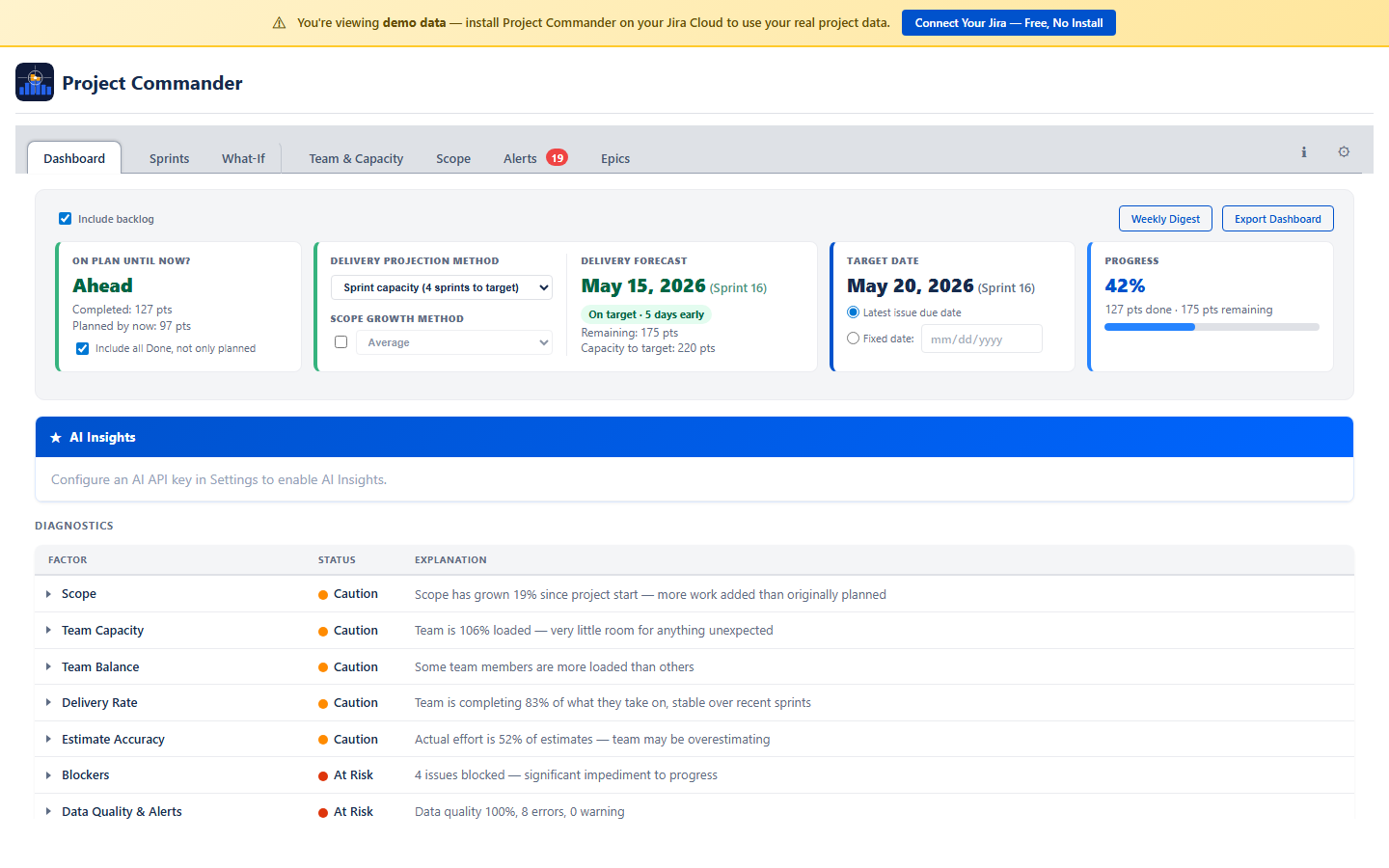
Are We On Track?
The top card answers one question: "Are we on track?" It compares the projected completion date against the target date and shows status as OK (green), Caution (amber), or At Risk (red).
Projected Date & Target Date
Two side-by-side panels let you configure the projection:
- Projected Date — choose between:
- Team velocity based — calculated as:
remaining work ÷ weekly throughput = weeks needed, thentoday + weeks needed = projected date. Weekly throughput comes from average velocity divided by sprint length in weeks. If estimate accuracy data is available (time spent vs original estimate), remaining work is adjusted upward when estimates are consistently too low. - Sprint plan based — end date of the last sprint that has assigned work (Sprint Mode only)
- Team velocity based — calculated as:
- Target Date — choose Latest issue due date (auto-derived) or Fixed date (manual date picker)
- Include backlog checkbox (Sprint Mode) — include or exclude backlog issues from calculations
Progress Bar
A progress bar shows overall completion percentage, color-coded to match the on-track status.
AI Insights
A collapsible panel that auto-generates an AI analysis of your project status. Each bullet point is prefixed with PROJECT STATUS: or TEAM & PLAN HEALTH: and is expandable for more detail. Recommendations are listed separately. You can ask follow-up questions in the chat input.
Diagnostics Table
A single expandable table showing all project health factors. Factors already covered by the stat cards above (On Track, Schedule Performance, Completion %, Work Ratio, and Deliverability) are omitted to avoid duplication. Click any row with a caret to expand for a detailed breakdown.
| Factor | What It Shows | Calculation |
|---|---|---|
| Scope | Project-wide scope growth percentage since start | (current scope − original scope) / original scope × 100. ● Green if ≤10%. ● Amber if 11–25%. ● Red if >25%. |
| Capacity | Team utilization percentage | remaining demand / total capacity × 100. ● Green if 60–90%. ● Amber if <60% or 91–110%. ● Red if >110%. |
| Delivery Rate | Percentage of capacity actually delivered, with trend | average(completed / capacity) across recent sprints, with trend direction (improving, stable, declining). ● Green if ≥85%. ● Amber if 65–84%. ● Red if <65%. |
| Estimate Accuracy | Time spent vs original estimate — are estimates reliable? | total time spent / total original estimate × 100. ● Green if 80–110%. ● Amber if <80% or 111–130%. ● Red if >130%. |
| Team Balance | Workload distribution across team members | Compares each member’s load% (demand / capacity × 100). ● Green if all members 50–100%. ● Amber if any member >100% or <50%. ● Red if any member >115% while another is <60%. |
| Blockers | Count of blocked issues with dependency details | Counts non-done issues with status “Blocked” or with blocking dependencies. ● Green if 0. ● Amber if 1–2. ● Red if ≥3. |
| Data Quality & Alerts | Data confidence score plus error and warning counts | Confidence score = weighted average of issues with estimates, dates, and assignees. Alerts = done issues with remaining work (errors) + overdue issues + missing estimates (warnings). ● Green if score ≥80% and 0 alerts. ● Amber if score ≥50% or warnings only. ● Red if score <50% or errors present. |
Each row shows a status dot (green/amber/red/black) and a plain-language explanation.
Suggested Actions
When any diagnostics factor is amber or red, a Suggested Actions panel appears below the table with 1–3 prioritized action items. Each action describes the problem and links to the relevant tab:
- Fix data quality — navigates to Alerts tab to address missing estimates, dates, or assignees
- Resolve blockers — navigates to Alerts tab to unblock stuck issues
- Rebalance workload — navigates to Sprints tab to use Auto-Level
- Review scope — navigates to Scope tab to investigate growth
Click any action to jump directly to the relevant tab. When all factors are green, no actions appear.
Global Target Date
The target date is shared across the Dashboard, What-If, and What-If (Project view) tabs. Setting it in one place updates all three. The What-If and What-If (Project view) tabs automatically select the sprint or week that matches the target date.
Export Dashboard
Click Export Dashboard in the top-right corner to download a snapshot of the dashboard as a PDF file.
Weekly Digest
Click Weekly Digest in the top-right corner to open a preview of a comprehensive weekly project summary. You can export it as a PDF to share with stakeholders. It includes:
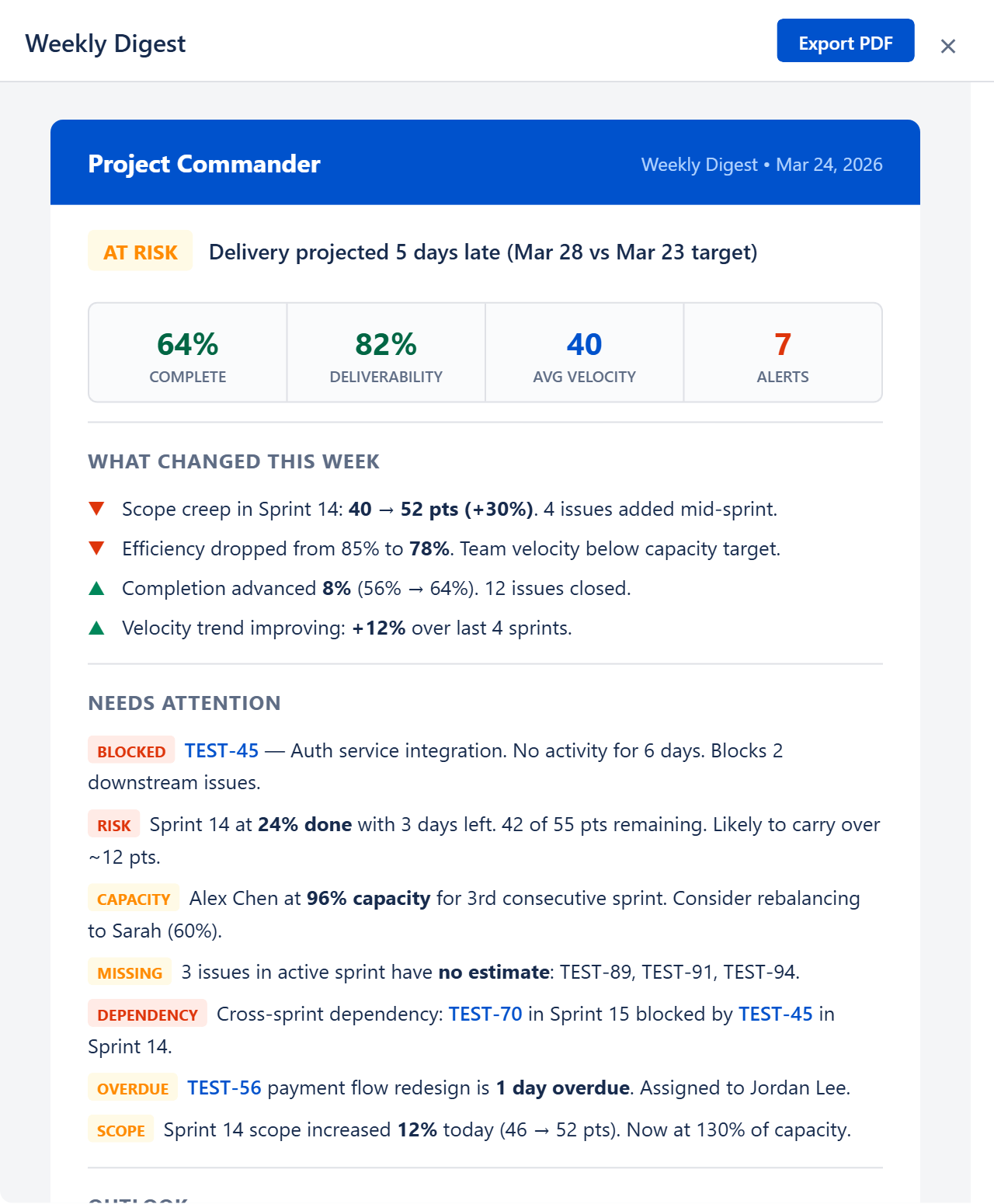
- Status badge — ON TRACK (green), AT RISK (amber), or CRITICAL (red) based on health score and delivery forecast
- Status reason — one-line explanation, e.g. "Delivery projected 5 days late (Mar 28 vs Mar 23 target)"
- Key numbers — Completion %, Feasibility %, Average Velocity, and Alert count
- What Changed This Week — scope creep, efficiency changes, completion progress, and velocity trends with up/down indicators
- Needs Attention — all active alerts with severity-colored badges (BLOCKED, RISK, SCOPE, CAPACITY, MISSING, DEPENDENCY, OVERDUE) and descriptions
- Outlook — forward-looking summary with velocity projection, remaining backlog, estimated sprints and clearance date
Ask AI
After the health cards, an Ask AI section lets you type natural-language questions about your project. For example: "Which sprints are at risk?", "Who is overloaded?", or "What should I focus on this week?"
The AI receives your project context — sprints, issues, capacity, velocity, and feasibility data — and returns a focused answer. This feature requires an Anthropic API key configured in Settings (see AI Features).
No Data State
If no JQL filter is configured, the Dashboard shows a "No Data Available" message prompting you to open Settings and configure a JQL filter.
5. Sprint View
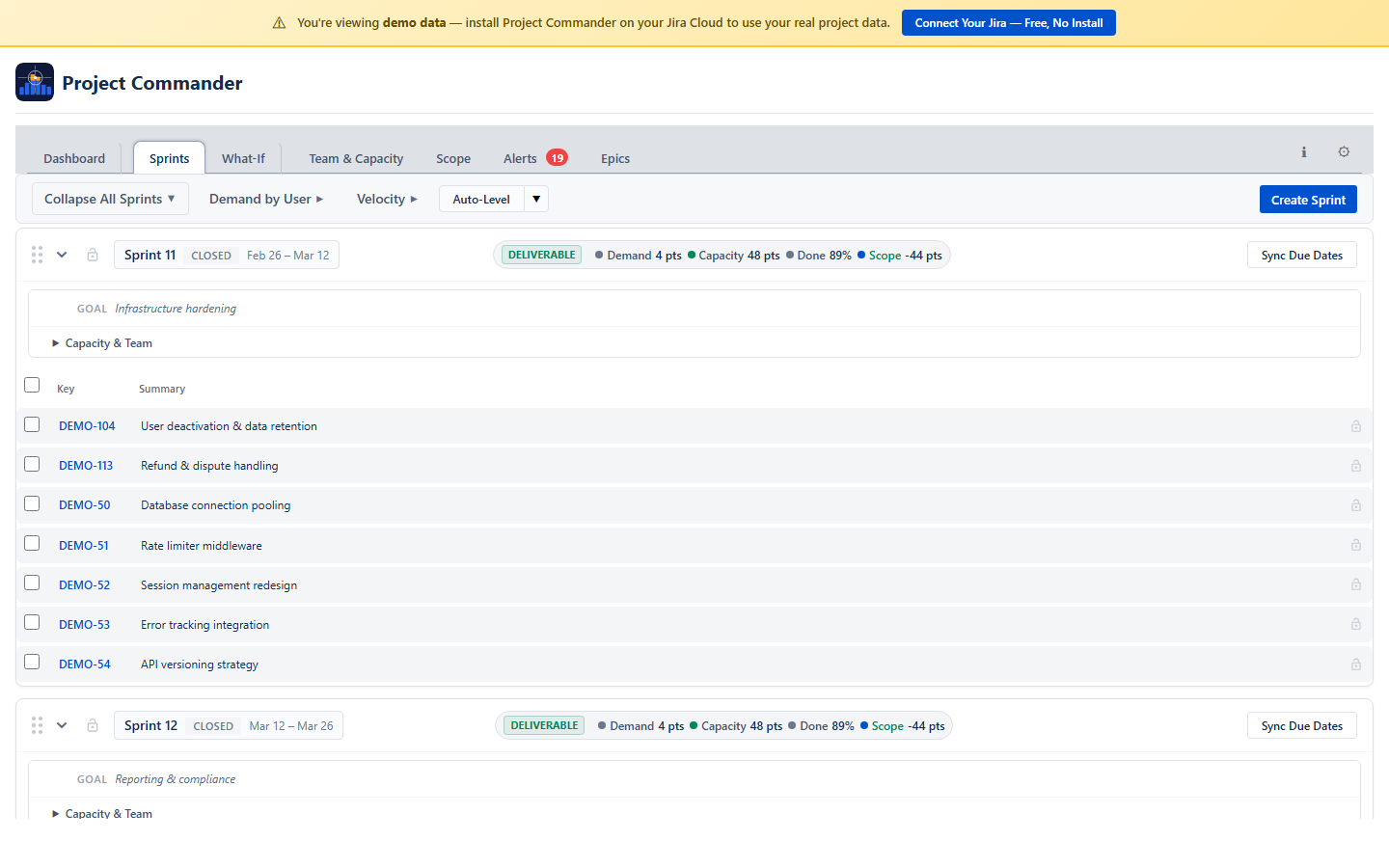
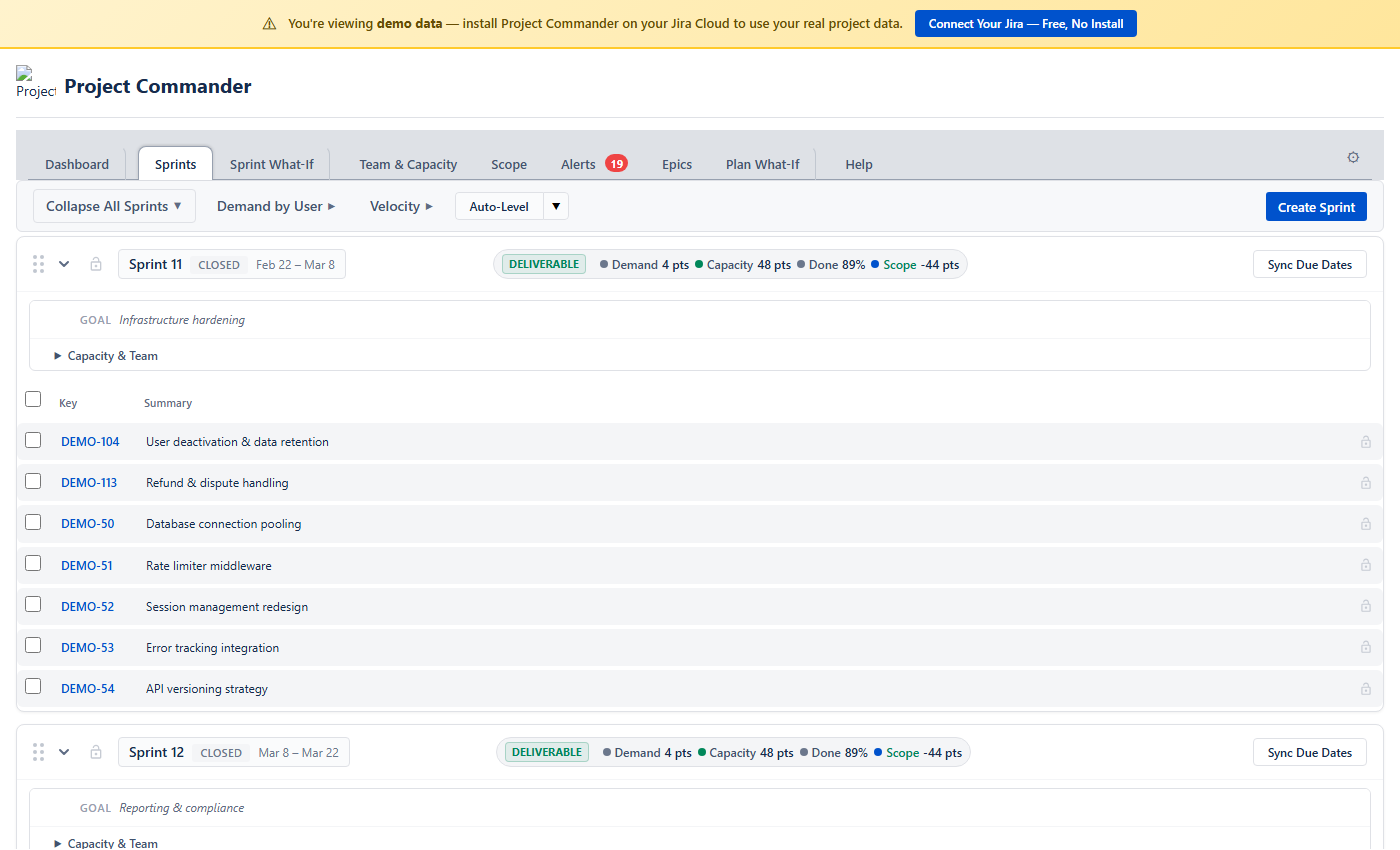
The Sprints tab is where you plan and manage your work across sprints. Each sprint appears as a collapsible card showing its issues, capacity, and team workload. To see the Sprints tab, enable Sprint Mode and enter a Board ID in Settings.
What You See
The page is organized top to bottom:
- Action bar — Dependencies button, refresh, and other actions
- Toolbar — a unified row with collapsible sections (click each label arrow to expand):
- Velocity — historical sprint performance chart and KPI tiles (see Velocity Tracking)
- Demand by User — colored chips per assignee showing workload across all sprints. Click a chip to filter sprints to that person.
- Auto-Level — strategy pills for auto-leveling (see Auto-Level)
- Collapse/Expand All — toggle all sprint cards and backlog open or closed
- Create Sprint — a dedicated row for creating new sprints
- Sprint cards — one card per sprint, in board order. Each card has a compact header row and an expandable details panel. Below the header is the issue table.
- Backlog — if Include Backlog is on, a backlog section appears at the bottom with unscheduled issues.
Sprint Card Header
The header row gives you a quick summary without expanding anything:
- Grab handle — drag to reorder sprints on the page
- Chevron — expand or collapse the issue table
- Lock icon — lock the sprint so Auto-Level won't touch it
- Sprint name and dates
- Deliverability badge — a colored badge showing sprint health:
- DELIVERABLE (green) — demand ≤ capacity
- TIGHT (amber) — demand within 10% of capacity
- OVERCOMMITTED (red) — demand exceeds capacity
- Header stats — compact inline display of demand, capacity, done %, and scope delta. If remaining demand exceeds capacity, the scope value turns red with a positive number (e.g., "Scope +12 pts").
- Progress bar — a small indicator showing how much work is done. In Points Mode this shows completed points out of total. In Time Mode this shows how much of the original estimate has been worked off.
- Action buttons — Sync Dates, Start, Complete, Delete, Refresh (which buttons appear depends on the sprint state)
- Sprint Risk Badge (future sprints only) — a colored badge showing dependency risk:
- 🟢 No Risk — no incomplete blockers in earlier sprints
- 🟡 Medium Risk — some blockers in earlier sprints are still in progress
- 🔴 High Risk — some blockers in earlier sprints have not started yet
Sprint Details Panel
Click the Sprint Details toggle below the header to expand additional information:
- Goal — the sprint goal. Click the text to edit it; changes save to Jira automatically.
- Scope Creep (active sprints only) — compares the sprint's current scope to what it had when it started. Shows something like "Scope: 40 pts → 52 pts +30%". Click it to see exactly which issues were added or removed mid-sprint.
- Capacity settings — the capacity value (click to edit), unit label, and a dropdown for controlling the capacity source: Settings default, Capacity settings/Team, or Custom for sprint/Custom (see How Capacity Works below).
- By User — a collapsible user filter with two modes:
- Collapsed — colored avatar circles for each person. Click any avatar to toggle that user's visibility — excluded users turn gray and their issues are hidden from the sprint. A red ring means over capacity, green means within limits.
- Expanded (click the chevron) — full user rows with avatar, name, demand vs capacity bar, and stats. Click any row to toggle that user's filter. Excluded rows are dimmed. The filter state is shared between both views.
Issue Table
When a sprint is expanded, you see its issues in a table. The columns shown are the ones you selected in Display Columns (Settings). Every row has:
- A checkbox for selecting the issue (used for multi-select drag)
- A lock icon to pin the issue in place (it won't be moved by Auto-Level or dragged accidentally)
- The issue key (e.g., PROJ-42) — if this issue has a dependency conflict, a warning icon appears next to the key
- Your configured columns (Summary, Assignee, Points, Status, etc.). In Time mode, the "Story Points" column header automatically changes to "Time (hrs)" or "Time (days)" to match the configured time unit.
Due dates in the past are highlighted in red. Assignees show a colored avatar chip.
Column Sorting
Click any column header to sort the issues in that sprint. Click again to reverse the order, and a third time to clear the sort. A small arrow (↑/↓) shows which column is sorted and in which direction.
Sorting is per-sprint (each sprint sorts independently) and resets when you reload. It is not saved. If you manually reorder an issue (by dragging within the sprint), the sort is cleared.
How Capacity Works
Each sprint has a capacity value that represents how much work it can hold. A dropdown in the sprint header controls where this number comes from:
| Option | Per Sprint mode | Per User mode |
|---|---|---|
| Settings default | Uses the Capacity Limit from Settings | Each assignee gets the per-user limit from Settings; sprint total = users × limit |
| Team / Capacity settings | Uses calculated capacity from team config | Each person's capacity is calculated from the Team & Capacity tab & sprint dates |
| Custom / Custom for sprint | You type a sprint total | You type a per-user value; sprint total = users × your value |
Settings default
The sprint uses the Capacity Limit from Settings. In Per Sprint mode, this is the whole sprint's capacity. In Per User mode, each assignee gets the per-user limit, and the sprint total is the sum (displayed as "N × limit = total").
Team / Capacity settings
In Per User mode (labeled "Capacity settings"), capacity is calculated from team members configured on the Team & Capacity tab:
- Points Mode — for each week that overlaps the sprint:
sum(member's weekly points × utilization% × overlap fraction). Overlap fraction accounts for weeks that start or end mid-sprint. Holidays and time-off days reduce the overlap fraction proportionally. - Time Mode — for each week that overlaps the sprint:
sum(member's weekly hours × utilization%), minus hours for holidays and time off. Days = hours ÷ 8 (8-hour workday).
The display shows a formula: assignees × per-user capacity = sprint total.
In Per Sprint mode (labeled "Team"), capacity is calculated from team config. If no team members are configured, the option is greyed out.
Custom / Custom for sprint
Opens an inline number editor where you type a capacity value. In Per Sprint mode, this is the sprint total. In Per User mode, you enter a per-user value and the sprint total is calculated as users × your value (displayed as "N × value = total").
Capacity Display
The sprint header shows capacity remaining — the total capacity minus completed work. This lets you compare remaining demand against remaining capacity at a glance. If remaining demand exceeds capacity remaining, the demand stat turns red and an "over by X" indicator appears. When no issues are done yet, capacity remaining equals the full sprint capacity.
In the Sprint Details panel, the label shows Capacity/Sprint: (in Per Sprint mode) or Capacity: (in Per User mode), followed by the capacity value. In Per User mode, the value is shown as a formula: "N × per-user = total". Click the value to switch to Manual mode and edit it.
6. Sprint Management
You manage the sprint lifecycle directly from each sprint card's action buttons.
Creating a Sprint
Click + Create Sprint below the sprint list. The new sprint gets dates that follow on from the last sprint, using the Sprint Length you configured (2, 3, or 4 weeks).
Starting a Sprint
Click Start on a future sprint to make it active. If you already have an active sprint, a warning asks you to confirm that you want two sprints running at the same time.
Completing a Sprint
Click Complete on an active sprint. If there are unfinished issues, a dialog lets you choose where to move them — to another sprint or back to the backlog. When the sprint completes, its velocity data is automatically captured for the Velocity section.
Deleting a Sprint
Click the delete button and confirm. The sprint is removed and its issues move to the backlog.
Editing the Goal
Open the Sprint Details panel, then click the goal text. Type your changes and press Enter or click away to save.
Syncing Issue Dates
You can align issue dates with sprint boundaries:
- Sync Dates (per sprint) — sets every issue's start date and due date to match that sprint's start and end dates
- Sync All — does the same for every sprint at once
- Remove All — clears start and due dates from all issues in all sprints
This is useful for features like the Team & Capacity chart and What-If (Project view) that rely on issue dates.
7. Drag and Drop
Moving Issues Between Sprints
Drag any issue row from one sprint and drop it onto another sprint card. The issue is moved in Jira immediately. You can also drag issues to the backlog at the bottom.
Moving Multiple Issues
Check the boxes next to several issues, then drag any one of them. All selected issues move together. A badge shows how many you're moving (e.g., "5 issues"). A bar above the sprint list shows your selection count with a Clear selection button.
Reordering Within a Sprint
Drag an issue up or down within the same sprint to change its position. A blue line shows where it will land. This custom order is saved and persists across sessions.
Reordering is disabled while a column sort is active. If you reorder an issue, the sort clears.
Auto-Scroll
While dragging, move your cursor near the top or bottom edge of the screen. The page scrolls automatically so you can reach sprints that aren't currently visible.
Locked Issues
Click the lock icon on an issue to prevent it from being dragged. Locked issues also stay in place during Auto-Level.
8. Auto-Level
Auto-Level is a planning tool that redistributes issues across sprints so that no sprint exceeds its capacity. It uses each sprint's capacity setting: Manual numbers if set, Team-calculated values if selected (Per User mode), or the Settings default otherwise. It respects dependencies (blockers always go in earlier sprints) and leaves locked issues and sprints alone. Everything happens as a preview first — nothing is saved to Jira until you explicitly accept.
How to Use It
- Click the Auto-Level button in the Sprints toolbar. A dropdown appears with strategy options: Priority, Size, Due Date, Balanced, Velocity, and Compare All.
- Click a strategy pill to start a session. The sprints rearrange in preview mode immediately. Each moved issue shows a purple badge indicating where it came from.
- Review the results. You can:
- Click a different strategy pill to try another approach
- Manually drag issues to fine-tune (these show orange badges)
- Click Undo to reset and try again
- When you're happy, click Accept to save all changes to Jira. Or click Exit to discard everything and leave the auto-level session.
Strategies
| Strategy | How It Decides What Goes Where |
|---|---|
| Priority | Puts the highest-priority issues first, filling sprints front to back |
| Size | Puts the smallest issues first, filling sprints front to back |
| Due Date | Puts the soonest-due issues first, filling sprints front to back |
| Balanced | Tries to spread work evenly. Places large issues first, picking the sprint where each one fits best based on remaining room, how much work each person already has in that sprint, and whether the sprint end date aligns with the issue's due date. |
| Velocity | A toggle pill that uses historical efficiency to set sprint limits. When active, the other four strategy pills are disabled. See Using Velocity as Capacity below. |
All strategies respect dependencies: if issue A blocks issue B, then A is always placed in an earlier (or same) sprint as B. If circular dependencies exist, they are detected and flagged so you know to resolve them.
Algorithm Details
Auto-Level uses a greedy bin-packing algorithm with dependency constraints. First, it builds a dependency graph and performs a topological sort so blockers always come before blocked issues. Each issue gets a minimum sprint index = 1 + max(blocker's sprint index), ensuring blockers are placed first. Then, in strategy order, each issue is placed into the earliest sprint (starting from its minimum) that has available capacity. If no sprint has room, a new sprint is created (up to 10). Completed work in each sprint is subtracted from capacity so remaining room is calculated accurately.
Earliest Available Sprint
Priority, Size, and Due Date strategies pack issues into the earliest sprint with available capacity. This means an issue can move backward to an earlier sprint if there is room, not just forward. This ensures sprints are filled front-to-back as efficiently as possible.
What Gets Moved
- All non-done issues from unlocked sprints are picked up and redistributed
- Done, closed, and resolved issues stay where they are — and their completed work is subtracted from sprint capacity so remaining room is calculated accurately
- Subtasks are excluded from moves (they follow their parent issue)
- Locked issues stay in place
- Issues in locked sprints are not touched
- If an issue is larger than any sprint's capacity (oversized), it is placed in a dedicated overflow sprint to keep other sprints balanced
New Sprints
If the existing sprints don't have enough room, Auto-Level creates new ones (up to 10). New sprints get dates that follow on from the last sprint using your Sprint Length setting, and their capacity defaults to the average of your existing sprints.
Per-User Mode
When Capacity Mode is set to Per User in Settings, Auto-Level tracks each person's workload per sprint individually. If someone is overloaded in a sprint, their excess issues are moved to a sprint where they have room.
Using Velocity as Capacity
If you have velocity data (from completed sprints), the Velocity toggle pill appears in the strategy row. Click it to activate velocity-based capacity. This tells Auto-Level to calculate sprint limits based on each team member's historical efficiency against their real available capacity (from the Team & Capacity tab), rather than using the configured limit or raw team availability.
When enabled:
- Per-user efficiency — for each team member, the app calculates how much of their available capacity they actually completed on average across recent sprints (capped at 100%). New members with no history use the team average.
- Adjusted sprint limits — each future sprint's limit is the sum of (member's future capacity × member's efficiency) for all active members. This gives a realistic prediction of actual output.
- Strategy pills disabled — the Priority, Size, Due Date, and Balanced pills are disabled because velocity-based distribution uses the efficiency-adjusted capacity directly.
For best results, configure your team on the Team & Capacity tab first. If no team capacity data is available, the feature falls back to the original behavior (flat historical average velocity).
Compare All
Click Compare All to run all four strategies at once and see a side-by-side comparison. The Delivery Forecast panel appears showing:
- KPI cards for each strategy — which sprint delivery lands in, the estimated date, and how many sprints are overloaded. The best strategy is highlighted.
- Probability curves — Monte Carlo simulations for each strategy overlaid on one chart. You can see which strategy gives the highest probability of on-target delivery. Click legend items to show or hide individual curves.
Strategy colors: Priority (blue), Size (orange), Due Date (green), Balanced (purple), Original baseline (gray).
9. Velocity Tracking
Below the sprint cards, the Velocity section shows how your team has performed in past sprints. This data feeds into capacity calculations and the "Use velocity as capacity" option in Auto-Level.
KPI Tiles
Five summary tiles across the top:
- Avg Velocity —
mean(completed work per sprint)across the lookback window. Units match your Estimation Mode (points or hours/days). - Expected — projected output for the next sprint based on recent velocity trend (weighted toward more recent sprints)
- Per Week —
avg velocity ÷ sprint length in weeks - Efficiency —
mean(completed ÷ planned)across recent sprints — what percentage of planned work the team actually delivers. When Capacity tab data is available, a separate efficiency-vs-capacity metric tracks completed work against real available hours. - Completion —
mean(completed ÷ committed)— what percentage of committed work gets finished each sprint. Shows trend direction (improving, stable, declining) by comparing recent vs older sprints.
Filtering by User
A row of user chips lets you see velocity for specific team members. Click a name to filter; click "All" to show the whole team. You can select multiple people.
Velocity History
A table showing each completed sprint: name, length, capacity, completed work, per-week rate, and efficiency. The best-performing and worst-performing sprints are highlighted.
Click any row to expand it and see individual issues from that sprint — which were completed, which were left incomplete, and which were added or removed mid-sprint.
Building Your Velocity Data
Velocity data accumulates automatically each time you complete a sprint. If you're starting fresh or want to backfill history, use these buttons:
- Import from Completed Sprints — scans all previously completed sprints on your board and imports their data
- Reload — refreshes the velocity data
- Clear — removes all stored velocity data (asks for confirmation first)
10. Team & Capacity Tab
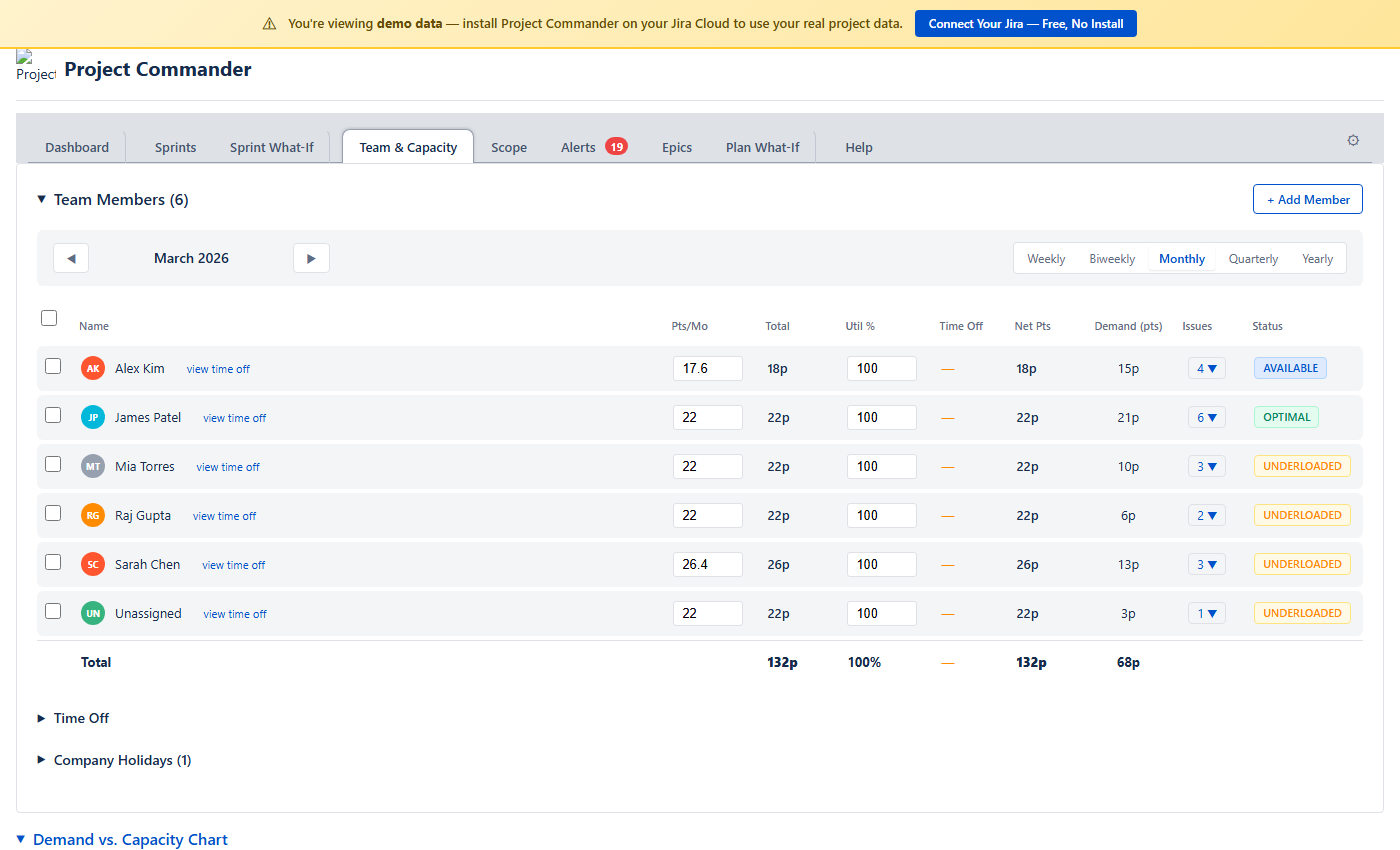
The Team & Capacity tab combines demand analysis and team configuration in one place. The Demand vs. Capacity chart appears first, followed by team configuration below.
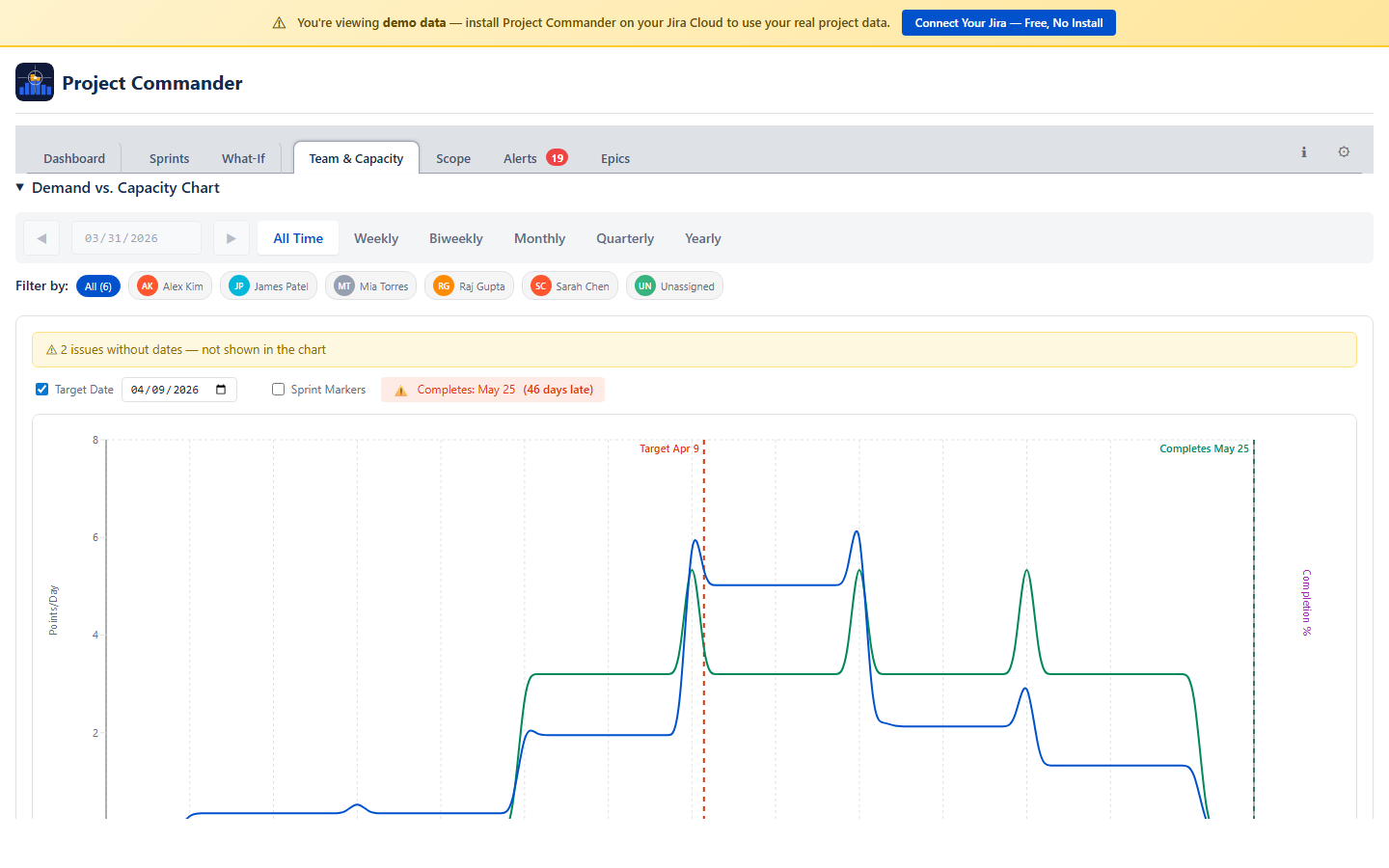
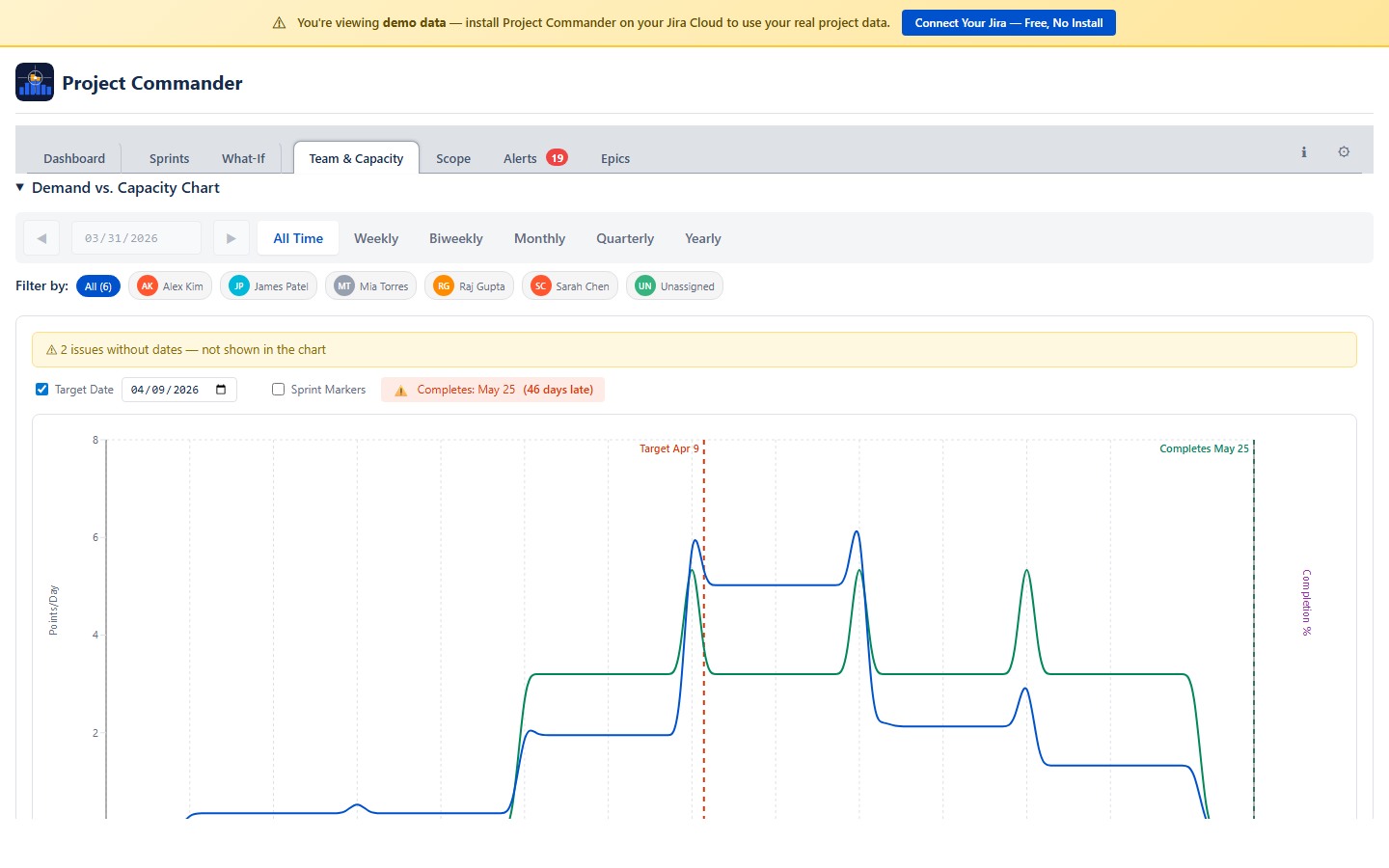
- Demand vs. Capacity Chart — shows demand and capacity traces over time. Where demand rises above capacity, you have a delivery risk. Filter by team member or time period.
- Team Members — configure each member's hours per sprint, utilization %, and view their demand and status
- Time Off — individual time off entries that reduce net capacity
- Company Holidays — shared holidays that affect the whole team
Three Sections
The tab has three collapsible sections. Click any section header to expand or collapse it:
- Team Members — your team roster and workload status
- Time Off — PTO calendar for individual team members
- Company Holidays — company-wide days off
Period Selector
A period bar at the top lets you choose the time range you're looking at: Weekly, Biweekly, Monthly, Quarterly, or Yearly. Arrow buttons navigate forward and back. All the numbers in the Team Members table (net capacity, demand, issue count) adjust to show values for the selected period.
Team Members
A table showing each team member with these columns:
| Column | What It Shows |
|---|---|
| Name | Team member name with a colored avatar. A view time off link opens a modal showing all of that person's time off (see below). |
| Hrs/Wk or Pts/Wk | Capacity per week (editable). In Time Mode shows hours per week; in Points Mode shows points per week. Edit to set all weeks in the current period to that value. |
| Total | Total capacity for the selected period — the sum of all weekly values |
| Util % | Utilization percentage (editable). Adjusts how much of a member's capacity is available for project work. Defaults to 100%. Persists to team member configuration. |
| Time Off | Total hours deducted for holidays and PTO in the period. Click the toggle to expand a detail row showing each holiday and PTO entry with dates and hours. |
| Net Hrs / Net Pts | Net capacity after deductions. Calculated as Total capacity minus holiday deductions minus PTO hours. In Time Mode shows Net Hrs (or Net Days); in Points Mode shows Net Pts. This is the number used for workload status. |
| Demand | How much work is assigned to them in the period |
| Issues | Number of issues assigned, with expandable dropdown showing issue keys and summaries |
| Status | A color-coded badge comparing demand against net capacity (after deductions) |
You can select multiple team members using the checkboxes. The Cap/Wk column shows "varies" if weeks in the period have different values.
Weekly Capacity Model
Capacity is stored as explicit per-week values. Each team member has a capacity value for each ISO week (Monday–Sunday). Weeks with no value set default to zero.
- Weekly view: Shows and edits the value for that specific week.
- Monthly/Quarterly/Yearly view: Shows the per-week value if all weeks are the same, or "varies" if they differ. Editing sets all weeks in the period to the entered value.
This model gives you full control — reduce capacity for holiday weeks, ramp new members up gradually, or set different values for different sprints. All downstream calculations (sprint capacity, feasibility, risk) resolve to weekly granularity.
If you have existing team data from before the weekly model, a migration banner appears with a "Populate weeks" button that fills the selected period from your previous rates.
Status Badges
Each team member gets a color-coded status based on how their assigned work (demand) compares to their net capacity — capacity after holiday and PTO deductions:
| Status | When It Appears | Color |
|---|---|---|
| OVERLOADED | Demand is more than 115% of capacity | Red |
| OPTIMAL | Demand is 90–115% of capacity | Green |
| AVAILABLE | Demand is 60–90% of capacity | Yellow |
| UNDERLOADED | Demand is less than 60% of capacity | Gray |
Time Off
A calendar view for managing PTO. Click a date to mark a single day off. Use Ctrl+click to toggle individual days on and off. Use Shift+click to select a range of dates.
Time off and company holidays are automatically deducted from each member's capacity. The deductions appear in the Time Off column of the Team Members table. Click the toggle arrow to expand a detail row listing each holiday and PTO entry with its date and hours deducted. The resulting Net column shows capacity after all deductions.
View All Time Off
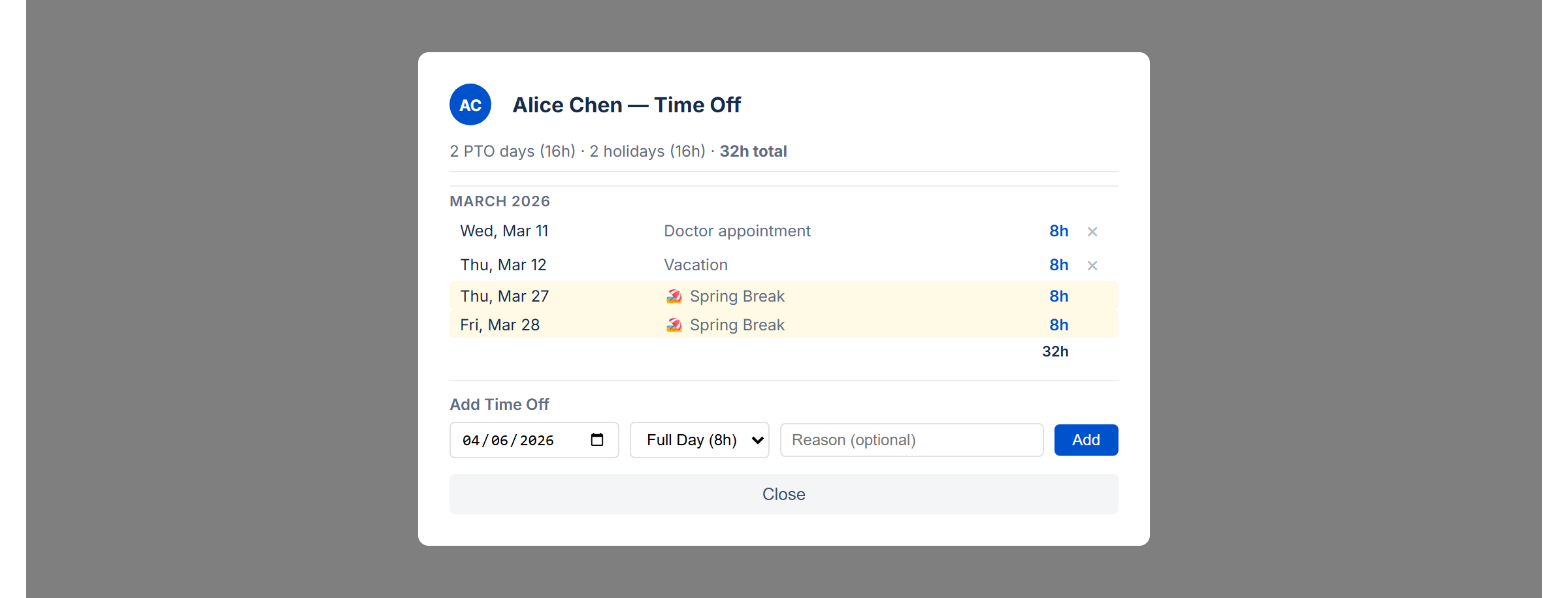
Click the view time off link next to any team member's name to open a modal showing all of their time off across all time periods. The modal includes:
- Summary — total PTO days, holidays, and combined hours at a glance
- Grouped by month — entries are organized by month with subtotals for each
- PTO entries — individual time off with date, reason, and hours. Click × to remove an entry.
- Company holidays — shown with a 🏖️ icon on a yellow background so they're easy to distinguish from PTO
- Add Time Off — a form at the bottom lets you add new time off directly from the modal by picking a date, hours, and optional reason
Company Holidays
Add company-wide holidays by entering a date and name. Check the Recurring box to have the holiday repeat every year automatically. Holidays reduce available capacity for all team members.
11. Scope Tab
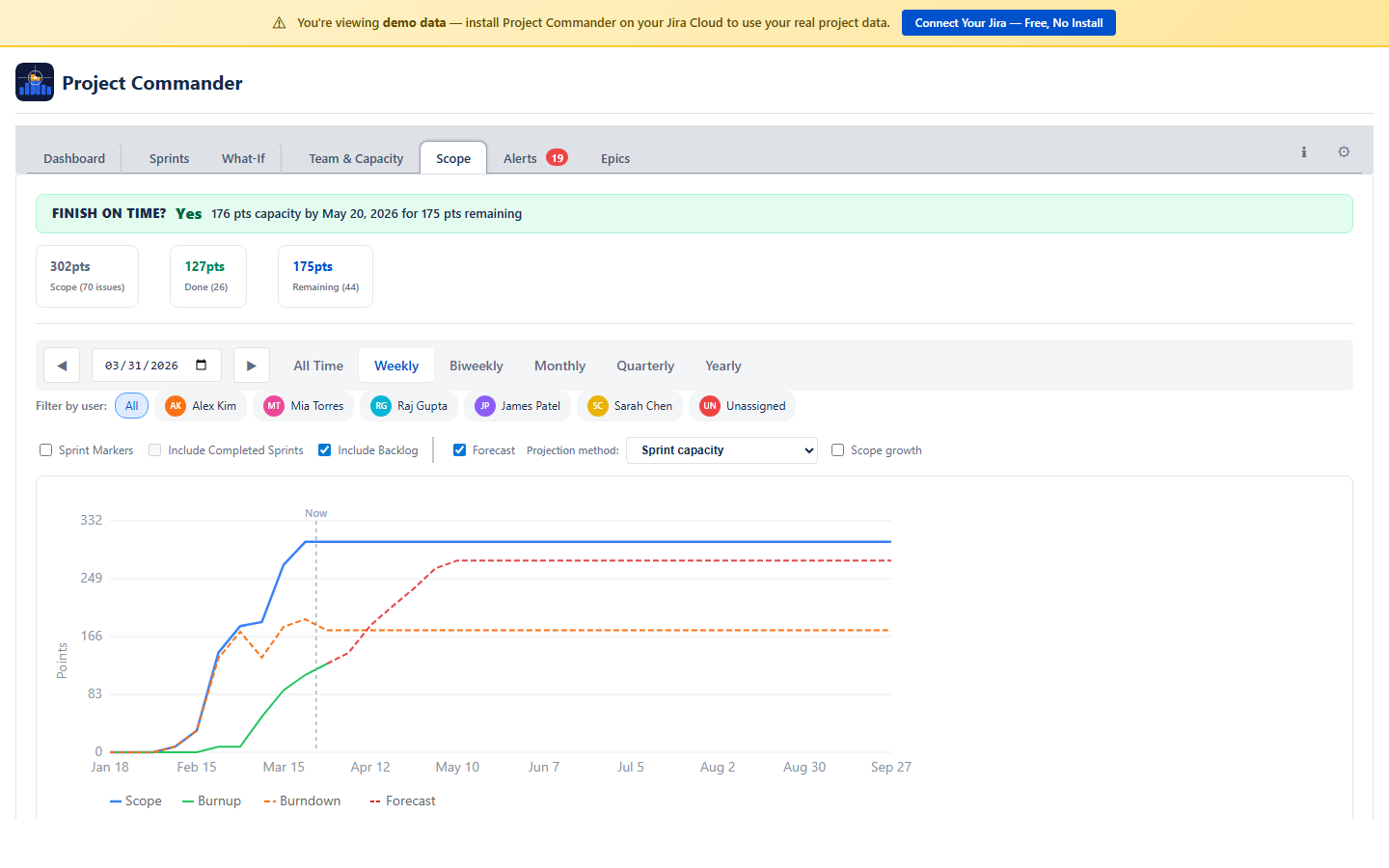
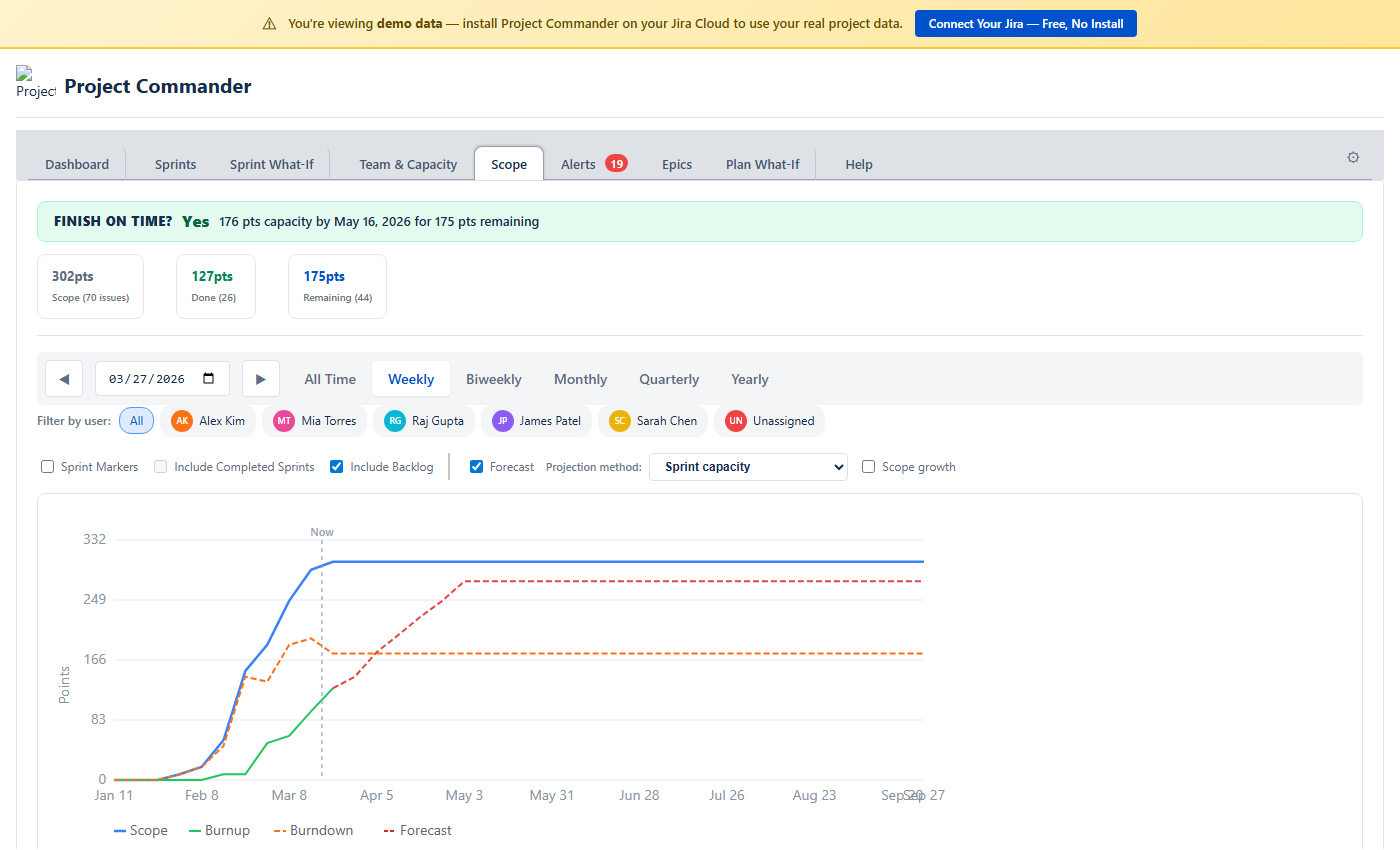
The Scope tab shows how much work has been added over time and how much has been completed, all on one timeline chart. In Points Mode, values are in story points. In Time Mode, values are in hours or days.
The Chart
Two lines tell the story:
- Scope (blue) — cumulative work added over time. As new issues are created or estimates increase, this line goes up.
- Burndown (green) — cumulative work completed over time. This line goes up (not down) as more work is finished. The line stops at the last completed issue rather than extending flat into the future. The gap between the two lines is your remaining work.
- Burndown Forecast (red dashed) — projected completion curve extending into future periods. Appears by default using the Priority strategy.
The chart legend is interactive — click any legend item to show or hide its trace. Hidden items appear dimmed with a strikethrough label.
Filtering by User
A row of colored user chips appears above the chart (always visible when there are multiple assignees). Click a name to filter the burndown line to just that person's completed work. The scope line always shows the total scope. Click “All” or clear selections to reset.
Chart Controls
Inline controls appear between the user chips and the chart:
- Sprint Markers — toggle sprint boundary lines on the chart: solid lines for start dates, dashed lines for end dates. Only shown when Sprint Mode is on.
- Include Completed Sprints — include or exclude closed sprints from the markers. Only shown when Sprint Mode is on.
- Burndown Forecast checkbox — toggle the forecast on or off (on by default).
- Strategy dropdown — choose a forecast strategy: Priority (default), Size, Due Date, Balanced, Velocity, or Compare All. Each strategy projects a different delivery curve. Compare All overlays all strategies on the chart for side-by-side comparison.
- Lookback — choose how many past periods (sprints or weeks) to include in velocity calculations.
Period Selector
Choose how the timeline is grouped: Weekly, Biweekly, Monthly, or Quarterly. Arrow buttons navigate between periods.
Stat Cards and Breakdown
Below the chart, stat cards show Total Scope, Completed Work, Remaining Work, % Complete, and issue counts. A breakdown table lists individual issues grouped by the selected period.
Team & Capacity Chart
The chart shows daily capacity (green) and daily demand (blue) side by side so you can see whether your team can keep up with the work. Click legend items to toggle additional traces like cumulative totals, scope, and completion percentage.
Feasibility Score
A score from 0 to 100 that reflects whether you have enough capacity to complete all the work:
| Score | Label | Meaning |
|---|---|---|
| ≥ 80 | On Track | Capacity covers demand with minimal overload periods |
| 50–79 | At Risk | Some periods are overloaded or the buffer is thin |
| < 50 | Infeasible | Significant capacity shortfall |
The formula: start with coverage ratio = min(1, total capacity ÷ total demand). Then calculate an overload penalty = min(0.3, overloaded days ÷ total days × 0.5). Final score = (coverage ratio − overload penalty) × 100, clamped to 0–100. A project with full capacity coverage but frequent short overloads still loses points.
Confidence Score
A separate score that tells you how complete your Jira data is. It averages three things:
- Estimates — what percentage of issues have an estimate
- Dates — what percentage of issues have both start and due dates
- Assignees — what percentage of issues have someone assigned
The formula: score = (% with estimates + % with dates + % with assignees) ÷ 3. High (≥80%), Medium (60–79%), or Low (<60%). A low score means the feasibility analysis is based on incomplete data, so its results may be unreliable. Warnings appear for any individual metric below 80%.
Period Bar
Choose how to slice the analysis: All Time (default), Weekly, Biweekly, Monthly, Quarterly, or Yearly. All Time spans from the earliest start date to the latest due date across your issues. Arrow buttons navigate between periods.
Stat Cards
Seven stat cards give you a complete picture at a glance:
| Card | What It Shows |
|---|---|
| Remaining Demand | Sum of remaining work across all issues in the period |
| Available Capacity | Available capacity for the period |
| Feasibility | The feasibility score (0–100%) |
| Confidence | Data completeness score (0–100%) |
| % Complete | How much of the total work is already done |
| Work Ratio | Remaining demand relative to total estimated work |
| Estimate Accuracy | Time actually spent relative to what was estimated |
Feasibility Chart
A timeline chart showing four lines:
- Cumulative Capacity (green) — how much work your team can handle over time
- Cumulative Demand (blue) — how much work is due over time
- Scope (purple dashed) — cumulative original estimates, showing how scope has grown
- Time Spent (orange) — cumulative time logged
Red-shaded areas highlight overload zones — periods where demand exceeds capacity.
Target Date Forecast
Based on your current pace, the forecast estimates when all work will be completed and how many extra days (if any) are needed beyond the planned end date.
Team Filter and Resource Breakdown
Below the chart, the resource breakdown table shows each person's demand, capacity, load percentage, status badge, and issue count. Click a team member's name to filter the chart and stat cards to just their work.
Sprint Markers
When Sprint Mode is on, checkboxes let you toggle sprint boundary lines on the chart. When Sprint Mode is off, these controls are hidden.
Units
In Points Mode, all values are in story points. In Time Mode, all values are in hours or days (based on your Time Unit setting).
12. Alerts Tab
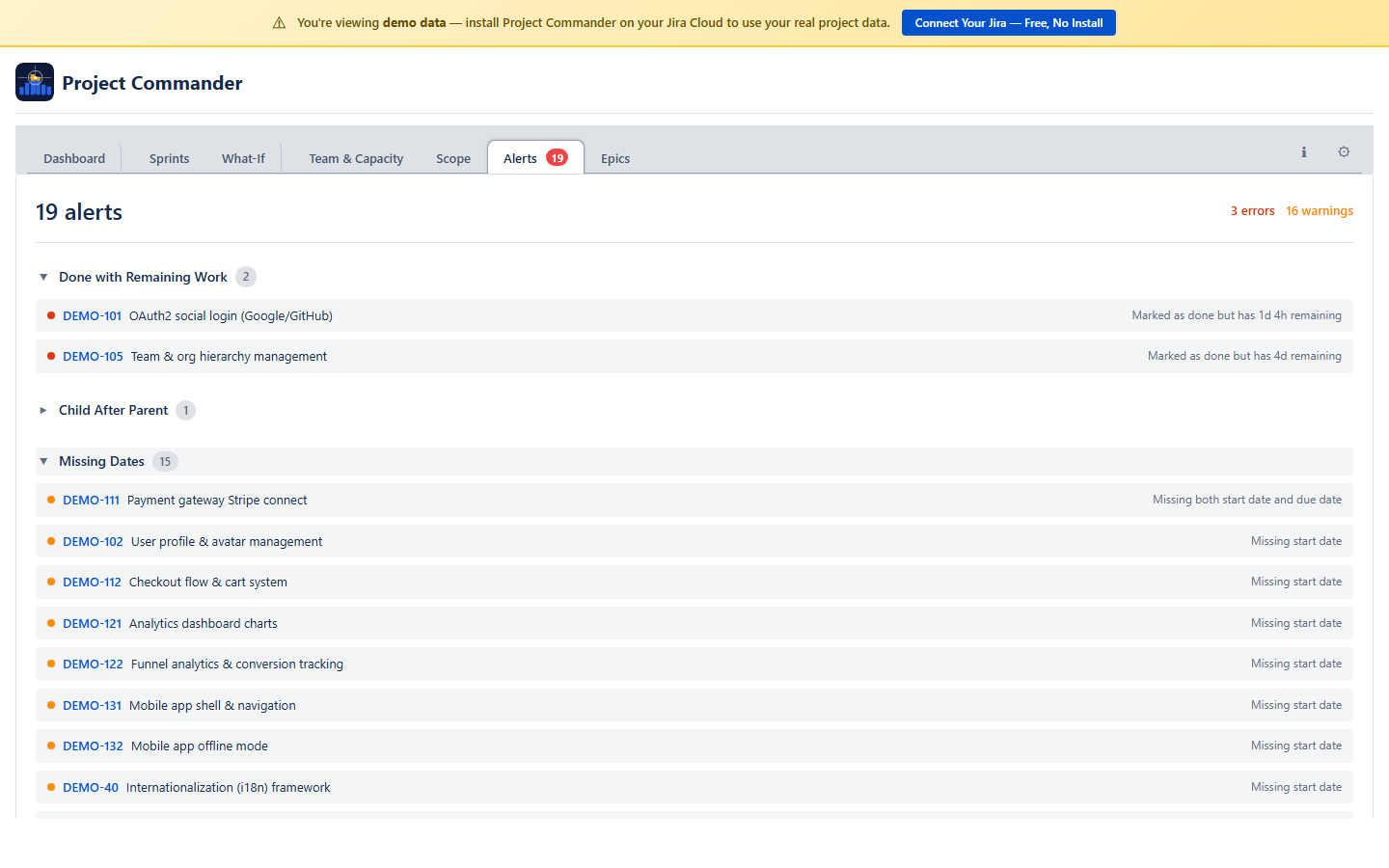
The Alerts tab scans your issues for common problems and analyzes dependency relationships. A badge on the tab shows the total number of alerts found.
Alert Categories
Issues are grouped into six collapsible sections. Click a category header to expand or collapse it:
| Category | What It Catches |
|---|---|
| Done with Remaining Work | Issue is marked Done but still has time remaining on it |
| Overdue | Issue is not Done and its due date has passed |
| Dependency Conflicts | Issue is blocked by something that finishes after it should start. Also detects circular dependencies. |
| Child After Parent | A subtask is due after its parent task |
| Missing Dates | Issue in an active or future sprint has no start date or no due date |
| Missing Estimates | Issue in an active or future sprint has no estimate. In Points Mode this checks for story points; in Time Mode this checks for original estimate. |
Dependency Analysis
Below the alert categories, a collapsible Dependency Analysis section gives you the full picture of blocking relationships:
- Summary — total dependencies, circular dependencies, cross-sprint conflicts, root issues (things that block others but aren't blocked themselves), leaf issues (things that are blocked but don't block anything), and the longest dependency chain
- Dependency list — all blocking relationships, with cross-sprint conflicts highlighted in color
- Conflicts filter — a "Show conflicts only" checkbox to focus on cross-sprint violations
- Root and leaf issues — the top 10 root and leaf issues for quick identification
13. Epics Tab
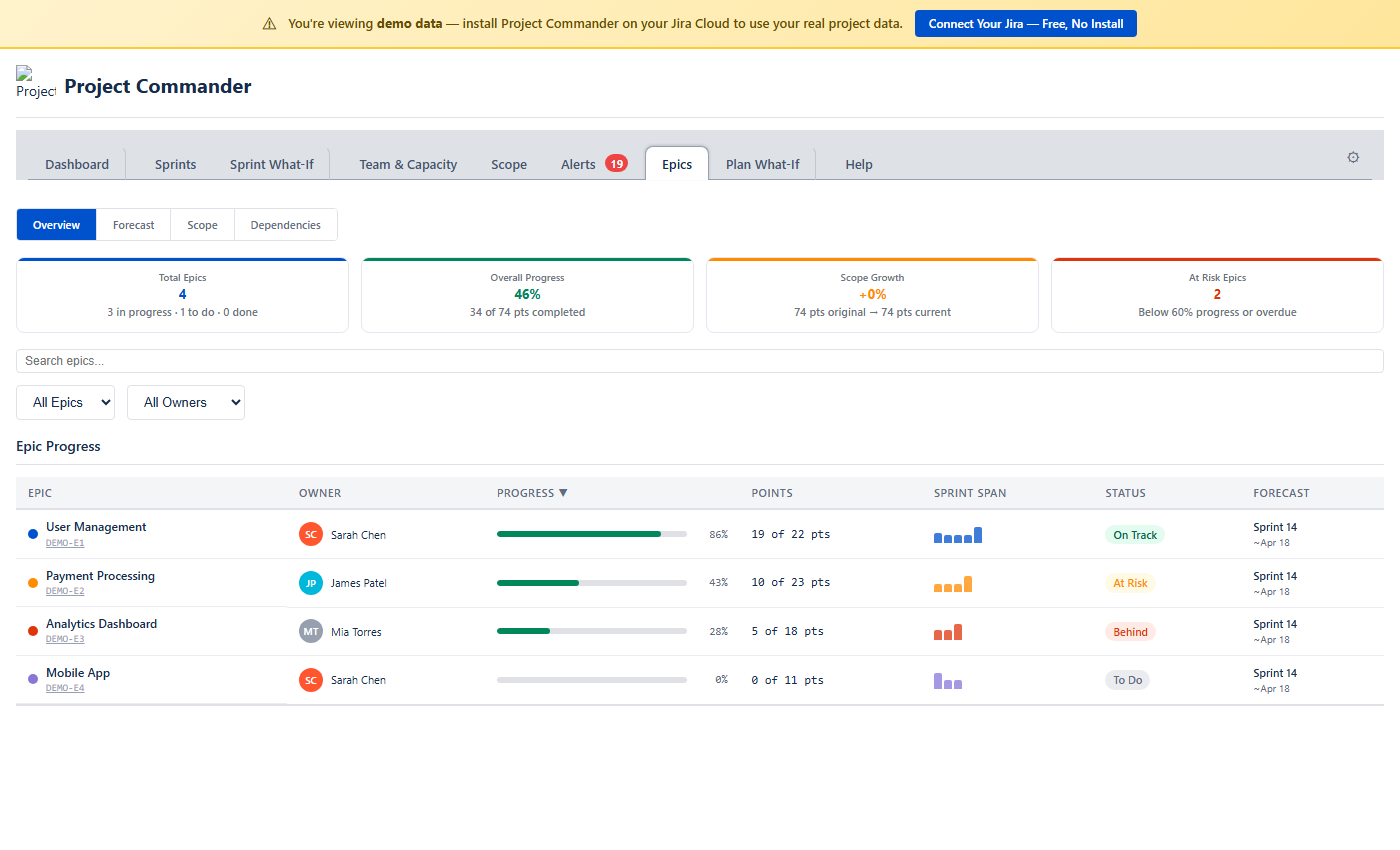
The Epics tab gives you a bird's-eye view of your project organized by epic. It groups all child issues under their parent epics and shows progress, forecasts, scope changes, and cross-epic dependencies — all in one place. It works in both Sprint Mode and non-Sprint Mode.
Four sub-views are available via toggle buttons at the top: Overview, Forecast, Scope, and Dependencies.
Overview
The default view. Four summary cards show the big picture at a glance:
| Card | What It Shows |
|---|---|
| Total Epics | Number of epics found, with a breakdown of how many are in progress, to do, done, and overdue |
| Overall Progress | Percentage of total work completed across all epics (in points or hours depending on your estimation mode) |
| Scope Growth | How much scope has changed since the baseline snapshot. Shows original vs current totals. Dash (—) when scope data is not yet available. |
| At Risk Epics | Number of epics below 60% progress or past their due date |
Filtering and Sorting
Below the summary cards, a toolbar lets you search epics by name or key, filter by status (On Track, At Risk, Behind, To Do, Done, Overdue), and filter by owner. Click any column header in the progress table to sort.
Epic Progress Table
Each row shows one epic with:
- Epic — name and Jira key, with a color dot for visual identification
- Owner — the most frequent assignee across the epic's child issues, shown with an avatar
- Progress — a color-coded progress bar: green (≥ 60%), amber (30–59%), red (< 30%)
- Points / Hours — done work out of total (e.g., "18 of 21 pts")
- Sprint Span (Sprint Mode only) — mini bar chart showing how the epic's work is distributed across sprints
- Status — derived automatically: Done, On Track, At Risk, Behind, To Do, or Overdue
- Forecast (Sprint Mode only) — projected completion sprint and date from Monte Carlo simulation
Click any epic row to expand it and see all child issues with their individual status, assignee, points, and sprint assignment.
How Status Is Derived
| Status | Condition |
|---|---|
| Done | 100% complete or parent issue is in a Done status |
| Overdue | Due date is in the past and not Done |
| On Track | ≥ 60% complete |
| At Risk | 30–59% complete |
| Behind | 1–29% complete |
| To Do | 0% complete or no child issues |
Forecast
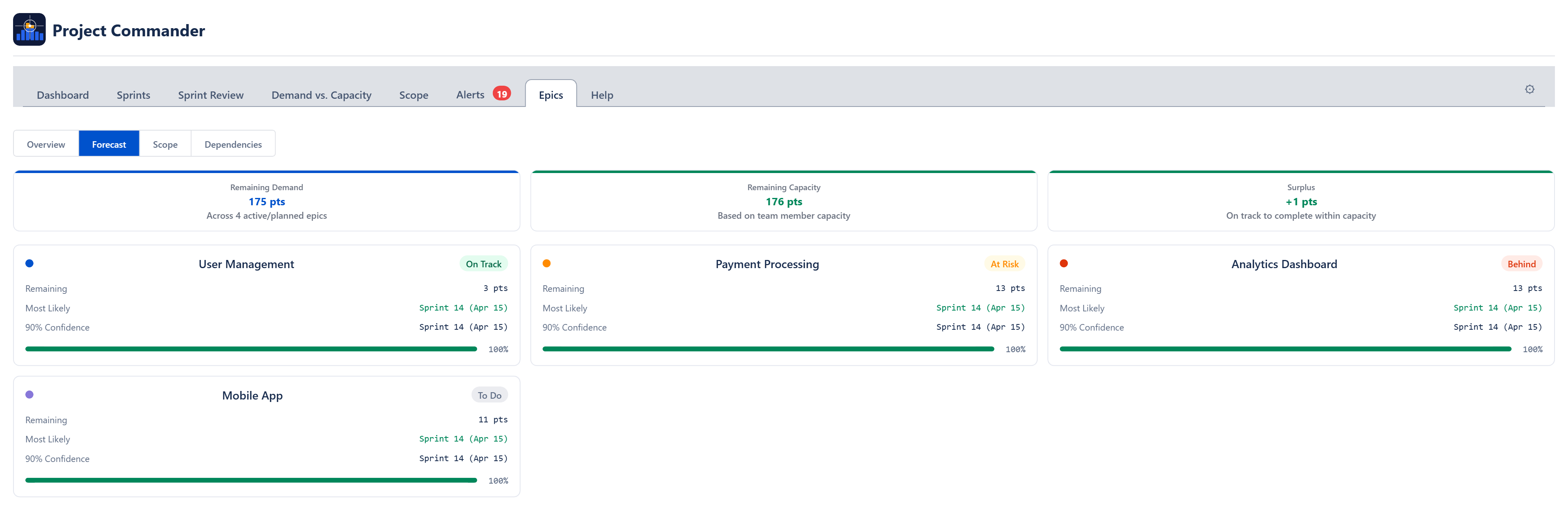
The Forecast sub-view answers: When will each epic be done?
Stat Cards
| Card | What It Shows |
|---|---|
| Remaining Work | Total points or hours not yet completed across all active epics |
| Available Capacity | How much work can be done. In Sprint Mode this is velocity × number of future sprints. In non-Sprint Mode it comes from team capacity analysis. |
| Shortfall / Balanced / Surplus | The gap between remaining work and capacity. Red when work exceeds capacity (shortfall), green when capacity exceeds work (surplus), neutral when exactly balanced. |
When Sprint Mode is off and team members are configured on the Team & Capacity tab, two additional cards appear:
- Feasibility Score — 0–100% score using the same demand-vs-capacity analysis as the Team & Capacity tab. Green (≥ 80%), amber (50–79%), red (< 50%).
- Data Confidence — how complete your issue data is (estimates, dates, assignees). Warnings highlight what's missing.
Per-Epic Forecast Cards
Below the stat cards, each active epic gets its own forecast card showing:
- Remaining — points or hours left for this epic
- Most Likely — the 50th-percentile completion date or sprint from Monte Carlo simulation. Color indicates confidence: green (≥ 80%), amber (50–79%), red (< 50%).
- 90% Confidence — the 90th-percentile date or sprint (90% of simulations finish by this point)
- Confidence bar — visual indicator of forecast tightness. When the p50 and p90 dates are close together, the bar fills fully — meaning the forecast is more certain.
How Forecasts Are Generated
In Sprint Mode, velocity is the rolling average of the last 3 completed sprints. In non-Sprint Mode, velocity comes from team capacity analysis or from historical velocity of completed issues. A Monte Carlo simulation runs 200 iterations with ±30% velocity variance to produce the p50 and p90 estimates.
Scope
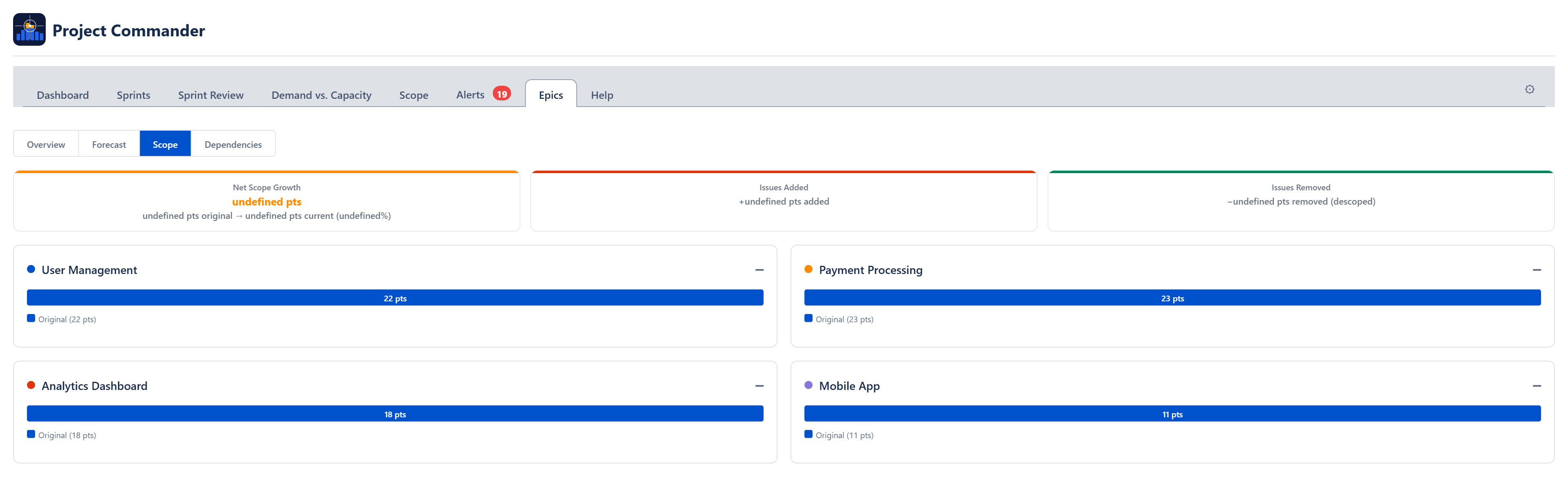
The Scope sub-view tracks how much work has been added to or removed from each epic since the baseline.
Summary Cards
| Card | What It Shows |
|---|---|
| Net Scope Growth | Total change in scope across all epics, with original and current totals. Positive means scope has grown. |
| Issues Added | Count of issues added after the baseline snapshot, with total points or hours added |
| Issues Removed | Count of issues removed (descoped), with total points or hours removed |
Per-Epic Scope Cards
Each epic gets a card showing:
- Stacked bar — blue portion is the original scope, red portion is scope added since baseline
- Change percentage — how much the epic has grown or shrunk. Red for growth, green for reduction.
- Added issues list — when issues have been added, they are listed with their key, summary, date added, and point value
When scope data is not yet available from the backend, per-epic cards show the current scope as a baseline with no change indicator.
Dependencies
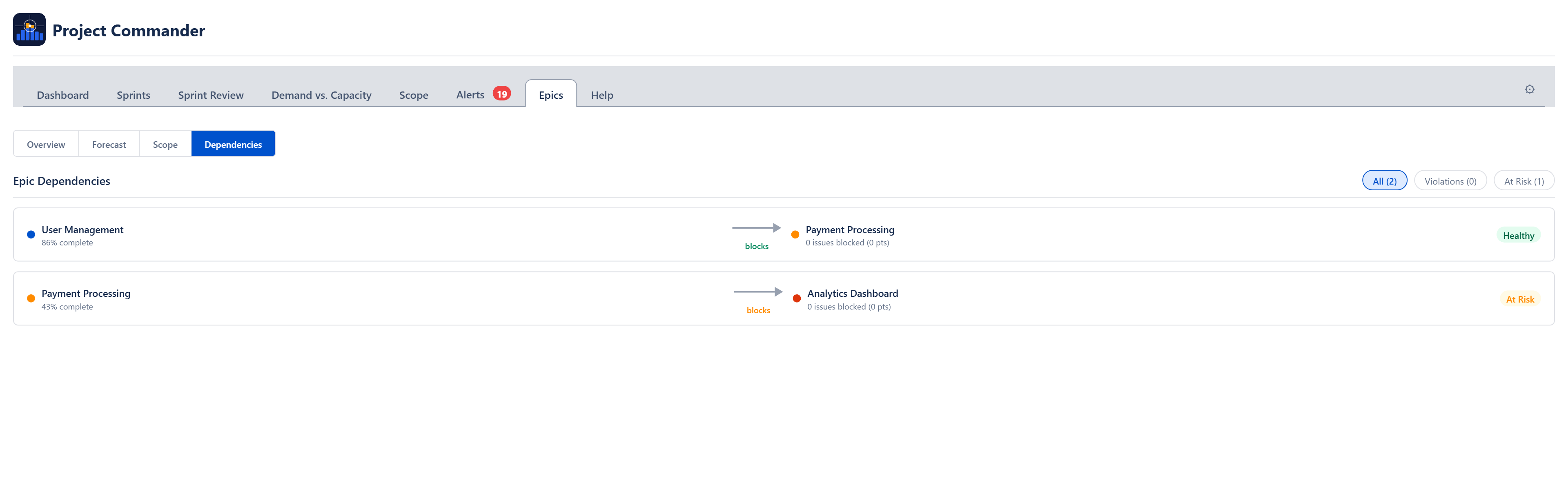
The Dependencies sub-view shows blocking relationships between epics. It only surfaces cross-epic dependencies — blocking within the same epic is filtered out.
Filter Tabs
Three tabs filter the dependency list:
| Tab | What It Shows |
|---|---|
| All | Every cross-epic dependency |
| Violations | The blocker epic is not on track AND blocked issues are not yet done — delivery is at risk |
| At Risk | The blocker epic is not on track but no unfinished blockers are blocking the dependent epic yet |
Dependency Rows
Each row shows the blocker epic on the left, an arrow labeled "blocks" in the middle, and the blocked epic on the right. A status badge indicates the health of the relationship:
- Healthy (green) — blocker is done or on track
- At Risk (amber) — blocker is behind schedule
- Violation (red, dashed arrow) — blocker is behind and its unfinished work is actively blocking dependent issues
Each blocked epic shows how many issues are blocked and their total points or hours.
Estimation Modes
All values in the Epics tab automatically adapt to your estimation mode. In Points Mode you see story points; in Time Mode you see hours. The same applies to capacity, forecasts, and scope calculations.
14. What-If
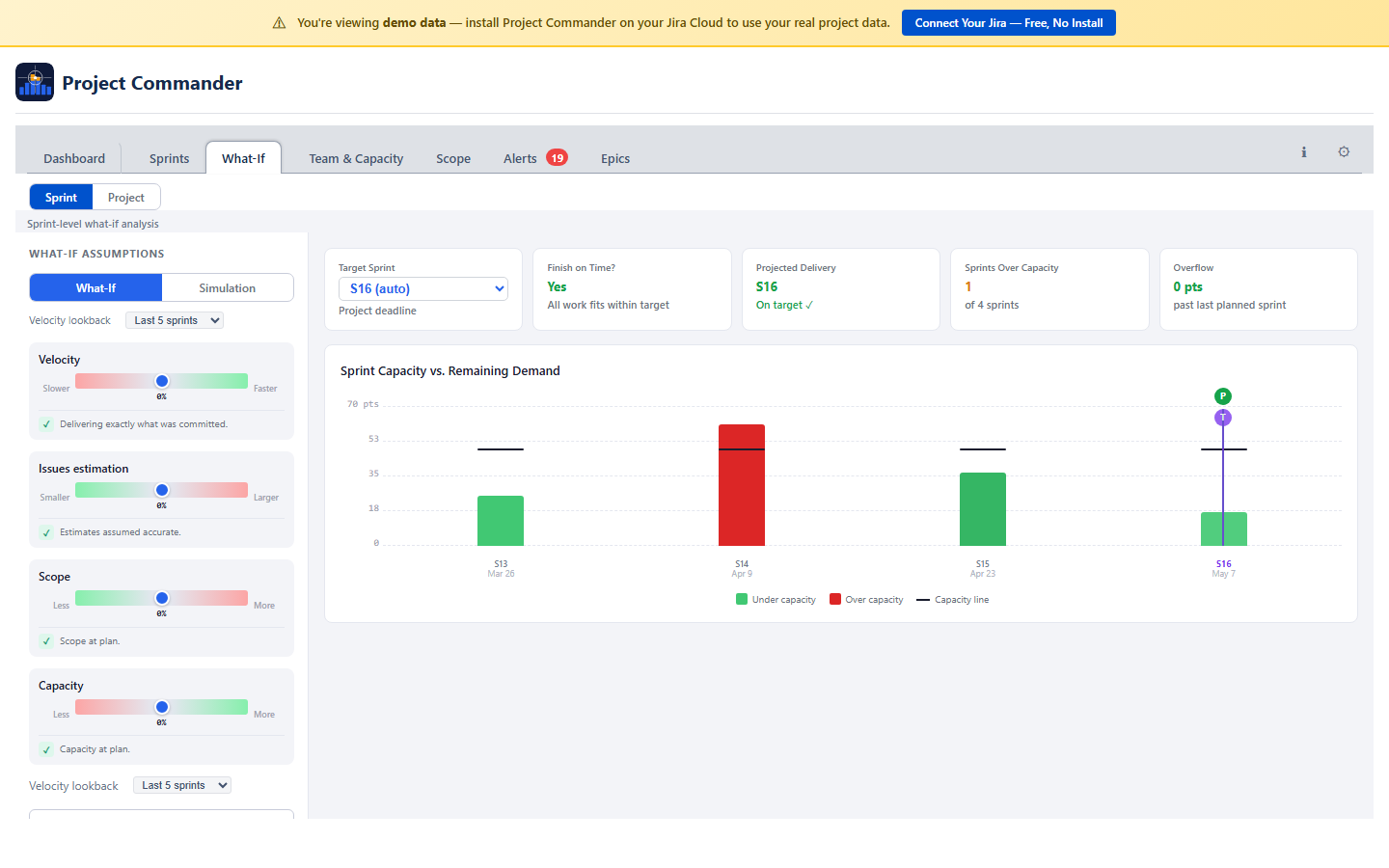
The What-If tab lets you explore "what if" scenarios and run Monte Carlo simulations to understand delivery risk. A Sprint / Project toggle at the top switches between two views:
| Aspect | Sprint view | Project view |
|---|---|---|
| Data source | Sprints from board | Issues with due dates (from JQL) |
| Time buckets | Sprints | Weeks (Monday boundaries) |
| Requires | Sprint Mode ON | Issues with due dates |
| Capacity | Per-sprint capacity | Weekly capacity (holiday and time-off aware) |
| Chart labels | Sprint names | Week dates (e.g., "Mar 10") |
Both views share the same sliders, Monte Carlo simulation, AI analysis, and KPI cards. The only difference is the time buckets used.
What-If Mode
Four sliders let you adjust planning variables from −50% to +50%:
| Slider | What It Adjusts | Direction |
|---|---|---|
| Velocity | How fast your team works | Positive = team delivers faster |
| Issue Estimation | How accurate your estimates are | Positive = issues take longer than estimated |
| Scope | How much total work there is | Positive = more work gets added |
| Capacity | How much resource is available | Positive = more people or hours |
Velocity and Capacity increase the capacity side (making delivery easier). Issue Estimation and Scope increase the demand side (making delivery harder). The sliders combine multiplicatively — for example, +20% velocity and +10% capacity together give about 32% more effective capacity.
Cascade Bar Chart
Vertical bars show demand per sprint (or week) colored by utilization: green (under capacity), amber (overflow from a prior sprint), or red (over capacity). A horizontal capacity line is overlaid on each bar. When any slider deviates from zero, purple dashed ghost bars show the baseline for comparison.
Two vertical markers indicate key milestones:
- T (purple) — Target: the planned delivery deadline
- P (green or red) — Projected delivery: where all work is expected to complete. Green when on or before target, red when late.
KPI Cards (What-If)
- Target Sprint/Week — the planned delivery point (defaults to last sprint/week with work; changeable via dropdown)
- Finish on Time? — Yes/No based on whether projected delivery is at or before target
- Projected Delivery — the sprint/week where all work is expected to complete
- Sprints/Weeks Over Capacity — count of periods where demand exceeds capacity
- Overflow — remaining work past the last planned period (in points or hours)
Simulation Mode
Runs 2,000 Monte Carlo iterations to produce a probability distribution of when your project will finish. Each iteration randomly varies all four variables within the uncertainty range.
Dual-Dot Sliders
Each variable has a range slider with two dots:
- Red dot (left) — the pessimistic end of the range
- Green dot (right) — the optimistic end of the range
For each trial, the simulator picks a random value between the red and green dots. Wider ranges model more uncertainty; tighter ranges model a more predictable project.
S-Curve Chart
Shows cumulative probability of completion by sprint/week. Key markers:
- 80% confidence marker (green dashed) — the point with 80% probability of completion
- Target marker (purple dashed) — the planned delivery date, with on-target probability percentage
AI Risk Analysis
An AI chat panel lets you describe scenarios in natural language (e.g., "What if we lose a developer for 2 sprints?"). Requires an Anthropic API key in Settings. The AI returns slider recommendations with an Apply button, impact assessment, and prioritized recommendations.
Project View (Weekly)
The Project view groups issues into weekly time slots based on due dates. Done issues are excluded. For issues spanning multiple weeks, effort is spread proportionally. If the simulation shows overflow past the last week, virtual weeks extend the chart. This view works without Sprint Mode — useful for kanban, hybrid, or date-driven teams.
15. Help Tab
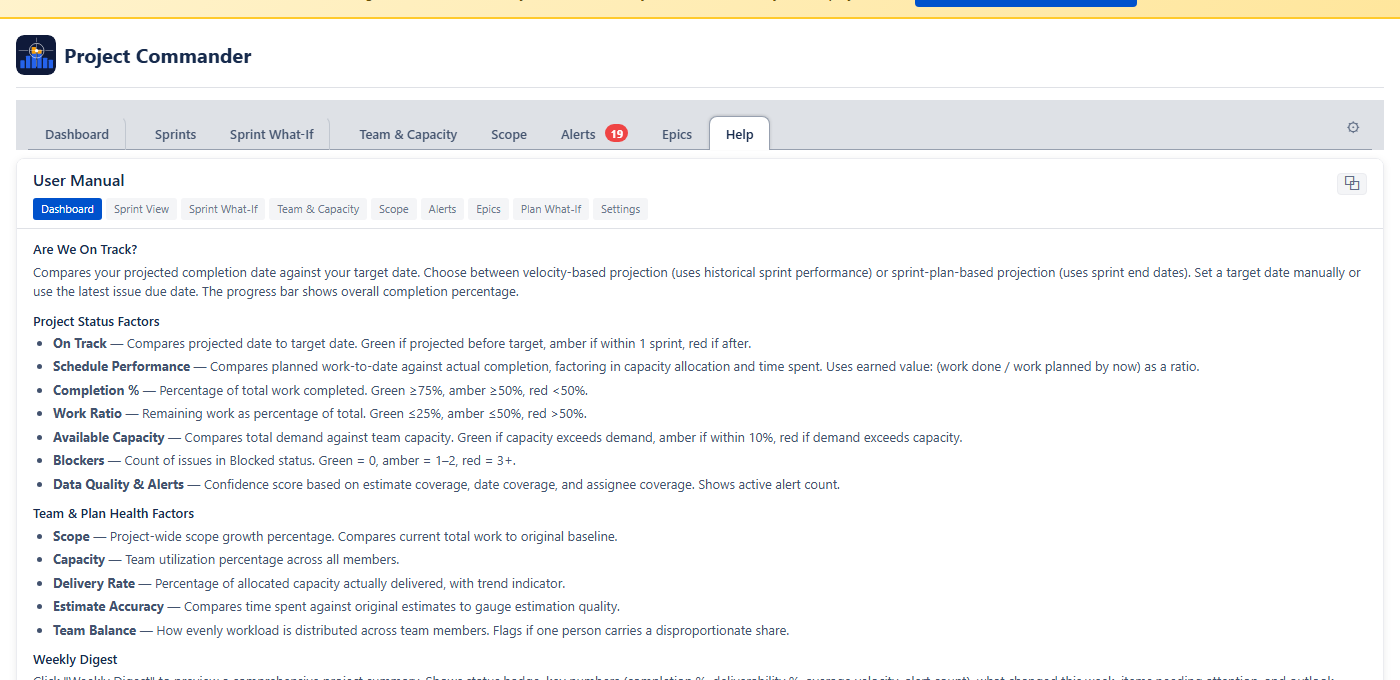
The Help tab provides a built-in user manual directly inside the app. Click Help in the tab bar to open it. You can switch freely between Help and any other tab to reference documentation while working.
Navigation
Section pills at the top let you jump to help for any specific tab: Dashboard, Sprint View, What-If, Team & Capacity, Scope, Alerts, Epics, or Settings.
Tear Off
Click the ⧉ button in the top-right corner to open the help content in a separate browser window. This lets you position the manual side-by-side with the app.
Copy Link
At the bottom of the Help tab, click projectcommander.app/manual to copy the full user manual URL to your clipboard.
17. Estimation Modes
The Estimation Mode setting is the most important choice you make. It determines how work is measured, where capacity comes from, and what units every tab uses. Choose it once and the rest follows automatically.
Points Mode vs Time Mode
| Aspect | Points Mode | Time Mode |
|---|---|---|
| What it measures | Story points | Remaining estimate (hours or days) |
| Where capacity comes from | Capacity Limit from Settings (Settings default), or team Points Per Sprint when Team/Capacity settings is selected | Capacity Limit from Settings (Settings default), or team hours/availability when Team/Capacity settings is selected |
| Jira field used | Story Points | Remaining Estimate |
| Display units | pts | hrs or days (based on Time Unit setting) |
| Time Unit setting | Hidden (not needed) | Visible — choose Hours or Days |
| Progress indicator | Points (done / total) | Estimate (remaining / original) or Work Ratio |
How Each Tab Behaves
Dashboard Tab
All health cards, workload bars, and scope values use story points in Points Mode, or hours/days in Time Mode. The unit label adjusts automatically (pts, hrs, or days).
Sprints Tab
- Points Mode: Each sprint's demand is the sum of story points. The capacity warning and progress bar work in points. When Auto is selected, capacity is calculated from team Points Per Sprint.
- Time Mode: Demand is the sum of remaining estimates, shown in hours or days. When Auto is selected, capacity is calculated from team members' weekly capacity values.
Team & Capacity Tab
- Points Mode: Total capacity shows the sum of each member's weekly points values for the period. Demand shows their assigned story points.
- Time Mode: Total capacity shows the sum of each member's weekly hours values for the period. Demand shows their assigned remaining estimate.
Scope Tab
The scope and burndown chart shows story points in Points Mode, or hours/days in Time Mode.
Team & Capacity Tab
Demand, capacity, and all stat cards use story points in Points Mode, or hours/days in Time Mode.
Alerts Tab
The "Missing Estimates" alert checks for story points in Points Mode, or original estimate in Time Mode.
What-If (Sprint / Project view)
The What-If sliders, cascade chart, and Monte Carlo simulation all work in story points (Points Mode) or hours/days (Time Mode).
What Happens When You Switch
Switching Estimation Mode automatically adjusts related settings:
- Switch to Points → uses Jira's Story Points field, Progress Indicator becomes Points
- Switch to Time → uses Jira's Remaining Estimate field, Progress Indicator becomes Estimate
You only need to choose your Estimation Mode — the Jira field and Progress Indicator follow automatically.
Time Unit Conversion
Jira stores time in seconds internally. Project Commander uses an 8-hour workday for conversion:
- 16 hours = 2 days
- 40 hours = 5 days (one work week)
When Time Unit is set to Days, all time values throughout the app are shown in workdays instead of hours.
Setting Up Time Mode
- Open Settings and set Estimation Mode to Time
- Go to the Capacity tab
- Add your team members and set their weekly capacity (Hrs/Wk or Pts/Wk)
- Add any Company Holidays (for reference)
- Use the Time Off calendar to track PTO, then adjust weekly capacity as needed
- Sprint capacity will now be automatically calculated from your team's weekly values
Points Mode vs Time Mode — the key difference
Estimation Mode controls which Jira field measures work (story points vs remaining estimate). In both modes, each sprint's Default/Team/Manual toggle determines where capacity comes from — see How Capacity Works. The difference is what Team calculates in Per User mode: in Points Mode it sums weekly points values; in Time Mode it sums weekly hours values for the sprint's date range.
18. Dependencies
Project Commander detects blocking relationships from Jira's "blocks" and "is blocked by" issue links. Dependencies affect multiple features across the app.
Where Dependencies Appear
Sprints Tab
Issues with dependency conflicts show a warning icon (⚠) next to their key in the issue table. The icon has a tooltip describing the conflict (e.g., "Blocked by PROJ-45 which ends after this issue starts").
Alerts Tab
The Dependency Conflicts alert category lists all issues where a blocker finishes after the blocked issue should start. The Dependency Analysis section provides the full dependency graph with summary stats, edge list, root/leaf issues, and a conflicts-only filter.
Dependency Map Modal
Click the Dependencies button in the action header to open a modal with three tabs:
- All — every blocking relationship across all sprints
- Cross-Sprint — only dependencies that span different sprints
- Violations — only dependencies where the blocker is in a later sprint than the issue it blocks
Each dependency shows the blocker and blocked issue with their sprint name, sprint state badge (active/future), and completion status. Violation rows are marked with a warning icon.
Auto-Level
Auto-Level always respects dependencies. A blocking issue is placed in an earlier (or same) sprint as the issues it blocks. If circular dependencies exist, they are detected and reported, and the affected issues are still placed using the chosen strategy.
19. Troubleshooting
App shows "Loading..." indefinitely
- Check that your JQL filter is valid. Try running it directly in Jira's issue search.
- If Sprint Mode is on, verify the Board ID is correct (check your board URL).
- Ensure the Forge app has the necessary permissions on your Jira site.
No sprints appear on the Sprints tab
- Confirm Sprint Mode is enabled in Settings.
- Verify the Board ID matches a Scrum board.
- Check that the board has at least one sprint created.
Drag and drop is not working
- Ensure the issue is not locked (lock icon should be unlocked).
- If reordering within a sprint, make sure no column sort is active (click the sorted column header to clear it).
- Browser extensions that intercept drag events may interfere.
Changes are not saving
- After editing settings, click Save Configuration. The button shows "Saving..." and then "Saved!" on success.
- Check your browser console for errors if the save fails silently.
Dependency warnings are missing
- Dependencies require "blocks" / "is blocked by" link types in Jira. Other link types (relates to, duplicates) are not tracked.
- Check that the linked issues are included in your JQL filter or board.
Velocity section is empty
- Velocity requires completed sprints. Use Import from Completed Sprints to backfill historical data.
- Velocity data loads only when you are on the Sprints tab. Switch to that tab and wait for it to load.
Wrong demand values in Points Mode
- Demand sums the story points of all non-done issues. If issues are missing story points, they contribute 0 to demand.
- Check the Missing Estimates category on the Alerts tab to find issues without points.
Capacity shows 0 in Time Mode
- Time Mode calculates capacity from team members' weekly values on the Team & Capacity tab. Add at least one team member and set their Hrs/Wk.
- Check that the sprint has valid start and end dates (capacity is summed from the weekly values that overlap the sprint).
- If you see zero capacity, make sure weekly values are set for the weeks that overlap your sprint dates.
AI analysis not working on Review tabs
- An Anthropic API key is required. Go to Settings → AI Features and enter a valid key.
- The key should start with
sk-ant-.
What-If (Project view) shows "Issues Need Due Dates"
- What-If (Project view) requires issues with due dates to build weekly time buckets. Add due dates to your issues in Jira.
20. Technical Reference
Visual Indicators
| Indicator | Meaning |
|---|---|
| Default button highlighted | Sprint uses capacity limit from Settings |
| Team button highlighted | Per User mode: capacity calculated from team config. Per Sprint mode: same as Default. |
| Manual button highlighted | Sprint capacity is a user-entered number |
| Team button greyed out | No team members configured on the Team & Capacity tab |
| Red avatar ring | User is over their capacity limit |
| Green avatar ring | User is within capacity |
| Gray avatar | User is filtered out — click to restore |
| Purple move badge | Issue was moved by Auto-Level |
| Orange move badge | Issue was manually moved during an Auto-Level session |
| ⚠ icon on issue key | Dependency conflict (blocker finishes after this issue starts) |
| Lock icon (filled) | Issue or sprint is locked (excluded from Auto-Level and drag) |
| Blue sort arrow (↑/↓) | Column is sorted ascending or descending |
| Blue reorder line | Drop target indicator when reordering issues |
| Red due date | Issue is past due (due date before today) |
| T marker (purple) | Target sprint/week on cascade bar chart |
| P marker (green/red) | Projected delivery sprint/week on cascade bar chart |
Keyboard and Mouse Shortcuts
| Action | Shortcut |
|---|---|
| Select multiple issues | Click checkboxes individually |
| Select a range of time off days | Shift + click |
| Toggle individual time off days | Ctrl + click |
| Close column search dropdown | Esc |
| Add column from search | Enter |
Data Storage
Project Commander stores all its data securely within your Jira Cloud instance using Atlassian Forge storage:
- Configuration — all settings, column preferences, sprint limits, per-sprint capacity overrides, locked issues, locked sprints
- Team configuration — team members, weekly capacity values, holidays, time off
- Issue orders — custom issue ordering per sprint
- Velocity data — historical sprint completion data
Issue data from your JQL filter is fetched from Jira on each page load and shared across all tabs. No issue data is stored permanently by the app.
Time Unit Conversion
Jira stores time values in seconds. Project Commander converts using an 8-hour workday:
- 1 hour = 3,600 seconds
- 1 day = 28,800 seconds (8 hours)
Capacity States
Each sprint's Default/Team/Manual toggle determines its capacity source:
| Toggle State | Source |
|---|---|
| Default selected | The Capacity Limit from Settings |
| Team selected | Per User mode: calculated from team configuration (Points Mode: points per sprint; Time Mode: available hours minus holidays and time off). Per Sprint mode: same as Default. |
| Manual selected | The number the user entered |
During Auto-Level, a "Use velocity as capacity" checkbox can override these with efficiency-adjusted limits based on each member's historical completion rate against their real available capacity.
Risk and Team & Capacity tabs always use team-based calculations when available, regardless of individual sprint toggles. They fall back to the Capacity Limit from Settings when no team is configured.
Auto-Level Constraints
- Maximum 10 new sprints per Auto-Level run
- New sprint dates use the Sprint Length setting (2, 3, or 4 weeks) with contiguous scheduling
- New sprint capacity defaults to the average of existing sprint capacities
- Oversized issues (larger than sprint capacity) are placed in a dedicated overflow sprint
Monte Carlo Simulation Details
- 2,000 iterations per simulation run
- Each iteration varies all four risk variables randomly within the range defined by the dual-dot sliders (red to green)
- Each iteration runs a deterministic cascade: overflow from sprint N becomes extra demand in sprint N+1
- Completion sprint is the first sprint where cumulative capacity ≥ cumulative demand (overflow ≤ 0.5 units)
- If overflow remains after the last sprint, extra sprints are estimated:
ceil(overflow ÷ avg capacity), capped at 5 - Results are binned at half-sprint (or half-week) precision for smooth probability curves
- Output percentiles: 10th, 25th, 50th (median), 75th, 90th
- Confidence bands: 50% (25th–75th) and 80% (10th–90th)
Dashboard Card Formulas
| Card | Formula |
|---|---|
| Schedule Adherence | Compares planned-by-now vs completed-by-now. Planned = sum(estimates) for issues due ≤ today. Completed = sum(estimates) for Done issues due ≤ today. Ahead if completed > 105% of planned, Behind if < 95%, On Pace otherwise. |
| Finish on Time? | Remaining = sum(remaining estimate) for non-Done issues. Weekly capacity = sum(hours/week × utilization%) per team member. Total capacity = weekly capacity × weeks until target. Ratio = capacity ÷ remaining. Yes if ratio ≥ 1.0, At Risk if ≥ 0.9, No if < 0.9. |
| Forecast | Velocity-based: weeks needed = adjusted remaining work ÷ weekly throughput. Projected date = today + (weeks × 7). Remaining work is multiplied by estimate accuracy ratio when estimates are consistently low. Sprint plan-based: end date of last open sprint. |
| Progress | sum(estimates for Done issues) ÷ sum(all estimates) × 100. Falls back to count(Done) ÷ count(All) if no estimates exist. |
Deliverability
| Status | Condition |
|---|---|
| Sufficient | Remaining capacity ≥ remaining work (or all work already done) |
| Tight | Remaining capacity ≥ 90% of remaining work |
| At Risk | Remaining capacity < 90% of remaining work |
Per-sprint badges: DELIVERABLE if capacity ≥ demand, TIGHT if capacity ≥ 90% of demand, OVERCOMMITTED otherwise.
Scope Creep Calculation
For active sprints: original commitment = sum(points) of issues at sprint start (from Jira changelog). Current scope = sum(points) of current issues. % change = (current − original) ÷ original × 100. The expandable panel lists each issue added or removed mid-sprint, with dates from the changelog.
Earned Value Metrics
| Metric | Formula | Thresholds |
|---|---|---|
| SPI (Schedule Performance Index) | Earned Value ÷ Planned Value. EV = work completed across all sprints. PV = work in closed sprints + (% of active sprint elapsed × active sprint work). |
● ≥0.95 | ● ≥0.80 | ● <0.80 |
| CPI (Cost Performance Index) | Total original estimate ÷ total time spent. >1 = under budget, <1 = over budget. |
● ≥0.85 | ● ≥0.70 | ● <0.70 |
All Status Thresholds
| Factor | Green (OK) | Amber (Caution) | Red (At Risk) |
|---|---|---|---|
| Schedule (SPI) | ≥ 0.95 | 0.80 – 0.94 | < 0.80 |
| Cost (CPI) | ≥ 0.85 | 0.70 – 0.84 | < 0.70 |
| Scope Growth | ≤ 10% | 11% – 25% | > 25% |
| Capacity Utilization | 60% – 90% | < 60% or 91% – 110% | > 110% |
| Delivery Rate | ≥ 85% | 65% – 84% | < 65% |
| Estimate Accuracy | 80% – 110% | < 80% or 111% – 130% | > 130% |
| Team Balance | All 50% – 100% | Any >100% or <50% | Any >115% with another <60% |
| Blockers | 0 | 1 – 2 | ≥ 3 |
| On Track (days late) | On time | 1 – 5 days | > 5 days |
| Finish on Time (ratio) | ≥ 1.0 | 0.9 – 0.99 | < 0.9 |
| Feasibility Score | ≥ 80 | 50 – 79 | < 50 |
| Data Confidence | ≥ 80% | 60% – 79% | < 60% |
Key Constants
| Constant | Value | Used In |
|---|---|---|
| Workday | 8 hours | All time conversions (hours ↔ days) |
| Time (seconds → hours) | ÷ 3,600 | Jira remaining estimate conversion |
| Time (seconds → days) | ÷ 28,800 | Jira remaining estimate conversion (8h day) |
| Max new sprints (Auto-Level) | 10 | Auto-Level sprint creation limit |
| Monte Carlo iterations | 2,000 | What-If (Sprint and Project views) simulation |
| Feasibility overload penalty | max 30% | Feasibility score calculation |
| Sprint length options | 2, 3, or 4 weeks | New sprint creation, Auto-Level |