 Project Commander Docs
← Back to site
Project Commander Docs
← Back to site
Actions Tab — Feature Guide
What it's for
The Actions tab is the consolidated home for every action item the team has committed to: retro follow-ups, planning commitments, mid-sprint TODOs, and risk-mitigation tasks. Where the per-sprint Retro panel is local to a single sprint, the Actions tab is global — it shows every action across every sprint plus project- and program-scoped items, with filters and sort that let the user spot recurring patterns and aging commitments.
The audience is scrum masters, team leads, and anyone responsible for closing the loop on retro outcomes. A team that consistently writes good retro actions but never finishes them has a different problem from a team that doesn't write retro actions at all — the Actions tab makes both visible.
The app saves actions as one list per sprint, plus one list for actions filed against the project and one for actions filed against the program. The tab gathers them all into one place, so any action can be changed from here, and moving an action to another sprint moves it between those lists. The lists are read when the app starts, so the tab opens without waiting.
Top of the tab
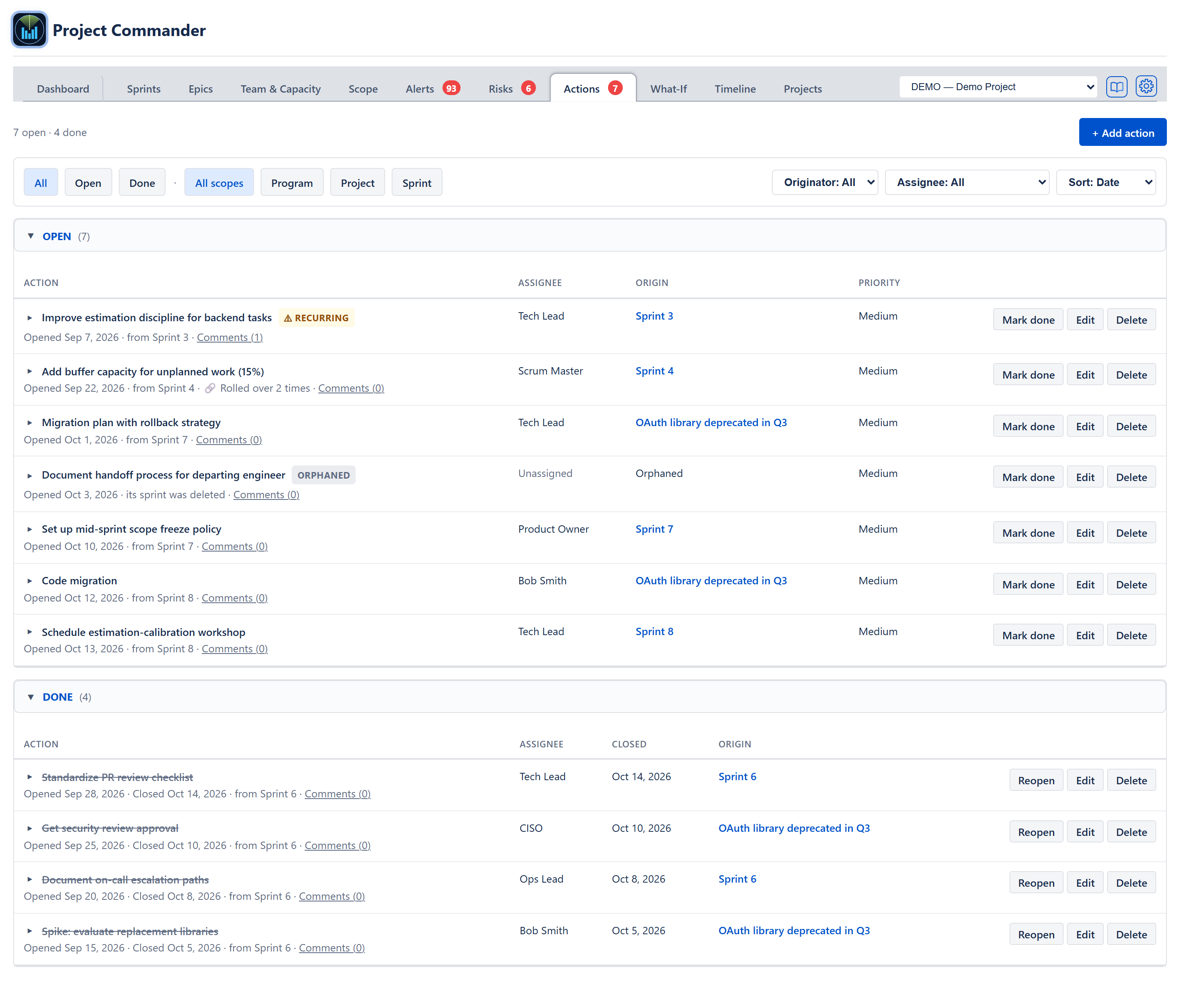
The tab does not repeat its own name — the tab bar above already says Actions. What sits at the top is the count, N open · M done, on the left, and the + Add action button on the right of the same line. + Add action opens an inline form (described below).
Filter bar
One row beneath the count. On the left, two runs of buttons with a dot between them; on the right, three dropdowns that each carry their own name so no separate labels are needed.
- Status — All, Open, Done. All shows both sets as two folding sections (OPEN and DONE, each with its count in brackets). Open leaves the DONE section empty, saying No done items match the current filters.; Done does the same to the OPEN section. Default is All.
- Scope — All scopes, Program, Project, Sprint. Sprint narrows to actions tied to any sprint; Project shows project-level actions (no sprint); Program shows actions registered at the program level; All scopes shows everything.
- Originator: All — a dropdown listing everyone named as the originator of at least one action, wherever it was raised. Selecting a name narrows the list to actions that person raised.
- Assignee: All — a dropdown auto-populated with everyone who owns at least one action. The list never includes assignees with zero items, so it is always meaningful.
- Sort: Date (default) — open items oldest-first by creation date; done items newest-first by close date. Sort: Priority orders by priority band (Critical → High → Medium → Low); within a band, items keep their storage order.
The action list
Each section is a table with column headings, not a stack of cards. The open table's columns are Action · Assignee · Origin · Priority; the done table's are Action · Assignee · Closed · Origin. Rows are separated by a hairline and carry no coloured stripe down the left — the same treatment as the Risks tab, and priority has a column of its own.
Reading one row:
- Arrow and title — ▸ opens the action's form under its row (see below), and clicking it again closes the form without saving; the action text is struck through and grey when done, with the badges beside it:
- ⚠ RECURRING (yellow) — open AND age ≥ 30 days. (There is no same-title-in-an-earlier-sprint check.)
- ORPHANED (grey) — the action's sprint no longer matches any sprint in the project (e.g. the sprint was deleted).
- One grey line under the title — everything about where the action came from, run together: Opened Sep 3, 2026, Closed Sep 20, 2026 (done only), from <Sprint name> (or from Program for an action filed against the program; nothing for one filed against the project) or its sprint was deleted, By: <originator>, 🔗 Rolled over N times, and Comments (N) as an underlined link that unfolds the comments in place.
- Notes — the action's notes text, when it has any, on its own line under that.
- Assignee column — the owner's name, or Unassigned in grey.
- Closed column (done table only) — the date it was closed.
- Origin column — why the action exists, not just where it was typed. For an action that mitigates a risk this is the risk's title as a link into the Risks tab; otherwise it is the sprint's name as a link that opens that sprint on the Sprints tab, or Program, or Orphaned, or <KEY> — project (Project when no project key was saved with it). When a linked risk has been deleted, an Orphaned link badge shows instead of hiding the broken link.
- Priority column (open table only) — the word Low / Medium / High / Critical, coloured — red for critical, blue for high, near-black for the ordinary ones — rather than a filled pill.
- Mark done / Reopen · Edit · Delete — on the row itself (the delete control read ✕ until 2026-09-02; it now reads Delete, matching the Risks tab).
- Mark done / Reopen toggles status. When marking done with Auto-close risks when all mitigation actions complete ticked on the Risks tab, any linked risk where this was the last open action closes silently, unless its strategy is Accept.
- Edit and the row's own arrow do the same thing: they open the action's form in place, directly under its summary row, so what is being changed stays in view.
- Delete asks first: Delete action item? Delete "{title}"? This cannot be undone., with Cancel and Delete.
Add / Edit form
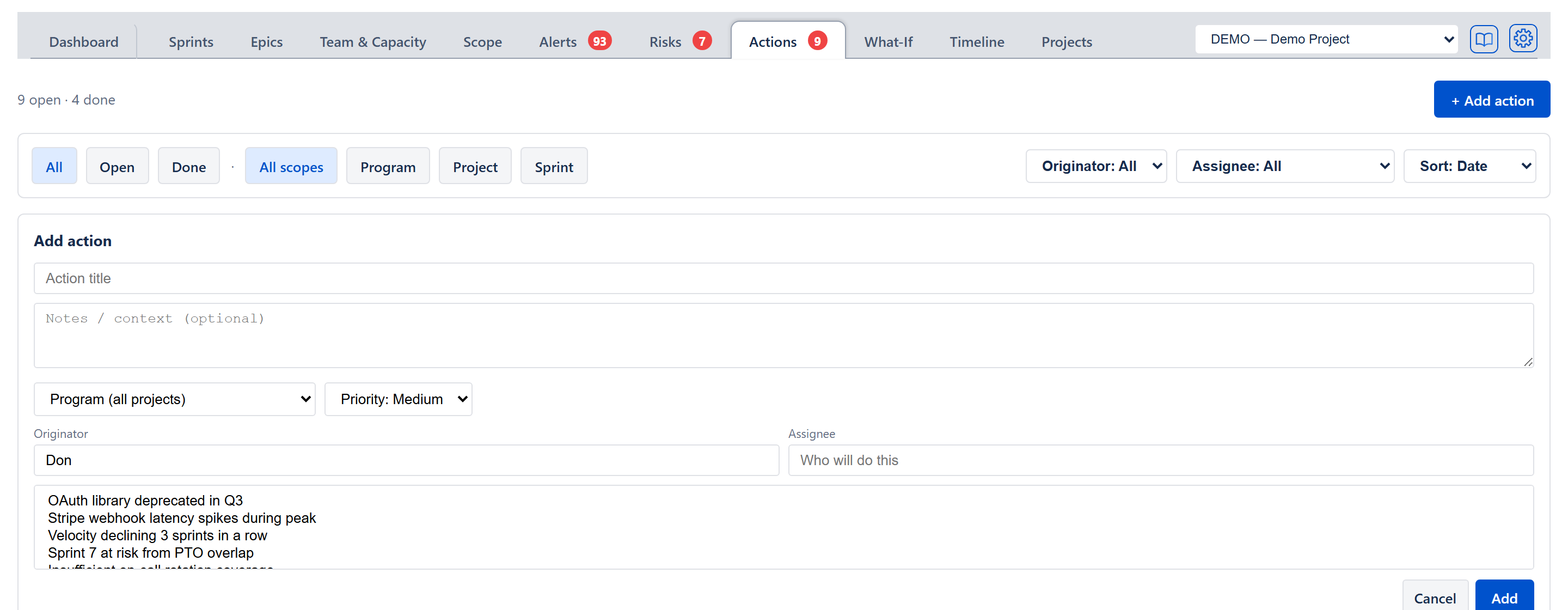
The + Add action button opens the form as a card headed Add action, below the filter bar and above the lists; its buttons read Cancel and Add. Opening an existing action shows its form directly under that action's own row, with no heading and with Cancel and Save. The two forms carry the same fields except where noted below.
- Action title (required) — what to do. Single line; Enter submits it, and Add with nothing typed does nothing.
- Notes / context (optional) — free-form text for surrounding detail (why this matters, what triggered it, references). Optional. Multi-line. Shows on its own line under the row's grey information line when present.
- Scope dropdown — Program (all projects) plus every registered project. It starts on Program (all projects), except when the project has no active or future sprint, when it starts on the first registered project. When a specific project is chosen, a second sprint dropdown appears, defaulting to All sprints (project-wide) and listing that project's sprints so the action can optionally be narrowed to one sprint. (The form for an existing action has instead one dropdown: Project (no sprint), Program (all projects), and every sprint, closed ones included.)
- Priority — dropdown reading Priority: Low, Priority: Medium (default), Priority: High, Priority: Critical. Drives the word in the row's Priority column and the Priority sort order.
- Originator — optional free-form text identifying who raised the action (e.g., Tech Lead, Bob Smith); pre-filled with the current user on a new action. Populates the Originator filter. (Plain text input — no autocomplete.)
- Assignee — optional free-form text identifying who is responsible for completing the action. Populates the Assignee filter. (Plain text input — no autocomplete.)
- Mitigates (Risks) — a list box, with no label of its own, listing every risk in the register for this project, open and closed; hold Ctrl (or Cmd) to pick more than one. It appears only when the register holds at least one risk, and not at all in a project with Sprint mode off. Whichever risks are picked become the row's Origin column on save, each one a link into the Risks tab.
Add files the action against the sprint picked, or against the project or the program. Changing the sprint on an existing action and pressing Save moves it there.
Recurring detection
An action becomes Recurring when:
- Its status is
open. - Its age (days since creation) is ≥ 30.
Age is the number of whole days since the action was created. The ⚠ RECURRING badge only ever appears on open actions, so a slow but eventually finished action loses it the moment it is marked done. There is no filter for it.
Bulk actions
The current build does not expose bulk-select / bulk-mark-done. Each row's buttons operate on that one action.
Empty / loading / collapsed states
- No actions yet — centred empty-state message: No action items yet. Add items from your retros or use the Add action button above — they'll appear here across every sprint.
- One section empty under filter — the empty section still renders its header with an italic No open items match the current filters. / No done items match the current filters. line, so the reader understands the filter is active and the data is not missing.
- Folding section headers — both OPEN and DONE fold, and each carries its count in brackets after the word, for example OPEN (7). Both are open when the tab loads. The count is the number of items in that section under the current filters.
There is no loading indicator, because the actions are read when the app starts rather than when the tab opens.
Cross-cutting modes
- Sprint mode on/off — in a project without sprints the form's sprint dropdown has no sprints to offer, so actions are filed against the project or the program, and no sprint name appears in a row's Origin column. With Sprint mode off the Mitigates (Risks) list box does not appear and no row shows a risk in its Origin column.
- Estimation mode — irrelevant to actions; the tab is unit-agnostic.
- Program mode (multi-project) — Program (all projects) is always offered in the form's scope dropdown, and the scope dropdown lists every registered project; actions filed against Program are visible across every project.
How the numbers are computed
The count at the top left of the tab reads N open · M done — global across all sprints, all owners, all scopes, ignoring the active filters so the user always knows the project total. (There is no recurring count in it.)
The Action Item Follow-through dimension on the Team Health Pulse and the Trend widget is documented in ALGORITHMS section 11. For each sprint in the look-back window it takes the actions now filed against that sprint and works out the share that are done (done divided by done plus open), then averages those shares. Sprints with no actions are left out, so a quiet sprint doesn't drag the score down.
Effects on other parts of the app
- Sprint Retro mode — actions filed against a sprint appear inside that sprint's Retro view on the Sprints tab. The two views share storage; an edit here updates the retro and vice versa.
- Team Health Pulse — 4th dimension — the Action Item Follow-through dimension reads from the same storage. A declining score is a quantitative signal that retro commitments aren't closing.
- Risks tab — actions can be linked to risks; marking the last open action done with Auto-close risks when all mitigation actions complete ticked on the Risks tab closes the linked risk silently (unless its strategy is Accept). The mitigation actions listed inside an opened risk are these same actions.
- Risks tab — Suggested by the app — the recurring-actions detector suggests a risk titled N retro actions open over 30 days whenever at least one action has been open for 30 days or more; it reads the same actions this tab edits.