 Project Commander Docs
← Back to site
Project Commander Docs
← Back to site
Risks Tab — Feature Guide
What it's for
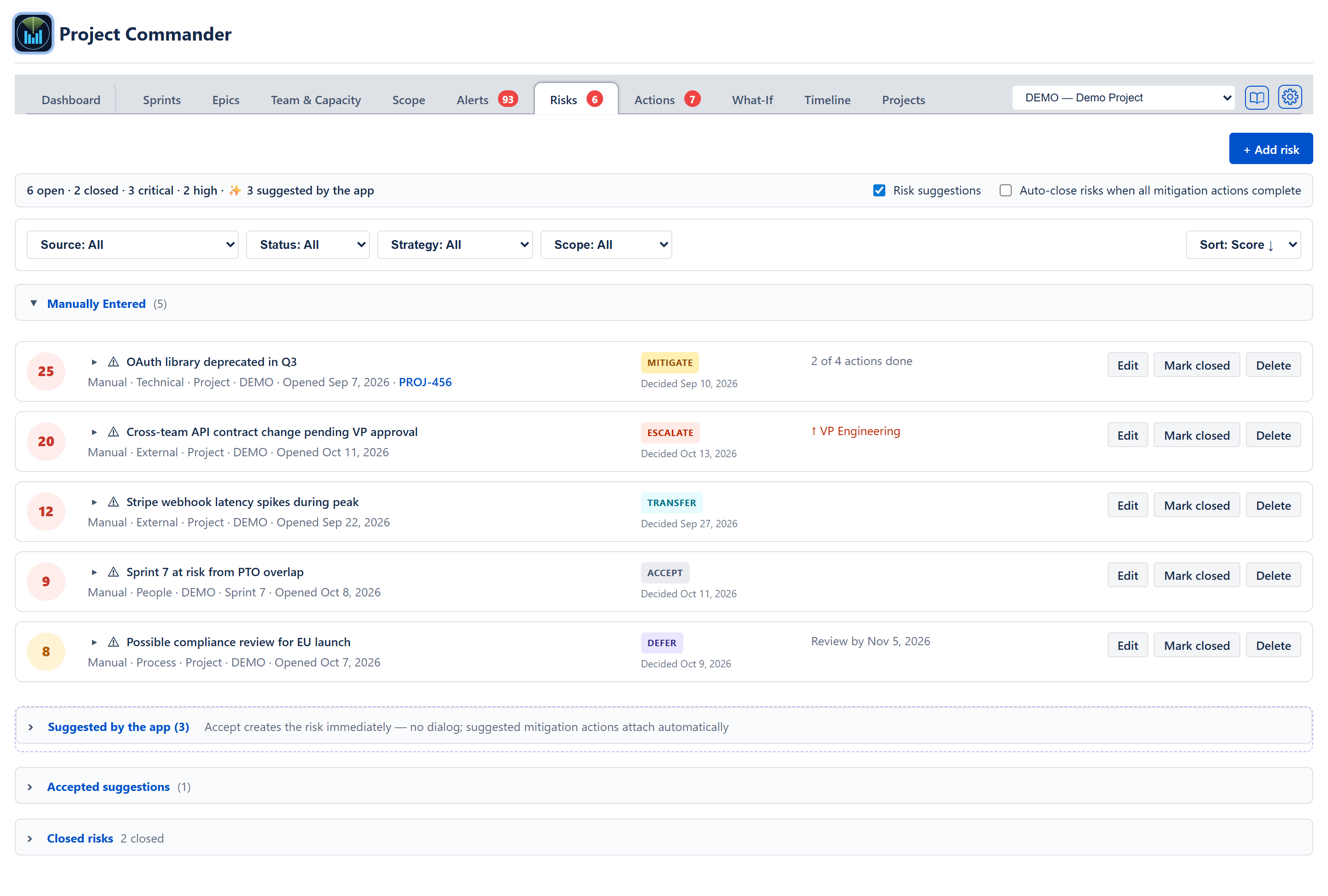
The Risks tab consolidates everything the project has told the team to worry about. Two sources flow into it: suggestions worked out by the app's own detectors — fixed rules that read the project's sprints, velocity, capacity and forecast, shown under the heading Suggested by the app; no AI is called to make them — and risks the team types in itself, in retros, planning, or at any other time. Every risk has a probability × impact score, a category, an owner via RACI fields, mitigation actions, and (optionally) comments.
The audience is anyone responsible for project health: scrum master, tech lead, product manager, programme manager. Where the Alerts tab catches issue-level data problems, the Risks tab tracks team-level threats — capacity issues, scope creep patterns, deadline slips, recurring people problems, and external dependencies.
Top of the tab
The tab does not repeat its own name — the tab bar directly above already says Risks, and no other finished tab repeats its name either.
+ Add risk sits on its own line at the top right. It opens an inline form headed Add risk whose submit button reads Add (see Add risk form below). The wording matches the Actions tab and the Projects tab — Add to create, Delete to remove (Don, 2026-09-02).
Below it, one pale bar carries the counts on the left and two project-wide settings on the right:
- N open · N closed — open (non-closed) and closed risks across all sources.
- N critical · N high — among the open set, count by severity band. Each is omitted when it is zero.
- ✨ N suggested by the app — appears when there are suggestions waiting in the Suggested by the app section.
- Risk suggestions (tick box, on by default) — show or hide the Suggested by the app section entirely; hovering it says Show the risk suggestions the app works out from this project's own figures. When it is off there are no suggestions to accept or dismiss, and the ✨ count goes with them; switching it back on brings the same suggestions back.
- Auto-close risks when all mitigation actions complete (tick box) — when on, ticking the last open mitigation action on a risk closes the risk silently with reason mitigated. When off, the risk asks first (see The close prompt below).
Both tick boxes appear only where the screen has somewhere to save them.
Filters and sort
Five dropdowns sit in one row below the counts bar. Each carries its own name inside it, so the row reads Source: All Status: All Strategy: All Scope: All Sort: Score ↓, with no separate labels beside them. Sort sits at the right-hand end of the row.
- Source — All / Manual / Suggested by the app. Manual shows only the risks the team typed — accepted suggestions are not included, because they were not typed. Suggested by the app shows the pending suggestions and the accepted suggestions. All shows every section.
- Status — All / Open / Closed. The Suggested by the app section is hidden when Closed is selected, because suggestions are inherently open proposals.
- Strategy — All · Undecided · Avoid · Mitigate · Transfer · Accept · Escalate · Defer. Greyed out and returned to All when Status is Closed, rather than disappearing: "closed risks that still need escalating" is a question with no answer. Hovering the greyed dropdown says so.
- Scope — All / Program / Project / Sprint. Narrows the register to the risks raised against the whole program, against a project, or against one sprint.
- Sort — Score ↓ (probability × impact, highest first; the default), Opened (most recent first), Closed (most recent close first), Owner (the Accountable person, alphabetical). Sort applies to the register sections; the suggestions in Suggested by the app keep the order the detectors produced them in.
Suggested by the app section
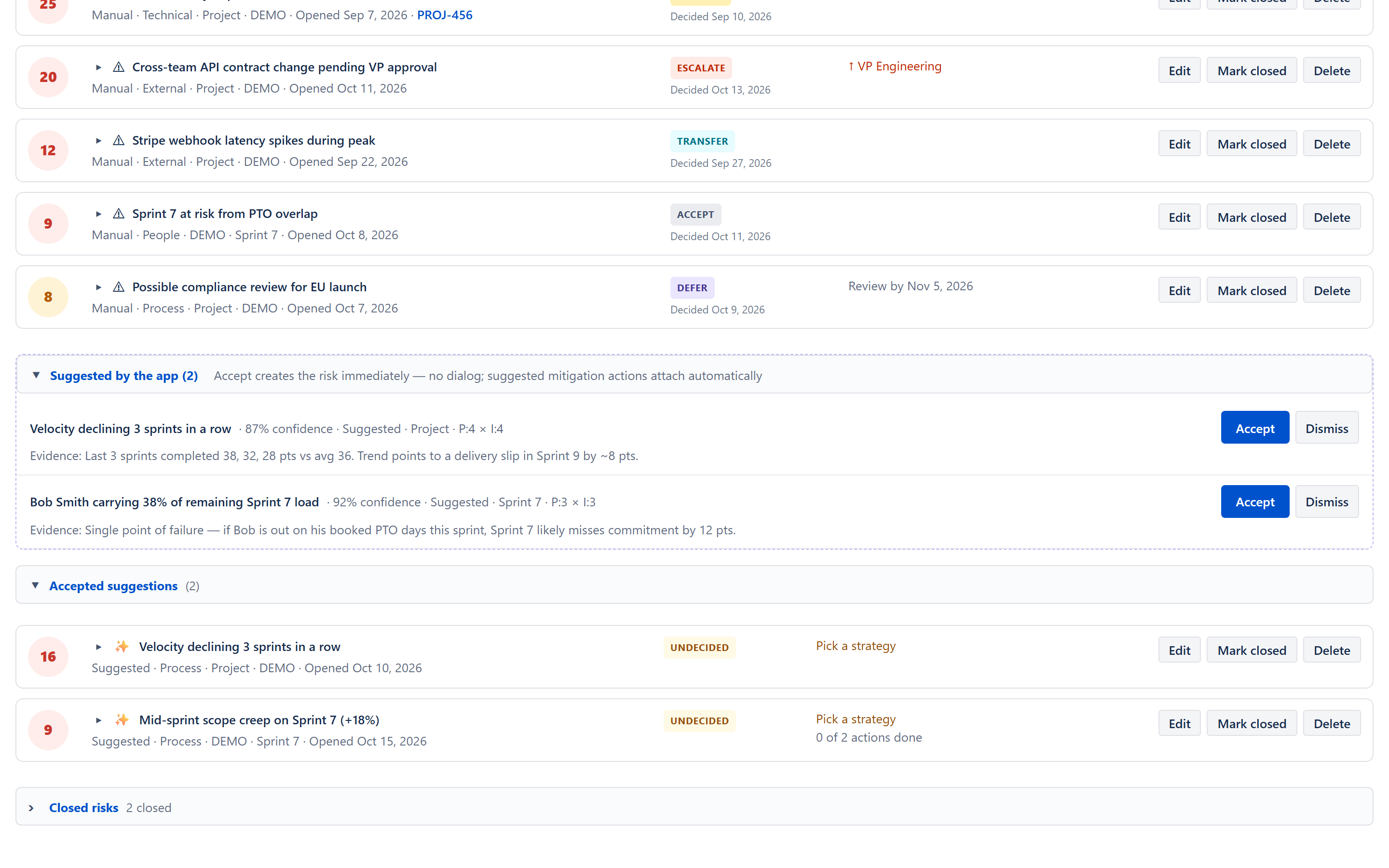
A folding section BELOW the risks the team typed (Don, 2026-09-04; it sat above the register until then), closed when the tab loads so the register a team wrote by hand reads first and the count in the header is all that shows of the detectors' suggestions until it is opened. Visible when Source is All or Suggested by the app, Status is not Closed, and there is at least one suggestion. Its header reads Suggested by the app (N) followed by the note Accept creates the risk immediately — no dialog; suggested mitigation actions attach automatically, so nobody has to press Accept to find out what it does. The whole section is drawn inside a dashed border.
Each suggestion is one row, not a card:
- Title, then on the same line · X% confidence · Suggested · Project · P:4 × I:4 (or the sprint's readable name in place of Project). Issue keys inside the title are links that open the issue in Jira.
- Evidence: the detector's plain-English reason on the line below ("Last 3 sprints completed 38, 32, 28 pts vs avg 36").
- Accept — one click creates the risk immediately. No dialog and no second Accept button: the suggestion disappears from Suggested by the app, the count in its header drops by one, and the new risk appears in the Accepted suggestions section, which opens itself, scrolled into view, carrying Edit / Mark closed / Delete on its row and its mitigation actions and comments one click away inside the row's own detail. The risk carries the suggestion's title, its evidence as the description, its category, scope, probability, and impact; the response strategy starts Undecided so the owner makes that call deliberately; the suggested mitigation actions (the app's own list of problems and their fixes when it has an entry for this kind of suggestion, otherwise a fixed list written for each detector, otherwise two general actions) are attached automatically as linked open action items, in the suggestion's own sprint, or else the active sprint, the next future sprint, or the project. Anything else — RACI, strategy, mitigation summary, Jira link, adjusted P/I — is set afterwards through the normal Edit, like any risk.
- Dismiss — removes the suggestion and remembers the dismissal, so the same suggestion does not come back unless the figures behind it change.
The register — three folding sections
The risks themselves sit in up to three folding sections, each with its own header and count, with the Suggested by the app section between the first two:
- Manually Entered (N) — the risks the team typed. Only these. Open when the tab loads.
- Accepted suggestions (N) — risks that began as the app's suggestions and were accepted. Kept apart from the typed ones (Don's ruling, 2026-08-25) so the register a team wrote by hand can be read on its own. Closed when the tab loads (2026-09-04); accepting a suggestion opens it so the new risk is seen where it lands.
- Closed risks, with N closed beside it — folded away at the bottom while the Status filter is showing everything, so a long history doesn't bury the risks that still need a decision. Filtering deliberately by Closed lists them normally instead.
Each risk is one row of a card-like table — separated rows with a rounded border each, no column headings, and no coloured stripe down the left edge (removed 2026-08-25 so this tab and the Actions tab match).
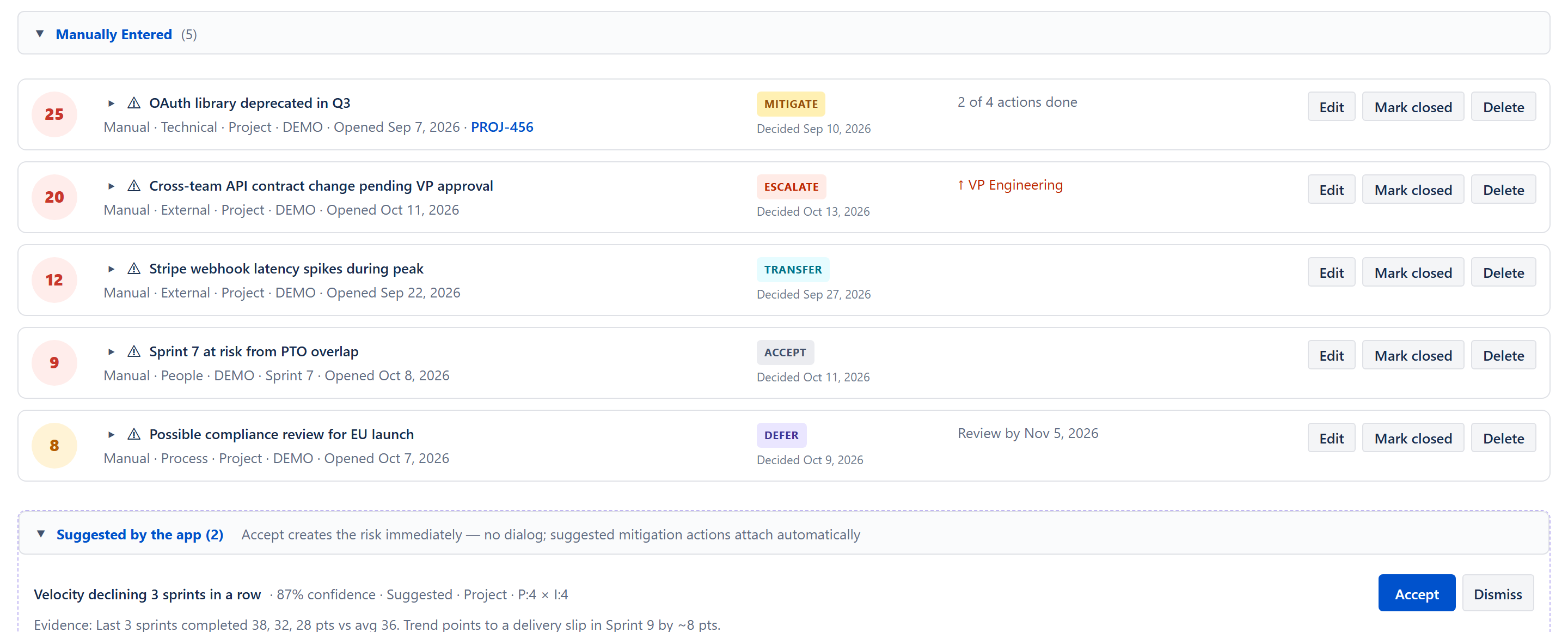
Reading a row from left to right:
- Score badge — a round pale badge carrying the number and nothing else, coloured by severity band. Hovering it gives the working: Probability 5 × Impact 5 = 25 (critical).
- Arrow, icon and title — ▸ opens the row (see below); ✨ marks a risk that began as one of the app's suggestions, ⚠ one that was typed; then the title.
- Information line under the title — Manual · or Suggested ·, the risk's category (Technical / People / Process / External / Schedule, with its description on hover; omitted on risks saved before the field existed), the scope (Program, Project · DEMO, or the project key and the sprint's readable name, such as DEMO · Sprint 7), then either Opened Jul 21, 2026 or, for a closed risk, Closed (mitigated). A linked Jira issue key appears at the end as a link that opens the issue.
- Strategy column — the response-strategy chip, with Decided <date> beneath it once a strategy has been chosen. Hovering that line gives the full timestamp and who decided.
- What is happening column — whichever of these apply: ↑ <escalation owner> in red for escalated risks, Review by <date> for deferred or accepted risks with a review date, Pick a strategy in amber when no strategy has been chosen, N of M actions done for the mitigation progress, and 🔔 N alerts currently match which jumps to the Alerts tab.
- Edit / Mark closed / Delete — on the row itself. Edit is hidden on closed risks; Mark closed only shows on open ones. Delete asks first, in a box headed Delete this risk? that says the risk, its comments and its strategy history will be removed and that this cannot be undone, with Cancel and Delete risk.
Opening a risk
Clicking the arrow or the title opens the risk in place, directly under its own row. The summary row stays put, so the score and the strategy are still in front of you while you work. Opening it is opening it for editing — the same form the Edit button opens, headed Edit Risk, with an Originator: line naming who created the risk (and accepted from a suggestion when it began as one) — and beneath the form sit the two things you read rather than type. Clicking the arrow again closes it without saving.
Mitigation actions — a line reading Mitigation actions: N open · M done, itself foldable and open when the risk opens, listing each action with a tick box, the action text (a link into the Actions tab), owner and sprint. Ticking marks the action done; unticking reopens it.
A + Add action button (only on open risks) opens an inline form with Action text..., an optional Owner, and a sprint dropdown offering Project (no sprint), Program (all projects) and every sprint that is not closed, defaulting to the active sprint, else the next future sprint, else Project (no sprint). Save creates the action and links it to this risk straight away; Cancel drops it.
Comments — a line reading Comments (N), folded when the risk opens, showing each comment with author, date, and text. Below them, a box reading Add a comment... and a box reading Author (a comment with no author is signed Anonymous) submit with Enter or the + Add button. Comments are kept per risk and shown oldest first.
The close prompt
When every mitigation action on an open risk is done:
- Auto-close on → the risk closes silently as mitigated.
- Auto-close off → a green prompt appears on the row itself, outside the fold — ✓ All N mitigation actions complete. Mark this risk as closed? — with Yes, close and Not yet. It sits outside the fold deliberately: the app is asking the reader to decide something, and a folded row must never swallow a question. Not yet hides the prompt for this session.
Add risk form
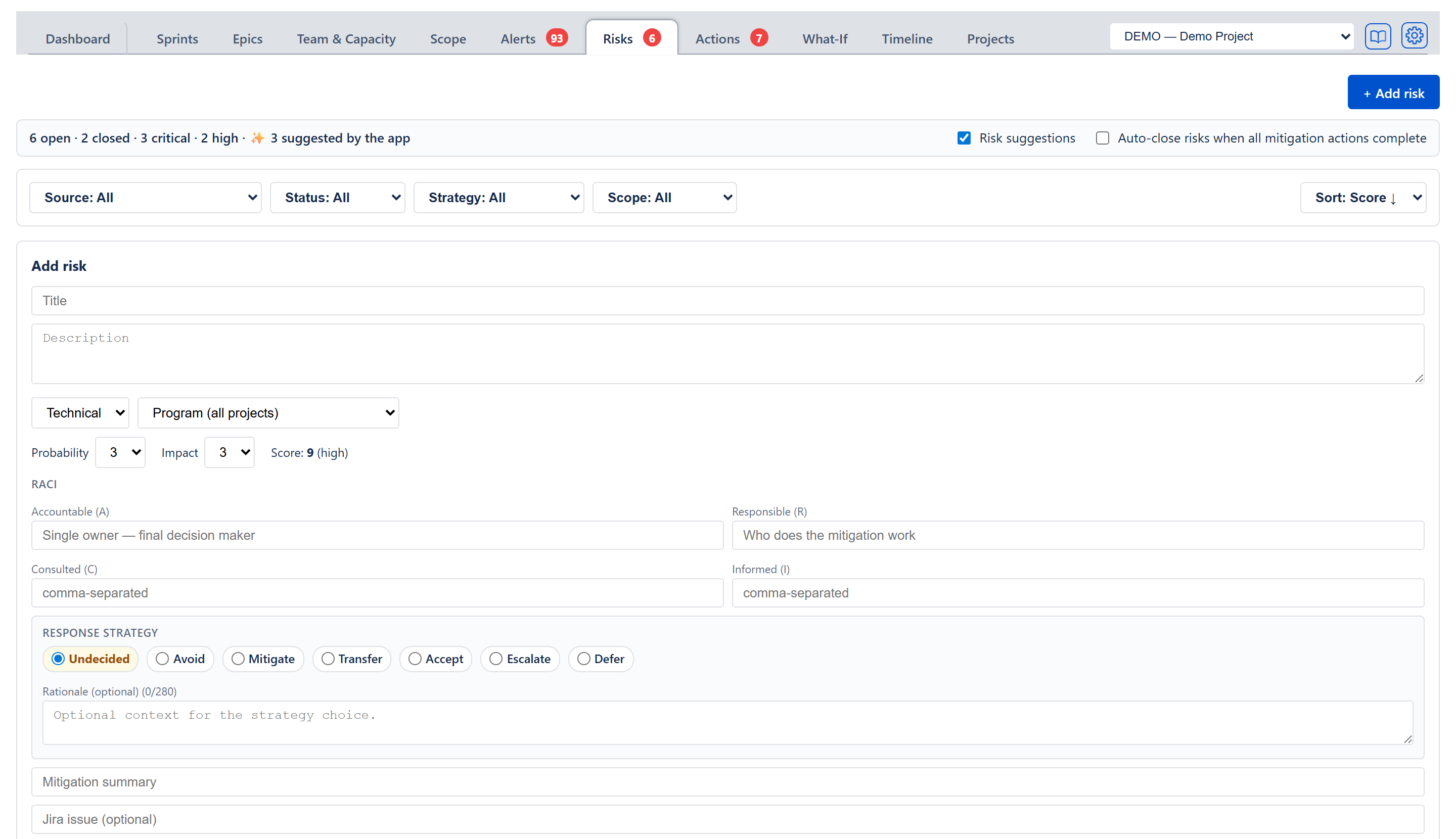
An inline card that opens below the filter row and above the register, headed Add risk, from the + Add risk button (or Create risk on a finding on the Alerts tab); its buttons read Cancel and Add. (The Accept button on a suggestion does not open a form — acceptance is one click; see Suggested by the app section above.) Fields:
- Title (required; Add with no title says Title is required.).
- Description (optional).
- Category — dropdown (Technical / People / Process / External / Schedule, default Technical), the same picker the form inside an opened risk has. The chosen category shows on the row's information line.
- Scope — two dropdowns: first Program (all projects) (the default) or one of the registered projects; if a project is picked, a second dropdown appears, All sprints (project-wide) or one of that project's sprints. The risk's scope follows from what is picked: no project means Program, a project with no sprint means Project, and a project and a sprint means Sprint.
- Probability — 1–5 dropdown with tooltips: 1 Very low — under 10% chance of occurring, 2 Low — 10-30%, 3 Medium — 30-50%, 4 High — 50-70%, 5 Very high — over 70% chance of occurring.
- Impact — 1–5 dropdown with tooltips: 1 Negligible — minimal effect on delivery, 2 Minor — small effect, easy to absorb, 3 Moderate — noticeable effect on scope or schedule, 4 Major — significant effect on delivery, 5 Catastrophic — severe effect on delivery or stakeholders.
- Score readout — Score: N (severity) beside the two dropdowns, for example Score: 9 (high), updating as probability and impact change. Both start at 3.
- RACI — under a RACI heading: Accountable (A) (required only when the response strategy is Transfer; otherwise optional — this is the risk's owner), Responsible (R), Consulted (C) (comma-separated), Informed (I) (comma-separated).
- Response strategy — see Response strategy below.
- Mitigation summary — short text describing the plan.
- Jira issue (optional) — an issue key to link the risk to.
When the form is opened from Create risk on a finding on the Alerts tab it arrives filled in: title, description, category, and probability and impact, from wording written for that kind of alert or, for a check with none, from the check's own name and the issue it found. Which alert or check it came from is recorded with the risk, so the N alerts currently match line can later light up.
Editing a risk
Edit on a row, and clicking the row's arrow or title, do the same thing: they open the risk in place, directly under its own row, with the same fields as the Add risk form and the values already filled in. Save updates the stored risk; Cancel closes the detail again.
Response strategy
Every risk also carries a response strategy — the team's decision about how to handle the risk while it is still open. Strategy is orthogonal to status (an open + accept risk is a standing decision to absorb the risk, not a closure). The seven values are Undecided, Avoid, Mitigate, Transfer, Accept, Escalate, and Defer; each renders as a coloured chip in the strategy column of the risk's row, with the date it was decided beneath it.
The six standard strategies
- Avoid (blue) — remove the source of the risk by changing scope, schedule, or approach. Plan change is required. Mark closed on an Avoid risk opens a box headed Close avoided risk asking for a note of the plan change that removed the source; Close as avoided stays greyed until a note is typed, the note is added to the comments, and the risk reads Closed (avoided).
- Mitigate (amber) — accept the risk exists and take concrete actions to reduce its probability or impact. Default operational treatment. Auto-close on linked-action completion still applies.
- Transfer (teal) — move the risk to a vendor, insurer, or partner team. Requires an Accountable on save (you cannot transfer to no one).
- Accept (grey) — absorb the risk. Accept requires a rationale; an optional review-by date drives the Risk review due alert. The auto-close-on-actions-done rule is suppressed for accepted risks so an unrelated mitigation tick cannot silently close a standing decision.
- Escalate (red) — outside the team's authority; needs portfolio / leadership decision. Requires an Escalation owner. Surfaces in the Alerts tab under Escalated risks awaiting decision until the risk closes or strategy changes. Mark closed on an escalated risk asks first, in a box headed Close escalated risk?, with Yes, escalation concluded.
- Defer (purple) — not enough information yet. Requires a Review by date of today or later. The risk drops out of the Top Open Risks widget until review-by minus 3 days, at which point it returns and an Alerts entry fires.
- Undecided (yellow) — no strategy chosen yet, which is where every new risk starts. The row's What is happening column says Pick a strategy.
Strategy field, audit trail, rationale
- Strategy is set in the Response strategy radio group above the Mitigation summary field, in both the Add risk form and the form inside an opened risk. The default selection is Undecided — every team decision should be deliberate.
- Choosing Escalate reveals an Escalation owner field. Choosing Defer (or Accept) reveals a Review by date picker (required for Defer, optional for Accept).
- A Rationale box (at most 280 characters, with a running count beside its label) sits at the bottom of the group. It is required for Accept, Escalate, and Defer because the record of why is the whole point for those strategies. A missing required field is named in a red line above the form's buttons, and nothing is saved until it is filled.
- Changing strategy records when it was decided and by whom (shown as Decided <date> in the row's strategy column) and adds a comment to the risk's comments ("Don changed strategy from Mitigate to Accept.").
- Switching away from Mitigate / Avoid keeps the existing mitigation text and any linked actions; in the opened risk's form the mitigation box then reads Historical mitigation — the strategy has moved on from mitigating when empty, so it doesn't read like a current commitment.
Dashboard mix bar + sort priority
The Dashboard's Top Open Risks widget carries a strategy mix underneath its header: one small coloured chip per strategy, undecided first, such as 3 undecided, 4 mitigate, 2 accept, 1 escalate. A strategy with no risks has no chip. The widget sort puts Undecided and Escalate risks above Accept at the same severity score so the items demanding attention surface first. Defer risks are excluded from the widget until their review window opens (review-by minus 3 days).
Alerts
Two checks sit in the Risk strategy group on the Alerts tab:
- Escalated risks awaiting decision — every open risk with strategy Escalate. Message reads Awaiting decision from {Escalation owner} or Awaiting escalation owner when none is set.
- Risk review due — every open Defer (or Accept with a review-by date) risk where today has reached review-by minus 3 days. Its note reads, for example, Defer · Review due in 2 days, Review due today or Review overdue by 1 day. Past the review-by date it counts as an error; within the three days before, as a warning.
Each finding in either check carries an Open the risk button, which opens the Risks tab with that risk scrolled into view.
Complete Sprint and Accept risks
The Complete Sprint dialog lists open risks whose linked mitigation actions are all complete and offers to close them. Accept risks are left out of that list because acceptance is a standing decision, not an actions-driven mitigation. Avoid risks closed this way read Closed (avoided) rather than Closed (mitigated). Escalated risks do not block sprint completion.
Severity formula
Severity is probability × impact with bands:
- 15 or more → Critical (red).
- 9 to 14 → High (red, the same colour as Critical on the score badge).
- 4 to 8 → Medium (amber).
- Under 4 → Low (green).
The round score badge is filled pale in the band's colour and lettered in the matching strong colour — pale rather than solid, because the seriousness is the number itself. The Dashboard's Top Open Risks widget draws the same badge from the same definition, at a smaller size. The default sort is by score so critical risks float to the top.
Detectors that make the suggestions
The fixed-rule detectors that produce suggestions are documented in ALGORITHMS section 13. There are fourteen: five sprint-level detectors (low confidence, single-person load, mid-sprint scope creep, aging issues, capacity hit by time off), seven project-level detectors (velocity decline, carry-over rising, deadline at risk, estimation quality declining, recurring actions, health trend dropping, critical sprint ahead), and two cross-cutting detectors (oversized issues not split, and issues untouched in the active sprint).
Suggestions below a confidence of 60% are not shown. No control on any screen changes that figure.
Empty / loading / error states
- No risks and no suggestions — No risks yet. Add one manually or accept a suggestion.
- Filters hide everything — No risks match the current filters. with a Clear filters button that returns Status, Scope and Strategy to All.
- Source = Suggested by the app but no active suggestions — No suggestions right now.
- Status = Closed and Source = Suggested by the app — Suggestions are hidden while filtering by closed status.
Cross-cutting modes and settings
- Sprint mode — the sprint-level detectors need sprints, so a project without them produces no sprint-level suggestions. The Scope filter always offers Sprint; in the Add risk form the sprint dropdown lists only the chosen project's sprints.
- Programs — the scope picker exposes all registered project keys; risks can be scoped to Program, a specific project, or a sprint within a project.
How the numbers are computed
Probability × impact, banding, detector definitions, and confidence calculation are documented in ALGORITHMS section 13.
Effects on other parts of the app
- Dashboard Top Open Risks widget — reads the same risk store and shows the highest-severity open risks, drawing the same round score badge from the same shared definition; clicking jumps back to this tab and scrolls the matching row into view.
- Tab badge — count of open risks on the Risks tab in the tab bar, shown when it is above zero.
- Action items — accepting a suggestion or hitting Add action inside an opened risk creates rows in the Actions tab linked to this risk; ticking them done can auto-close the risk.
- Alerts tab — Create risk on a finding on the Alerts tab is the inverse direction: the finding flows into the Add risk form, and the risk remembers which alert or check it came from.
- Actions tab — the two tabs are built to look and behave the same way: folding sections with one blue header bar, rows that open in place, and issue keys everywhere that open the issue in Jira.