 Project Commander Docs
← Back to site
Project Commander Docs
← Back to site
Dashboard Tab — Feature Guide
What it's for
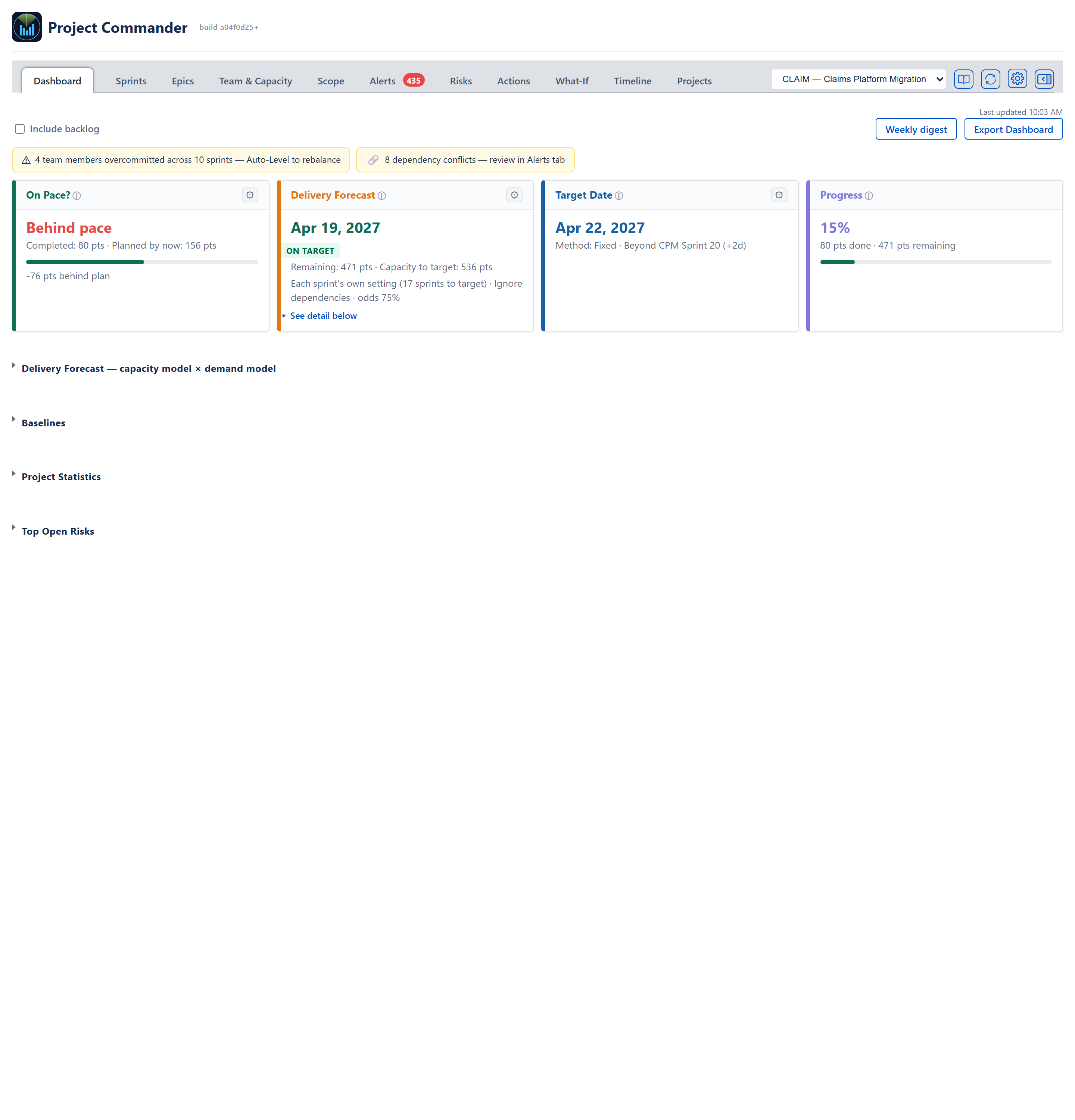
The Dashboard is the project's single-screen health view. It collapses the full state of the project — schedule, scope, team capacity, data quality, delivery confidence — into four stat cards across the top, then a run of folding sections beneath them, all folded closed when the tab opens: the Delivery Forecast grid, Baselines, the Project Statistics scorecard, the Velocity History sparkline, and the Top Open Risks list. Every number on the Dashboard is computed by the same shared calculations the Sprints, Scope, Risks, and What-If tabs use, so a verdict here will match the verdict on any other tab.
The audience is the project lead, delivery manager, or stakeholder who needs the answer to one question — Are we on track to hit the deadline? — and a quick path into whichever tab can answer the follow-up. Banner pills at the top of the tab lead to the Sprints tab, where Auto-Level lives (when capacity overload is detected), and to the Alerts tab (when dependency conflicts are detected).
Questions are asked in the Ask sidebar. The Dashboard no longer has an AI box of its own. To ask a question about the project in words — Will we finish by 31 March?, Which sprints are overcommitted? — press the control at the right-hand end of the tab bar, past the settings gear. It shows the Ask sidebar on every tab, in the app installed in Jira. See the Ask section below and the Ask Panel Guide.
Header / Toolbar

Include backlog checkbox
A single Include backlog checkbox sits at the top-left of the panel (in sprint mode only; with Sprint Mode off it is not shown). Unchecked, the Dashboard counts only issues that are in a sprint plus all done issues. Checked, it adds in everything that matches the project's JQL filter, including unscheduled backlog work. Every downstream number recomputes when this toggles — stat cards, Project Statistics rows, forecast date, and the answers the Ask panel gives. The choice is saved to the project's configuration, so it persists across reloads.
Ticking it means the dates on that work are used as they are, not ignored (ruling 2026-09-19). In the Delivery Forecast, a backlog issue with a due date is worked in the soonest open sprint that ends on or after it; one with no date of its own but an epic that has one borrows the epic's, and the Alerts tab shows that date as borrowed; a typed start date is honoured exactly as typed, so the work cannot be done inside a sprint that finished before it may begin, even when that date is in the past or clashes with the due date. Work with no date at all goes to the team's next real capacity — the first open sprint — and no date is invented for it.
Weekly digest button
The Weekly digest button, top right, opens a window headed Weekly Digest that previews an email-ready summary of the current Dashboard state: a status line, the On Pace?, Delivery Forecast, Target Date and Progress figures with the alert count beside them, then What Changed This Week, Needs Attention and Outlook. The window has an Export PDF button (the file is named weekly-digest.pdf) and a × to close it. The preview is a snapshot at the moment the button was clicked; it does not auto-update if the underlying data changes while the window is open.
The four figures are the four cards' own, as the cards open: On Pace? counts the same issues the card does (so the Include backlog checkbox applies), and the Delivery Forecast figure is the card's date, words and colour — Does not fit the plan and Never in red, a date in green when it is on or before the target.
- Status line — follows the Delivery Forecast card (Don, 15 October 2026): CRITICAL when the plan never finishes, does not fit, or is more than 14 days late; AT RISK when 1 to 14 days late; ON TRACK when on or before the target or all work is done; NO FORECAST, with the card's own words, when the card has none. When the On Pace? card reads Behind pace a second line says so beside it — Behind pace: 80 of 156 pts planned by now are done — rather than changing the verdict.
- Needs Attention — the Dashboard's own warnings (people overcommitted, dependency conflicts, externally constrained issues at risk), then the number of alerts: 434 alerts on the Alerts tab. Alerts are not listed one by one.
- Outlook — one sentence from the Delivery Forecast card's own figures: The remaining 280 hrs are forecast to finish on Nov 16, 2026, 45 days before the Dec 31, 2026 target, with 352 hrs of capacity before it. No weekly rate is quoted beside the date, because the date comes from walking the planned sprints, not from one rate. Work that does not fit, or a plan that never finishes, gets the card's own sentence instead.
- Velocity — What Changed This Week reads the selected project's own velocity only. Until 15 October 2026 a velocity answer that arrived after the project picker had moved on was shown as the new project's, so a project with one closed sprint could read Velocity trend declining: -6% from another board's sprints.
- In the Program view the digest gives the program's own four figures (see Program view below), then a Projects table with one row per project in the program — Project, On Pace?, Delivery Forecast, Target Date, Progress, Alerts — each the figures that project's own Dashboard shows, in its own unit. The Outlook names the project that finishes last.
Export Dashboard button
The Export Dashboard button, beside Weekly digest, generates a landscape PDF of the Dashboard as it stands, with the interactive controls stripped out (the Include backlog checkbox, the two buttons and the card settings panels). It copies what is on screen, so a section that is folded closed is not in the PDF — open the ones you want first. The export honours the current Include backlog state and the current values of the per-card settings. The button reads Exporting... while the file is made, and the file is named dashboard-report-YYYY-MM-DD.pdf. If the file cannot be made, a red line beside the button reads The dashboard could not be saved as a PDF. Nothing was written. and the button can be pressed again.
Capacity Overload banner
Appears in sprint mode when one or more active team members are projected to carry more work than their capacity in one or more open sprints, under the Delivery Forecast card's capacity model. Reads "N team members overcommitted across M sprints — Auto-Level to rebalance" with a ⚠ icon. Clicking the banner opens the Sprints tab, where the Auto-Level button is; it does not start Auto-Level itself.
Dependency Conflict banner
Appears when the Alerts engine has detected one or more dependency conflicts (blocker due after blocked, blocker after dependent start, circular dependency). Reads "N dependency conflicts — review in Alerts tab" with a 🔗 icon. Clicking the banner navigates to the Alerts tab.
External Deadline banner
Appears when one or more issues have an external (locked) due date and are scheduled in a sprint that ends after that date. Reads "N externally-constrained issues at risk of missing their deadline" with a 📅 icon. The banner is informational and does not link out.
Tab bar buttons
The project picker and four small buttons sit at the right of the tab bar, above every tab, not on the Dashboard itself. The picker is hidden on the Projects tab, which lists every project already. In order: Guide (an open book, opens the help site), Refresh (circular arrows, on every tab including Projects once a project is registered, but not in demo mode), the settings gear, which opens the global Settings panel, and last of all the control that shows and hides the Ask sidebar (in the app installed in Jira only — see the Ask section below). The gear is not shown when the app runs as a gadget on a Jira dashboard, where Jira's own Configure control opens the same settings.
Notices above the cards
When team members are set up but none is allocated to this project, an amber notice above the cards says so: Team capacity for the project reads 0 and team-based forecasts stall until each person's allocation is set. With no issues to show, the tab says Connected, but no issues match yet. and lists the likely causes (a JQL filter that matches nothing, a changed board, or lost access); before any project is registered it shows the same notice every tab shows, pointing to the Projects tab.
Last updated
A Last updated HH:MM line sits at the top-right of the tab once data has been fetched, so the freshness of the numbers is always visible.
Read in full at 9:02 AM, changes since then at 9:41 AM
When the app reads a real Jira project it keeps a copy of that project in this browser, for the person signed in, and the line at the top right that used to read Last updated says where the issues came from: Read in full at 9:02 AM, changes since then at 9:41 AM. The first visit of the day reads the project in full. Every visit after that asks Jira only for the issues changed since the last read, plus two minutes of overlap, and merges them in, so a big project is read in full once a day and in a second or two after that. After every such read the app asks Jira how many issues the filter matches; if that differs from the copy (an issue deleted, or one that joined or left the filter without being touched) the project is read in full at once. A read that could not finish is never trusted; the next visit reads in full. Jira's count is one Jira itself calls approximate: when it lags behind a very recent change the app reads in full more often than it strictly needs to, and a deletion the count has not yet noticed stays on screen until the next full read of the day, or Refresh. The copy is per person and per browser; two people sharing a computer never see each other's issues, and a person on two computers reads in full once on each. Refresh and Start over remove the copy, in the web app so does Log out, and a copy not used for 7 days is removed the next time the app opens; the website's privacy policy and security page say the same.
When the project is read. A project's issues are read when the first tab that needs them is opened, and read again after every change the app writes to Jira (a points edit, a move between sprints, a sprint created, started, completed or deleted, dates written from the Timeline, an Auto-Level accepted, and the rest), when you come back to the app after opening an issue in Jira, when you press Refresh, and when a tab is opened more than five minutes after the last read. Switching between tabs inside those five minutes shows what was already read and reads nothing; before 15 September 2026 every tab switch read the project again and, on a large project, worked the forecast out twice. While a read is in flight, Scope, Alerts, Team & Capacity and Trends keep showing what they have; a tab reads Loading issues... only when there is nothing to show yet.
A change the app writes to Jira is on every screen at once: the Sprints tab patches its own card, and the same change is laid over the issues the Dashboard, Scope, Alerts, Team & Capacity and the Projects table read, so they agree from the moment Jira accepts the write. The app then confirms the change by reading the written issues back directly, by key. Jira answers that read from its own record the moment the write is accepted, so it never depends on how quickly a site's search catches up. Jira's search, which every ordinary read goes through, shows a write only after a delay that differs from site to site (measured on one site on 15 September 2026: a changed field in about a sixth of a second, a move between sprints in under a second, a newly created issue in up to three and a half seconds; another site's figures are its own), and a read made before it has caught up would bring the old issue back and, merged into the kept copy, put a moved issue back where it came from. So the confirmed issues are laid over every later read, and written into the kept copy, until a read brings each one back at least as new as confirmed; nothing waits any set time. A change to the order of issues never marks an issue as updated in Jira; the app keeps its own order, so nothing is confirmed for it. Since the same day, work moved from one future sprint to another is read as being in the sprint it moved to; before, the first future sprint in Jira's list was taken, which put moved work back where it came from on every screen.
Refresh, the circular-arrows button in the tab bar between Guide and the settings gear (on every tab, Projects included, and not in demo mode), reads the selected project from Jira in full now, whatever the copy says. Start over in Settings clears the copies. A copy not used for seven days, such as one made for a filter that has since changed, is tidied away on its own. Closing the app or the browser does not remove a copy. Demo mode keeps no copy.
Big projects arrive in more than one call
While a project is being read the screen shows only Loading..., and when the read fails it shows Error loading data with Jira's reason beneath; neither line names the project, so with several registered, the project picker at the top right says which one it is. A project with thousands of issues no longer fails to load. The app reads it in calls of up to 18 seconds each, draws what has arrived, and asks for the rest until the whole project is in. While that is happening a line at the top right, beside where Last updated goes, reads Showing 2,400 of about 3,100 issues; the rest are still loading. (the second figure is Jira's own count for the project's Issue filter; without it the line reads Showing 2,400 issues so far; the rest are still loading.). The same line appears on the Sprints tab above the cards, on the Scope tab above the chart, and on the Trends tab in place of its loading line. Only when a single page of issues cannot be read inside the limit does the line change to the message asking you to narrow the project's Issue filter on the Projects tab; the issues already read stay on screen.
Stat cards

Four cards across the top — On Pace?, Delivery Forecast, Target Date, Progress — each with a coloured left edge, a headline value, and ONE line of supporting figures beneath it. (Until 2026-08-24 those figures were stacked one per line, which made each card four rows taller for the same facts; they now read across a single line separated by dots, the shape the Scope tab's card already used.) Three of the cards carry a gear that opens a settings panel beneath the row: the Delivery Forecast card's gear is its own (the two model pickers + scope growth), and the On Pace? and Target Date gears open their shared settings. Progress has no gear. Every one of the four titles also carries a small information mark (ⓘ): resting on it gives one line on what the card measures, and clicking it opens the full explanation, including what makes the card green, amber or red — the On Pace? card's 5% either side of the plan, that Progress is a share and has no thresholds of its own, and where the target date is set. (Since 17 September 2026 the hover is the short line and the click the full text; before, the hover carried everything.) When the On Pace? and Target Date settings are open the row reflows to give the Delivery Forecast card extra width. Since 2026-09-04 these are the SAME four cards the What-If tab draws (it hides On Pace? and Progress), computed once and drawn once: until then the Dashboard kept its own copy of the cards and of every calculation behind them, and the two copies had drifted apart.
On Pace? card
Shows whether earned work to date is ahead of, on pace with, or behind the planned amount of work for today. The headline reads Ahead of pace, On pace, or Behind pace depending on the result.
- Headline: Ahead of pace (green), On pace (green), or Behind pace (red).
- One line beneath it: Completed: X pts · Planned by now: Y pts — the sum of estimates on done issues, and the amount that should be done by today under the selected Pace measure (see Settings below; with Schedule-based this is the sum of estimates on issues due on or before today, where an issue's due date is its own, else the end of the sprint it is in, else its epic's). Cancelled work counts in neither figure.
- A bar showing how far through the planned amount the completed work is.
- Footnote: signed difference (e.g., +44 pts ahead of plan or -12 pts behind plan).
- Bands: done within 5% either way of planned → On pace; more than 5% over → Ahead of pace; more than 5% under → Behind pace. With nothing planned by now it reads On pace.
- When there is nothing to measure the card says why instead: No issues found, No estimates found, or No due dates found.
- Settings (the gear): under Include, a checkbox — All Done, not only planned, which starts CHECKED each session (every Done issue counts by default; the choice is not saved). When unchecked, only Done issues due on or before today are counted in Completed (under Timeline-based, every Done issue always counts). Under Pace measure, three radio buttons: Auto (recommended) (schedule-based when any issue has a due date of its own, timeline-based otherwise), Timeline-based (share of the project's timeline elapsed × total scope), or Schedule-based (sum of estimates on issues due by today).
- The earned-value SPI value is computed by the underlying engine but is not currently rendered as a separate metric on this card; the Ahead / On pace / Behind verdict and the signed delta are the user-facing surface of the same comparison.
Delivery Forecast card
Shows the projected end date for all remaining work against the target date.
- Primary value: a date (e.g., Jul 13, 2026), or one of three labels — Complete when no work remains; Does not fit the plan when the planned sprints (or, with Sprint Mode off, the planned periods) end with work still left; or Never when work remains but the plan can't deliver it (no capacity, or scope growing at least as fast as the team burns it down). The forecast counts only the capacity the plan has: it walks the planned sprints one at a time and stops at the last one, and nothing is carried on past it at anybody's rate (Don, 6 October 2026). When the work does not fit, a red line under the figures says how much and roughly what to add — 21 pts don't fit in the planned sprints. To finish by Dec 18, 2026, add about 1 more sprint at 26 pts, or more capacity., or, when one person holds most of what is left, To finish by Dec 18, 2026, Ann would need about 12.5 more sprints at their 4 pts a sprint - add capacity for Ann, or move work to someone with room. The number of sprints is rounded up to the half, and it is advice: the forecast never counts that capacity. No odds and no likely range are shown beside Does not fit the plan. (Unlike the Target Date card, this card shows no sprint-name line beneath the date.) With no target date at all the card still projects the finish, from the throughput rate of the chosen capacity model, and its verdict reads No target set (the same behaviour the Scope and What-If cards always had; until 2026-09-04 the Dashboard showed a no-data prompt instead). When no capacity model can produce a forecast at all, the card shows only a line saying what is missing: Complete a sprint, set sprint capacity, or add team members to see a forecast (with Sprint Mode off, Add team members in Team & Capacity to see a forecast).
- One line beneath it: Remaining: X pts · Capacity to target: Y pts — the sum of estimates on non-done issues, and the total capacity between today and the target date, clipped at BOTH ends: any sprint not yet closed contributes only the part of its dates still ahead — for the active sprint, what the people's typed weeks leave in the days still to come, which is the same figure that sprint's own card on the Sprints tab shows as Remaining capacity (days already elapsed are spent — ruling 2026-07-10; worked out exactly since 9 October 2026, where before it was the whole figure times the share of the sprint's calendar time still to run, so the two screens could disagree about the same sprint). Where a sprint carries a flat number instead — the project's Sprint Capacity, or a number typed for that sprint alone — there are no weeks behind it to ask about and that share of its calendar time is still what it contributes. A sprint Jira still marks future but whose dates have passed contributes nothing at all (decision 2026-09-03: it was never started, and its days are gone), and a sprint that straddles the target contributes only its share of days on or before it (ruling 2026-07-09); a sprint with no start and no end date sits nowhere between today and the target and contributes nothing (26 September 2026 — until then it counted in full). When the plan holds capacity beyond the target (the rest of a straddling sprint, or open sprints starting after it), an extra line states it: N pts capacity available after target date.
- Date colour: green when the date is on or before the target, amber when it is up to a week after it, red beyond that (and red for Never and Does not fit the plan).
- Verdict pill directly under the date (moved there on 13 October 2026; it sat under the figures line before), in capitals: ON TARGET (green) when the date is on or before the target, or NOT ON TARGET · N DAYS LATE (red) when it is after it. Does not fit the plan reads NOT ON TARGET (red) with no day count. With no target it reads NO TARGET SET; a plan that cannot finish reads CANNOT FINISH (work held by nobody with capacity) or SCOPE OUTPACING DELIVERY (scope growing at least as fast as the team finishes work), and the pill is red for both (since 15 October 2026; before, it was green under CANNOT FINISH).
- An amber ⚠ mark straight after the card title when the date needs explaining; resting on it gives a one-line summary, clicking it the full text. It can carry any of these, stacked (work that does not fit the plan is not among them; that is said on the card's face, where the date would be):
- This date leaves out 37 pts — work held by someone on the Team & Capacity tab who has no capacity is taken out of the plan, and the date covers the rest; the full text names them and says to type their capacity or hand the work to somebody else (since 17 September 2026; before, such a person stopped the whole plan).
- Cannot finish: Diana Lee has work and no capacity — shown, with the date replaced by Never, when nobody on the plan has any capacity at all.
- N pts of this plan carries no date — on a project with Sprint Mode off, how much of the work has no due date and is therefore queued rather than placed by a date.
- One caption line, under the figures line, naming everything behind the date: the capacity the date was worked out from, in the engine's own words with its count (Each sprint's own setting (17 sprints to target), Team capacity (4 people on the Team & Capacity tab)), then the demand model, the on-target odds, and the likely finish range — Each sprint's own setting (17 sprints to target) · Ignore dependencies · odds 20% · likely Nov 22 – Dec 20. (These were four separate lines until 2026-08-24; from 7 to 13 October 2026 the capacity sat on a line of its own behind the word From and was named again here, which Don read as duplication, so it is said once.) The range is left out when more than one run in ten never fits the planned capacity, and the odds and the range are both left out when the card reads Does not fit the plan.
- Amber notices under the verdict when supply-side data is missing: Efficiency not measured yet — nothing discounted (the Effective team capacity model when no closed sprint gives a usable reading of finished work divided by committed work; since 17 September 2026 nothing is then taken off, so it reads the same as Team capacity — until then a standard 80% was assumed), and, when the Team or Effective model comes out at zero while work remains, whichever of these three applies: This sprint has no start and end date, so its capacity cannot be worked out. Set the sprint dates on the Sprints tab. — Nobody has been added on the Team & Capacity tab, so there is no team capacity to count. Add the people working on this project there. — The people on the Team & Capacity tab have no capacity typed yet. Fill in the Pts/Wk or Hrs/Wk column there. The same sentence appears beside the capacity figure in the sprint card's Team & Capacity section on the Sprints tab. When NOBODY on the roster has a capacity typed (not even a zero), the Team capacity model does not read zero: the settled rule is that with no team the project's Sprint Capacity stands in, so the card uses the project's number, the same one the Sprints tab's cards use, and its caption says so — Team capacity — nobody has a capacity typed on the Team & Capacity tab, so the project's Sprint Capacity (40 pts a sprint) stands in (26 September 2026; until then the Dashboard read CANNOT FINISH while the Sprints tab read Deliverable on the same project). A typed zero is a real zero and reads CANNOT FINISH with the sentence above.
- The odds and the range in that caption come from a Monte-Carlo run of the plan: the chance of making the target, and the optimistic (10%) to pessimistic (90%) finish dates. Critical Chain carries no odds — it is a floor, not a prediction.
- ▸ See detail below — opens the forecast grid section underneath.
- Settings (the card's own gear): a Capacity model dropdown — Each sprint's own setting, Effective team capacity, Team capacity, Velocity (with sprints on; Capacity per period, Team capacity, Effective team capacity and Throughput with sprint mode off — Velocity counts work completed per sprint, and Throughput takes its place: work finished per week, from the date each issue was finished, over the look-back window, added 2026-09-13). Each choice carries the model's own detail in brackets where it has one, and a choice that cannot be used is greyed out with its reason (for example No completed sprints beside Velocity). Choosing Velocity reveals a Use last N sprints input (1 to 10, default 5, the same number as Velocity Lookback on the Projects tab); choosing Throughput the same input counted in periods. Throughput is a delivery rate for the whole team, never a capacity per person, so the Feasibility chart says it cannot draw it. Its option is disabled, with the reason, until some work has finished with a finish date inside the window; its caption names the rate, the unit and the window — Throughput (4 pts/week over the last 3.9 weeks). A Demand model dropdown, in this order — Ignore dependencies, Respect dependencies, Resequence work. Critical Chain only is not offered here: it ignores capacity, so it is the soonest the blocking links allow rather than a forecast, and it never sets the card's date (proposal 126). Its square in the grid below still shows it, and a project saved on it reads as Ignore dependencies on the card. And a Scope growth method control — a checkbox, off by default; ticked, choose Average (the project's own historical rate, shown in brackets per week) or Manual (a rate per week you type in the box that appears). Each model is documented in ALGORITHMS.md (Delivery Forecast).
Target Date card
Shows the deadline the rest of the Dashboard is measuring against. Always blue (no status colour).
- Primary value: the resolved target date, or Not set when there is none.
- One line beneath it, beginning with how the date was arrived at: Method: Latest due · Beyond Sprint 10 (+2w) (the method reads Latest due or Fixed). In sprint mode, and not in the Program view, after the method comes the matching sprint name when the target lands inside a planned sprint, or Beyond Sprint N (+gap) when the target is past the last planned sprint. The gap tail adapts to its size — (+Nd) for a gap of two weeks or less, (+Nw) up to twelve weeks, (+Nmo) in months beyond that.
- Settings (the gear, under Date source): two radio buttons — Latest issue due date (the default; picks the latest due date across non-done issues) or Fixed date: with the date box beside it (greyed until Fixed date is chosen; clicking the box chooses it). A fixed date is this project's own: it is written to the project's record — the same Target Date the Projects tab's Add / Edit Project form holds — so the Projects table, the programme figures and this card can never show two different dates for one project (2026-09-03; until then the card kept its own copy).
Progress card
Shows the overall percentage complete. Always purple.
- Primary value: a percentage (57%), with a bar beneath the figures showing the same share.
- One line beneath it: X pts done · Y pts remaining. When more has been done than the current scope holds (scope cut after the work was done) the card reads 100% and the line says X pts done (over-delivered, original scope Y pts).
- No settings panel and no gear icon.
- Calculation: done work ÷ (done work + remaining work), with cancelled work left out of both. Done work counts at its committed size; remaining work follows the project's Remaining Work setting (time mode only: Committed size, the default, or Live estimate). When no estimates exist the formula falls back to issue counts and the line reads N issues done · M issues remaining.
Delivery Forecast — capacity model × demand model
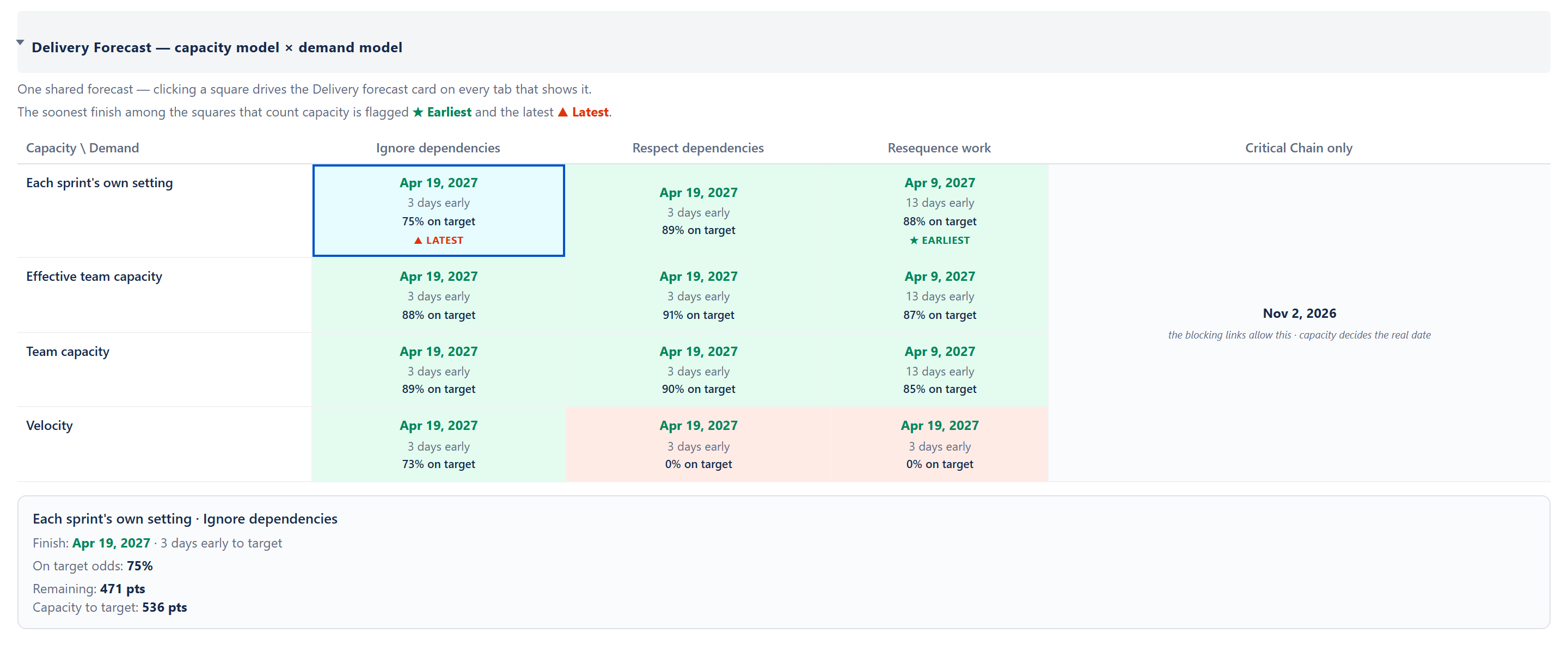
A collapsible section beneath the four stat cards, headed Delivery Forecast — capacity model × demand model (open it with the card's See detail below link or the section header), that answers "when will this finish, and what changes the answer?" by showing every capacity model × demand model pairing at once in one grid.
- Rows are the capacity models: Each sprint's own setting, Effective team capacity, Team capacity, Velocity (Capacity per period, Team capacity, Effective team capacity and Throughput when sprint mode is off — Velocity drops out, since it counts work completed per sprint, and Throughput, work finished per week from each issue's finish date, takes its place). Without sprints the on-target odds and likely range run over the project's own planning periods, the same periods the card steps through, so a board with no sprints gets the same odds a sprint board gets (2026-09-13).
- Columns are the demand models: Ignore dependencies, Respect dependencies, Resequence work, and Critical Chain only — shown once as a single merged column on the right, the baseline-minimum floor (the earliest the blocking chain alone allows; it ignores capacity, so it carries no odds).
- Each cell shows its finish date, its gap to target (on target / N days early / N days late), and its on-target odds (N% on target), and is shaded by those odds: green at 70% or better, amber from 50% to 69%, red below 50%. A square whose work does not fit in the planned sprints reads Does not fit the plan in red with how much does not fit (21 pts don't fit), and carries no odds and no shading.
- The Critical Chain only cell carries no odds. When its date is on or before the target it has no colour and reads the blocking links allow this · capacity decides the real date; when its date is after the target it is red, gives the days late and reads NO PLAN CAN MAKE THE TARGET. Clicking it opens the chain itself in the detail panel (each issue with its size and who holds it); it never changes the card.
- The soonest finish among the squares that count capacity is flagged ★ EARLIEST and the latest ▲ LATEST; Critical Chain only is never flagged. Two lines above the grid say One shared forecast — clicking a square drives the Delivery forecast card on every tab that shows it. and what the two flags mean. With no target date set, the second line adds No target date set, so cells show the projected finish only.
- Clicking a square sets that pairing everywhere — it drives the Delivery forecast card above, and the demand model is a shared choice with the Scope and What-If tabs.
- A detail panel below the grid explains the selected pairing: its finish, gap to target, on-target odds, likely range, and the two supporting numbers for that work order (e.g., blocking links, tasks moved, the longest chain). When the project has no blocking links it says so: No blocking dependencies recorded — this matches Ignore dependencies. (under Respect dependencies) or No blocking dependencies recorded — Critical Chain shows the longest single task only. (under Critical Chain only).
The four demand-model dates stay physically consistent: the dependency-respecting orders never read earlier than the Critical Chain floor, and Respect dependencies never reads earlier than Ignore dependencies. In the program (all-projects) view the grid rolls up per project — each project on its own team's capacity (with that project's allocation applied) — so the program finishes with its slowest project and the capacity model reads Per project.
When the dependency-ordered and resequenced columns cannot be calculated, the section degrades to the plain capacity comparison and says so on screen: a note reading The dependency-ordered and rebalanced columns couldn't be calculated for this project, so only the capacity view is shown. Technical detail for support: followed by the underlying message in selectable monospace text — the reason can be copied straight off the screen for support, with no browser console needed.
Baselines
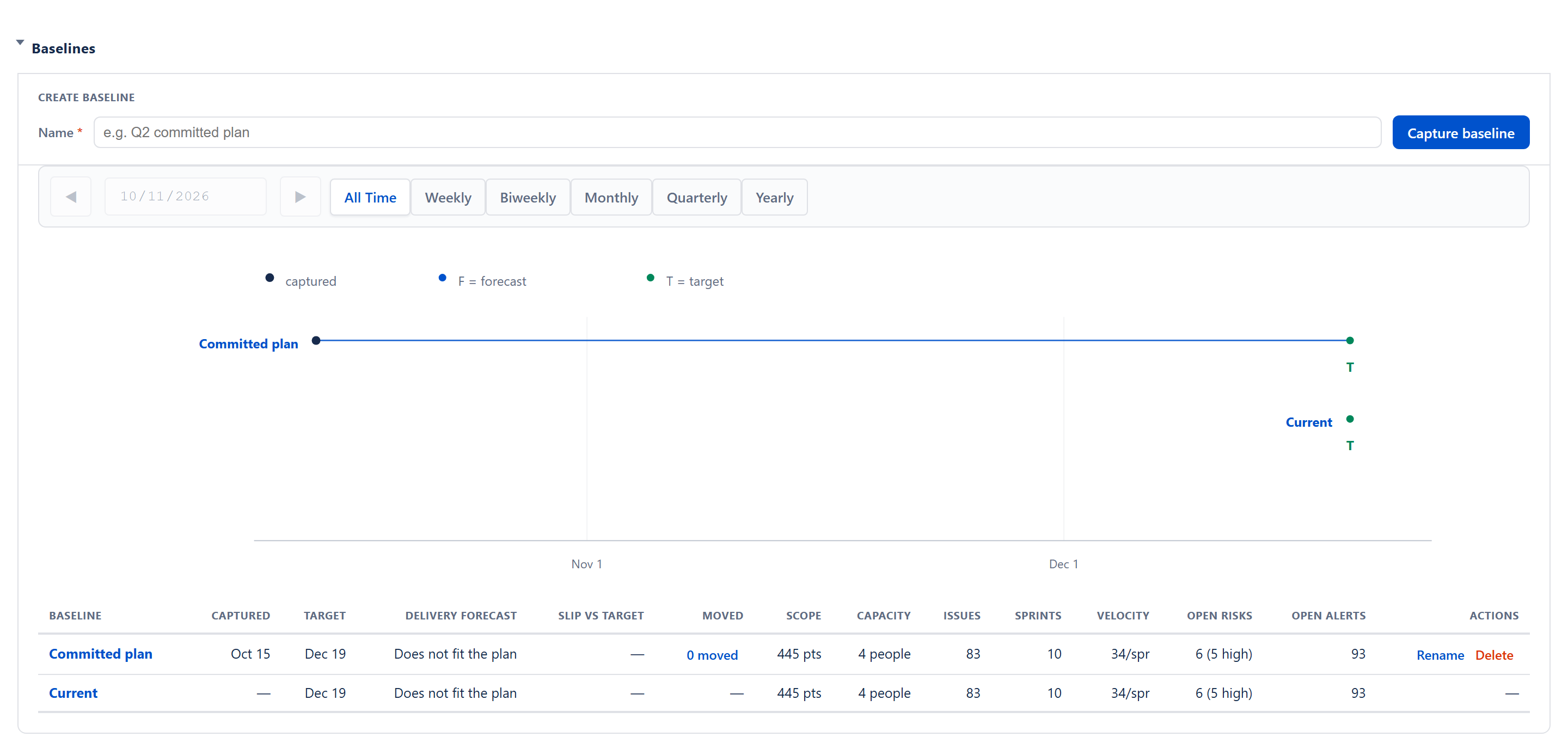
A collapsible section for capturing named snapshots of the plan and watching how the forecast moves over time.
A capture bar, headed Create baseline — type a Name (required; leaving it empty shows Enter a name for the baseline.), press Capture baseline or Enter — freezes the current plan. Until the first baseline is captured, the section shows only the capture bar and the line No baselines captured yet — capture one to start tracking how the forecast moves against your target.
Once there is one, each snapshot appears on a timeline — one row per baseline plus the live Current row, with its capture date, its forecast (F) and its target (T) marked, and a period picker (All Time, Weekly, Biweekly, Monthly, Quarterly, Yearly, with ◀ ▶ arrows and a start date) that focuses the timeline on any stretch of dates — and in a table with the columns Baseline, Captured, Target, Delivery Forecast, Slip vs target, Moved, Scope, Capacity (the number of people on the team), Issues, Sprints, Velocity (per sprint), Open risks (with how many are high or critical), Open alerts and Actions. Moved (added 2026-09-13, proposal 89) is how many of the issues that baseline knew about have moved since — an issue's forecast finish then against its finish today, in working days, an issue finished since measured on its real finish date. Click N moved to open, beneath the row, the list of those issues worst first (up to 40) with the working days each moved, (finished since) where it applies, who held it then if it has been reassigned, and how many issues were added or removed since. It is the same comparison the Timeline tab's Show baseline dropdown draws. A baseline saved before per-issue dates were kept shows a dash, and hovering it says This baseline was saved before per-issue dates were kept. Capture a new baseline to compare. Slip is how far a baseline's forecast lands before or after its target; hovering a timeline row breaks the slip out against every earlier baseline, with the scope and capacity behind each change.
Since 2026-09-13 a baseline also records each issue in scope at capture, finished ones included (proposal 89): its key, summary, assignee, epic, sprint, size and unit, status, its own start and due dates as Jira held them, the date it was finished if it was, and the forecast start and finish the schedule gave it that day — the same work list and scheduler the Timeline tab draws from. That record is kept separately beside the snapshot, written once at capture and deleted with the baseline; a list is capped at 1,500 issues and the snapshot says how many were left out. The Moved column above and the Timeline tab's Show baseline dropdown read it.
Snapshots are frozen — later data changes never alter a saved baseline — and are saved in the app's cloud storage, kept separately per project and per program. Saved baselines can be renamed (Rename) or deleted (Delete, which asks first) from the Actions column; the live Current row cannot. After many baselines a line suggests deleting ones you no longer need. The delivery forecast a baseline records follows whichever demand model is selected in the Delivery Forecast section above; when the work does not fit the plan the baseline records that, and its Delivery Forecast column reads Does not fit the plan.
Project Statistics
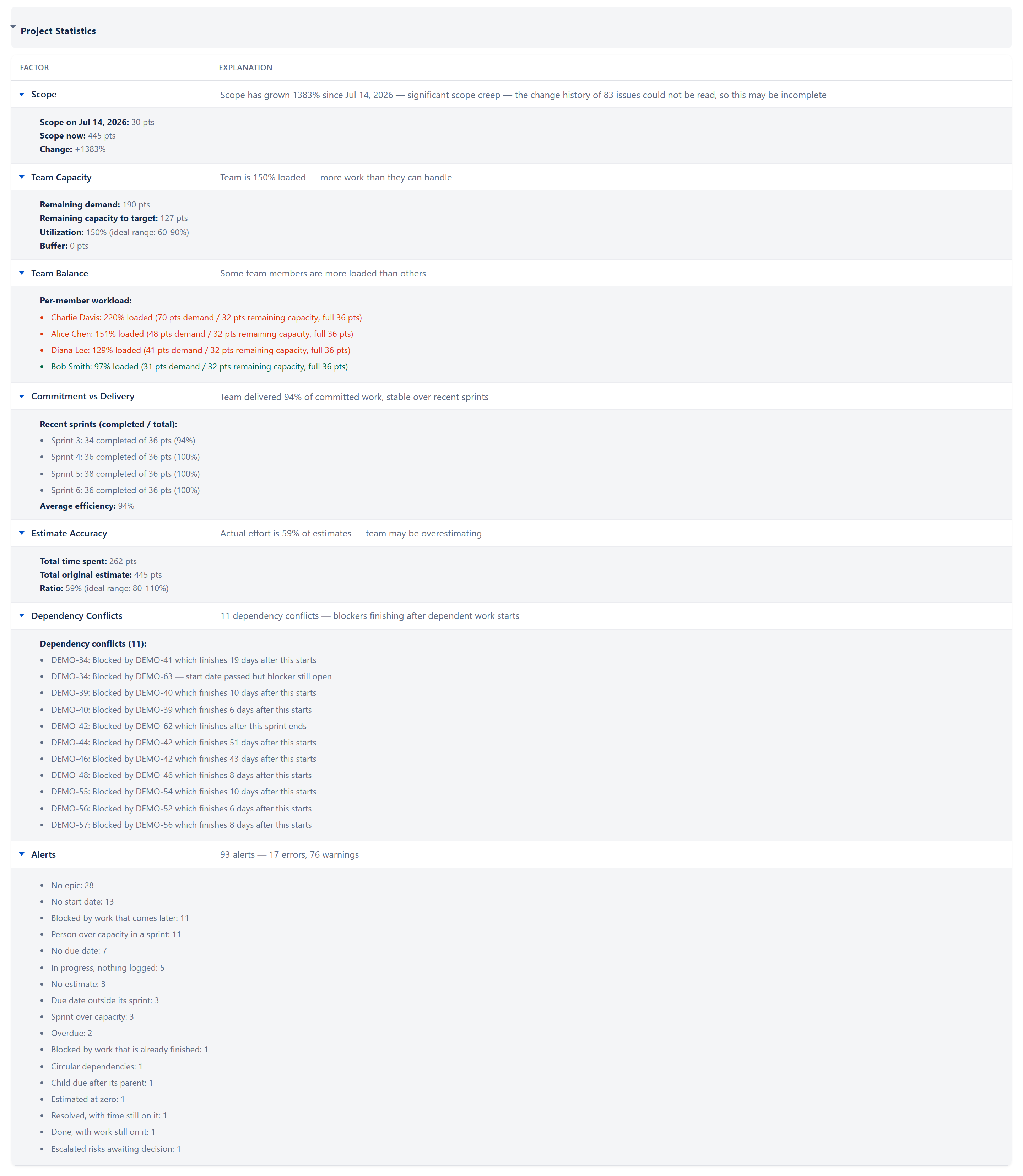
A collapsible scorecard with two columns, Factor and Explanation. Each row is a factor with a one-line explanation, and rows with more to say carry an expand caret that opens a detail block listing the specific issues, sprints, or members that produced the verdict.
The visible Project Statistics rows, in order, are Scope, Team Capacity, Team Balance, Commitment vs Delivery, Estimate Accuracy, Dependency Conflicts and Alerts — the Health factors plus the Quality / data factors. The Schedule factors (On Track, Sprint plan based, Team velocity based, Schedule Performance, Completion %, Work Ratio, Can We Deliver?) are computed by the same engine but folded into the Stat Cards above (On Pace?, Delivery Forecast, Target Date, Progress) — they are deliberately filtered out of the visible scorecard so the cards and the table never disagree.
Health block (group: health, visible in Project Statistics)
- Scope — how much has scope grown since the Scope tab's start date (e.g., Scope has grown 12% since Jun 20, 2026 — minor growth)? Green up to 10% growth, amber to 20%, red beyond.
- Team Capacity — the project-wide load ratio (e.g., Team is 132% loaded): remaining work ÷ the Delivery Forecast card's Capacity to target (today through the target date under the selected capacity model). Green from 60% to 90%, amber below 60% or from 91% to 110%, red above 110%. Any sprint not yet closed contributes only the part of its dates still ahead — for the active sprint, what the people's typed weeks leave in the days still to come, or, where it carries a flat number, that number times the share of its calendar time still to run (days already elapsed are spent — ruling 2026-07-10, worked out exactly since 9 October 2026), and a sprint Jira still marks future but whose dates have passed contributes nothing at all (decision 2026-09-03: it was never started, and its days are gone), so the ratio doesn't relax mid-sprint as if the elapsed days were still available.
- Team Balance — variance in load between team members. Each member's load % is their remaining work ÷ their remaining capacity (the share of the analysis window still ahead of today — ruling 2026-07-10); the expanded detail lists both the remaining and the full capacity per member.
- Commitment vs Delivery — the share of committed work the team finished, averaged over closed sprints, with trend (improving / stable / declining); the detail lists the last four sprints.
- Estimate Accuracy — time logged vs. original estimate (needs Jira time tracking).
Quality / data block (visible in Project Statistics)
- Dependency Conflicts — count of blocker-ordering conflicts (a blocker scheduled after the work it blocks, or unresolved); the detail lists each one. Child-after-parent and circular dependencies are counted under the Alerts row, not here. The row expands in place; it does not open another tab.
- Alerts — the same total the Alerts tab and its badge show, split into errors and warnings (N alerts — E errors, W warnings): it asks the same count the Alerts tab does, on every issue, so the three cannot differ (since 19 September 2026; before, this row counted fewer).
Schedule block (computed but folded into stat cards)
- On Track — parent schedule verdict, anchored to the Delivery Forecast card's projected date vs. the target (the shared forecast engine), so it can never disagree with the card.
- Sprint plan based (sprint mode only) — does the planned sprint plan reach the target date?
- Team velocity based — does the rolling-velocity forecast reach the target date?
- Schedule Performance — earned-value SPI to date. Its earned and planned values are exactly the On Pace card's Completed and Planned by now figures — one shared calculation, honoring the card's Pace measure setting — so this row can never quote a different "planned by now" than the card (one-definition fix, 2026-07-15).
- Completion % — done estimate ÷ total estimate (drives the Progress card).
- Work Ratio — work hours done vs. estimated.
- Can We Deliver? — terminal yes/no derived from forecast vs. target (drives the Delivery Forecast footnote). Its capacity side is the Delivery Forecast card's own "Capacity to target" (today through the target under the selected capacity model, clipped at the target) — the same number the Team Capacity row divides demand by.
Status classification
The table itself has no status column or colour dot — each row shows only the factor name and its plain-English explanation. Each factor is still classified behind the scenes as OK, Caution, At Risk or Unknown by its own thresholds (listed above), and that classification chooses the wording of the explanation.
Detail rows
Clicking a factor's row toggles its expand area. The detail can be a list of issues (linked to Jira), a list of sprints, a list of members, or a short explanation of the threshold that fired. Detail text is sanitised — only basic formatting (bold, line breaks, and lists) is allowed.
Per-row tooltips
Resting on a factor name shows a one- or two-sentence definition of the measure, with its green / amber / red thresholds for most rows.
Ask — questions are asked in the Ask sidebar
The Dashboard used to carry an AI Insights box at the bottom of the tab. It was replaced on 18 September 2026 by the Ask panel, and that sidebar is shown from the tab bar, not from this tab: press the control at the right-hand end of the bar, past the settings gear, on any tab (resting on it reads Show the Ask sidebar or Hide the Ask sidebar). A sidebar headed Ask, with the project key beside it, slides in down the right-hand side over whichever tab you are on, starting below the tab bar so nothing in that bar is covered, and the figures that prompted the question stay in front of you. The same control slides it back out; the sidebar has no close button of its own.
The change is one of kind, not of looks. The old box sent the Dashboard's numbers to an AI provider and printed the paragraph that came back, so every figure in it was one a model had written. The panel asks the app's own forecasting and capacity calculations — the same ones the cards on this tab are drawn from — and no AI is asked anything: every word of an answer is the app's own (since 30 September 2026; the AI settings themselves were taken out of the app on 6 October 2026). The same question asked twice gives the same numbers. A question is answered on the figures the app already holds, however old; nothing is read from Jira first, and Refresh in the tab bar is how the project is read again.
What you see in the sidebar:
- The question box at the top, with Ask beside it. As you type, questions it can answer that match your words are offered beneath the box; they go when you press Ask. The question stays in the box until its answer arrives. While an answer is being worked out the steps are listed, with a Stop waiting button beside them.
- Things it can answer: over folded groups, each headed with a name only — General first, then one for each tab: Dashboard, Sprints, Epics, Team & Capacity, Scope, Alerts, Risks, Actions, What-If, Timeline and Projects. General holds questions such as Will we finish by 31 March 2027?, Which sprints are overcommitted?, How much is done, and are we on pace? and What would one more person do?, each filled in with this project's own target date, issue, epic, person or sprint; a question the project has nothing to fill in is left off. Pressing one asks it. The groups stay below the answers, so they can be reached again without clearing anything.
- Each answer, newest first, under the question it answers: a line saying how the question was read, then the answer's opening line — the figure asked for, standing alone — and beneath it a fold headed Detail with the figures behind it, a chart where one helps (one bar per sprint for Which sprints are overcommitted?, with the figures listed beneath) and the working. A Wrong answer? button copies a report of the answer — the question, how it was read, the figures and the build — to send to support.
- While a what-if (such as one more person) is in force, an amber line says Answers below are on a what-if: … Nothing in Jira has changed. with Back to the plan as it stands beside it. Clear empties the panel.
- Nothing the panel shows can change anything in Jira.
- Some questions are refused, each in its own words, with questions it can answer offered instead: what people meant (the mood, what a comment implies), how to use the app, something outside the app, a judgement about a person, what to change to recover the date, and a question naming a person the project does not hold.
Ask is offered in the app installed in Jira, including its Jira dashboard gadget. It is not offered in the web app on the website, in demo mode, or before a project is registered.
The Ask Panel Guide has the full list of what it answers and what it refuses.
Velocity History sparkline
A folding section, headed Velocity History, visible in sprint mode with at least two sprints in the velocity history that completed work. Hidden in the Program view. It was also switched off in demo mode from the day it was built in April 2026 until 12 September 2026, which is why no screenshot of it existed and the website illustrated the chart with a picture of the sprint table instead.

- One bar per sprint that completed work, the most recent eight at most (sprints that completed nothing are left out).
- Last sprint's bar is darker; earlier sprints lighter.
- A dashed horizontal line marks the average of the bars shown.
- Top left: Avg N pts/sprint followed by the trend label — ▲ Improving, ▬ Stable, ▼ Declining — based on whether the most recent sprint is more than 10% of the average above or below the oldest sprint shown.
- Top right, when a sprint is active: Current sprint over N pts committed — the full committed size of everything in the active sprint (in time mode the original estimate, falling back to the remaining estimate, whatever the Remaining Work setting) — in normal dark text up to 105% of the average, amber above 105%, red above 115%.
- Each bar is labelled with its sprint's name, shortened (Sprint 7 reads S7), and hovering a bar shows the sprint's name and the work completed. Until 12 September 2026 the labels were blank and the tooltip numbered the sprints by position, because the chart read a field a saved velocity record does not carry.
Top Open Risks widget
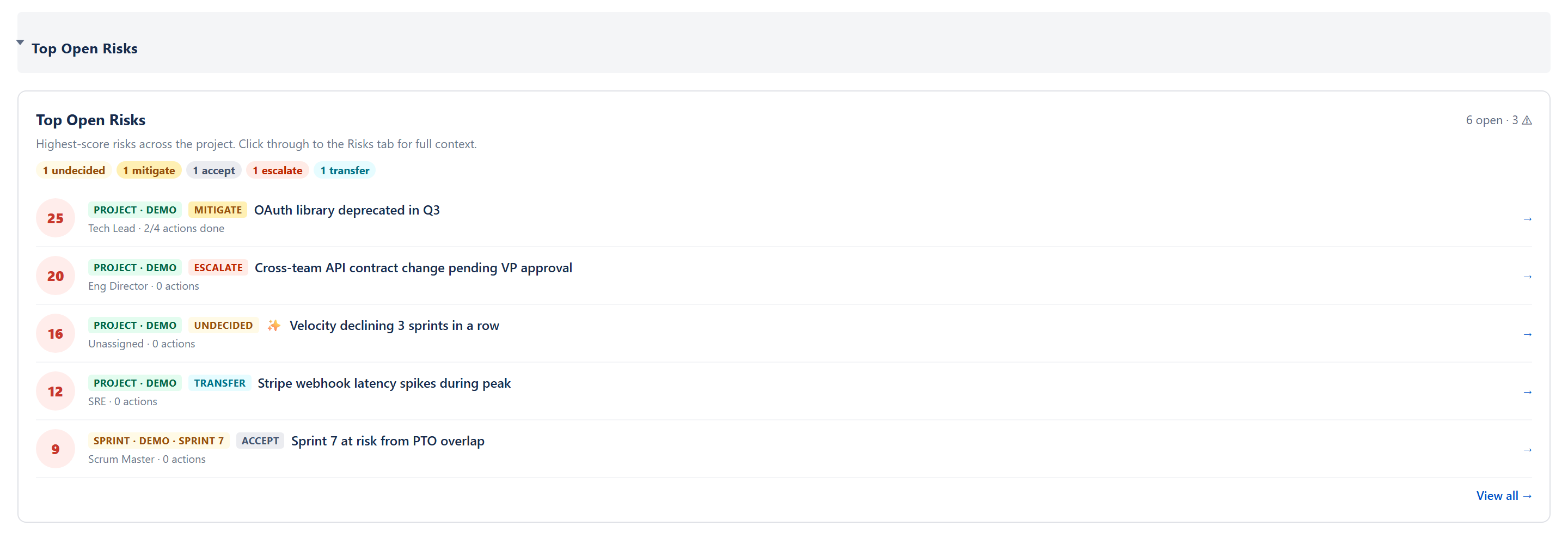
Lists the five highest-score open risks for the selected project (its own risks plus program-wide ones; in the Program view, the whole register) regardless of source — risks typed on the Risks tab and accepted suggestions from the app, which carry a ✨. Each row shows the score in a badge coloured by severity (resting on it gives the probability × impact behind it), a scope chip (e.g., PROJECT · DEMO), the response strategy chip (UNDECIDED / AVOID / MITIGATE / TRANSFER / ACCEPT / ESCALATE / DEFER), the risk title, the owner (Unassigned when there is none), and an action progress line (N/M actions done, or 0 actions). Clicking a row opens the Risks tab scrolled to the matching item; View all → at the foot opens the Risks tab. With no open risks the widget reads Needs more data — No open risks yet. The widget will appear once your team starts tracking risks.
Above the rows the header shows Top Open Risks, the open count and the critical count (e.g., 6 open · 3 ⚠ — the warning figure counts critical-severity open risks only, not high), the line Highest-score risks across the project. Click through to the Risks tab for full context., and a strategy mix bar (e.g., "3 undecided · 4 mitigate · 2 accept · 1 escalate", in the order undecided, mitigate, accept, escalate, defer, avoid, transfer). Zero-count buckets are hidden. At the same score the widget puts Undecided and Escalate risks first, then Avoid, Mitigate and Transfer, then Defer, then Accept, so attention-demanding items surface first; Defer risks are left out of the widget until their review window opens (review-by minus 3 days).
The risk register and response strategies are documented in the Risks Tab guide and in ALGORITHMS section 13 — Sprint Risks.
Cross-cutting modes and settings
- Estimation Mode (points / hours / days) — every numeric label switches between pts, hrs, and days, and every formula reads the right field. Velocity is points per sprint in points mode; hours (or days) per sprint in time mode.
- Sprint Mode on/off — when off (backlog-only projects), the Include backlog checkbox and the Capacity Overload banner are not shown, the Velocity History section is hidden, and the capacity-model dropdown offers Capacity per period, Team capacity, Effective team capacity and Throughput (Velocity needs sprints).
- Program view — when Program view is chosen in the project picker, the Velocity History section is hidden because sprint cadences differ across projects; the forecast rolls each project up on its own team's capacity (with that project's allocation from the Team Allocation Matrix applied) and the program finishes with its slowest project, so the capacity model reads Per project. Each of the four cards is the projects worked out on their own settings and added up — never the settings of the project selected last (until 15 October 2026 the Target Date card showed that project's target and the forecast its capacity). Figures are added up per unit, points with points and hours with hours, and never converted: a program in two units shows a line for each (Completed: 1200 pts · Planned by now: 2300 pts, then the same in hrs), and the Progress card reads 45% of pts · 21% of hrs.
- Target Date is the program target set on the What-If tab's All Projects card (Method: Fixed program target), else the latest of the projects' own targets (Method: Latest project target). The card's gear sets that same program target: under Date source, Latest project target clears it and Fixed date: sets it (starting from the date on the card). It changes no project's own target and nothing the projects share.
- Delivery Forecast is the latest project's date on the demand model chosen on the card; while any project never finishes it reads Never, and while any project's work does not fit its plan it reads Does not fit the plan with a line naming each such project and how much does not fit, in its unit.
- On Pace? adds up completed and planned-by-now per unit, and reads Behind pace when any unit's total is behind.
How the numbers are computed
Every Dashboard number is produced by a shared utility:
- Stat cards 1–4 — see ALGORITHMS sections 1 (Delivery Forecast), Earned Value / Progress in the Appendix (SPI, CPI, Percent Complete).
- Project Statistics — see ALGORITHMS section 10 (Dashboard Project Statistics) and its per-factor thresholds.
- Top Open Risks — section 13.
- Velocity sparkline — section 4 (Velocity Rate Calculation) plus the rolling-average overlay rule in the Appendix.
Refer to ALGORITHMS.md for thresholds, formulas, and bands.
Effects on other parts of the app
- The capacity-overload banner opens the Sprints tab, where Auto-Level is.
- The dependency-conflict banner opens the Alerts tab.
- The Dependency Conflicts and Alerts rows in Project Statistics count what the Alerts tab counts; they expand in place rather than linking to it.
- Forecast settings (capacity model, demand model, scope growth) are persisted into the project config; the demand model is shared and they propagate to the Scope and What-If tabs.
- Top Open Risks links into the Risks tab.
- The Weekly digest and the Export Dashboard PDF are separate: the digest builds its own email-ready HTML summary, and the PDF export clones the live Dashboard — neither feeds the other.