 Project Commander Docs
← Back to site
Project Commander Docs
← Back to site
Ask — what it can do, what it cannot, and how
What you can do with it
Ask a question about your project in plain words and get the answer in seconds, worked out from the same figures the tabs show: the same delivery forecast as the Delivery Forecast card, the same Deliverable, Tight and Overcommitted verdicts as the Sprints tab, the same capacity arithmetic as the Team & Capacity tab. One question can answer what would otherwise take several tabs: when the project will finish and how likely the target is, which sprints and which people are over capacity, what is blocked, what changed, and what to look at first.
You can also try a what-if, such as one more person, without changing anything, and you can make a single change in Jira, such as moving an issue to another sprint, after two deliberate presses.
It is in the app installed in Jira, on every tab, and on a Jira dashboard. Open it with the speech-bubble button in the tab bar, right of the project selector. It is not offered in the web app at projectcommander.app, in demo mode or in the CSV mode, and not before a project is registered.
Questions it answers
Before anything is asked, the panel lists these under Things it can answer:. Pressing one asks it; any of them can also be typed, and so can any other question in the areas listed further down.
- Will we finish by 31 March 2027?
- Which sprints are overcommitted?
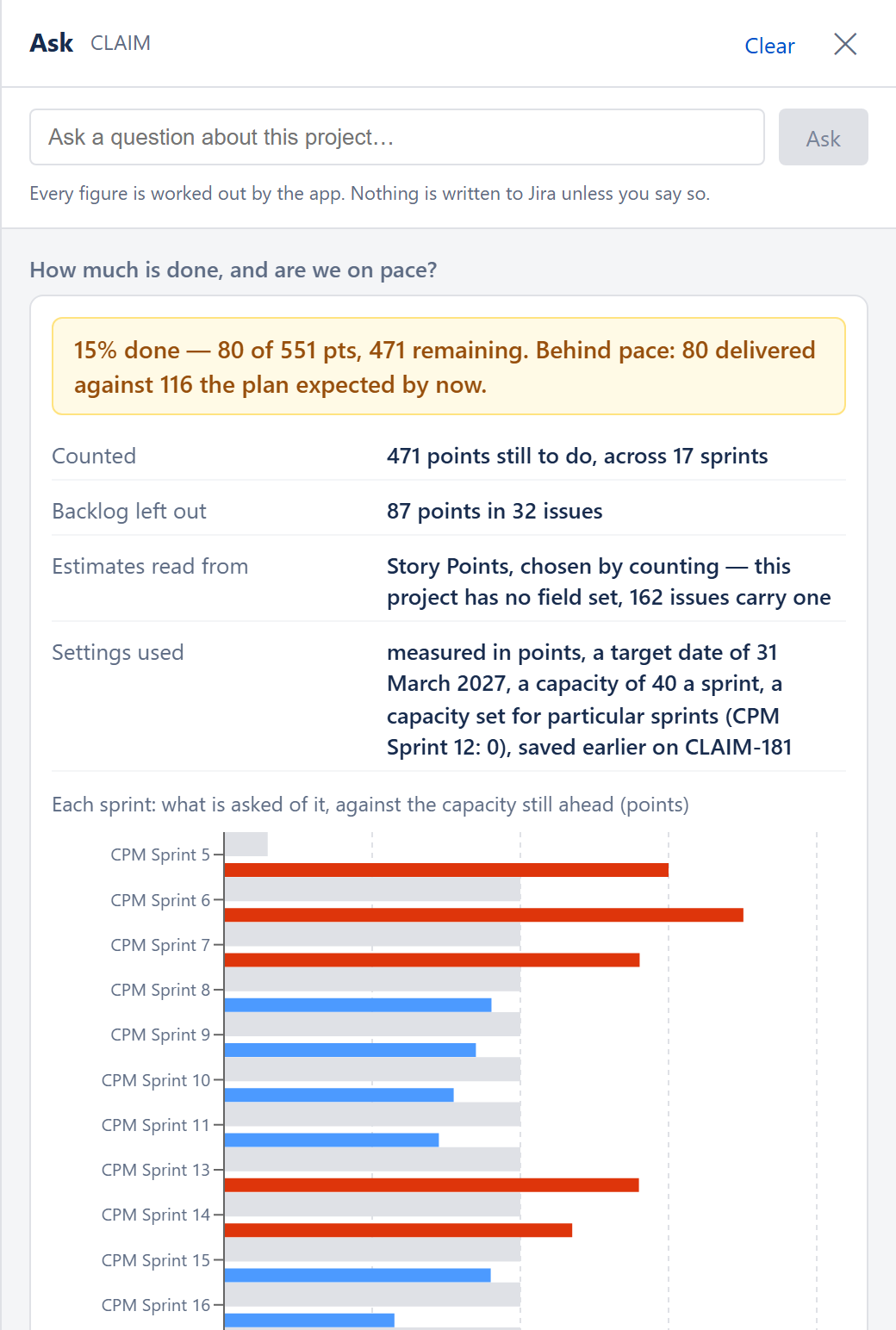
- How much is done, and are we on pace?
- What would one more person do?
- Has the scope grown since 1 July?
- What is our velocity?
- Which days are we overloaded on?
- When does CLAIM-21 finish, and what is holding it up?
- What is under the Payments epic?
The dates, the issue key and the epic name are examples; put your own in their place.
What it is
A panel that slides in over the right of whichever tab you are on. You type a question about the project you are looking at and get an answer, with the figures you were already reading still on the screen behind it.
It is not a tab and not a chat window. It closes back to where you were with the ✕ at its top right.
What the panel shows, top to bottom:
- A header reading Ask with the project key beside it, a Clear link once anything has been asked (it empties the panel and puts down any what-if), and the ✕.
- The question box, reading Ask a question about this project…, with an Ask button (or press Enter). The question stays in the box while the answer is worked out, and clears when the answer appears, because the answer carries the question at its top.
- The line Every figure is worked out by the app. Nothing is written to Jira unless you say so.
- While a what-if is in force, an amber line saying Answers below are on a what-if: … Nothing in Jira has changed., with Back to the plan as it stands beside it.
- While a question is being answered, what it is doing: Reading the project…, Finding which field the estimates are in…, Running the simulations….
- The answers, newest first. Each carries a verdict line where there is one, the figures as label and value, and a note of who did what, including whether an AI was involved. Some answers draw a bar chart with the same figures still listed beneath it: each sprint's work against the capacity still ahead of it, each person's work against the capacity left in the sprint, and how far over each overloaded stretch of days runs. Longer lists are folded under a link to open them.
- Under a real answer, a Write an update I can send on button. With an AI set up it writes a short update from that answer's figures, marked with which AI wrote it; without one it says an AI is needed for this.
The same question typed into it gives the same numbers every time, whether or not an AI has been set up.
What it can answer
The dates. When the project will finish: the middle run, the best case, and one in ten either side. The chance of hitting a target date you give it. What the same team would finish at the pace they have actually delivered. What capacity the answer was built on and where that came from. How much work was counted, and how much backlog was left out of it.
The plan. Every sprint: its own work, what carries into it, the capacity still ahead of it, what spills forward, and whether it is Deliverable, Tight or Overcommitted. Every person: their work, their capacity, their spare, and what cannot be placed at all. Who finishes last. What is blocked by work scheduled later, and anything blocking itself in a circle. The chain of work that decides the finish and who holds it. Everything the Alerts tab finds. Where the data is too thin for the dates to be trusted.
Demand against capacity, day by day. The finer reading of the same question the plan answers sprint by sprint: every working day in the window, what the open work booked on it adds up to against what the people have that day, the score the app puts on it, and every stretch where the demand has run past the capacity, with its dates and how far over it goes. A sprint can hold exactly its capacity with every issue in it due in the same three days, and only this shows that. It comes with how much there is to go on: how much of the work is estimated, how much has dates, how much has somebody on it.
When each issue lands. The dates the Timeline tab draws, from the same calculation: when each issue starts, when it finishes, and which of five things is holding it up — its own start date, a sprint that has not begun, work that blocks it, the person being busy on something else, or nothing at all. Ask about one by its key and it answers about that one. Ask generally and it leads with what finishes after a date somebody set.
The tree. Epic, story and sub-task, with each epic’s figures the Epics tab’s own. Three things only the shape shows are called out: work under no epic, so nothing rolls it up; a parent estimated smaller than the sub-tasks beneath it, so every roll-up reading the parent is short by the difference; and a sub-task still open under a parent somebody has already closed.
The project. How much is done and whether it is on pace. Velocity: the average, the trend, the best and worst sprints. How much is finished a week. Every epic and how it is doing. What is past its due date. Whether the scope has grown since a date and by how much. Who changed an item and when. Finding work by its words, by a field, or by the state it is in.
Releases. Every release, how much is in it, how much is done, and the earliest it can land.
Time actually spent. Hours logged against the estimates on the same issues, how far off they were, and the hours per person.
The last closed sprint. What it held, what it delivered, what carried over, what was added after it started, and the app's own scoring of it.
What needs your attention. A short brief, worst first, one line each, nothing that is fine: work nothing can place, a target the runs did not hit, work past its due date, a sprint over its capacity and by how much, a person with more work than they can do, a blocker scheduled after the work it blocks, scope growing, and the gaps that weaken every date above.
Why an answer is what it is. The engine's own factors, largest first, each with the figure that makes it one.
What it is going on. Everything in use that Jira did not supply — the target, the capacity, the estimation mode, scope growth, the backlog setting, a what-if in force — each saying where it came from and the words that change it.
The records the app keeps. The risks on the Risks tab, the actions on the Actions tab, and the baselines taken on the Dashboard with what the forecast has done since each.
What-ifs, which change nothing. More people, and epics taken out of the plan. These build up across a conversation, so asking for one more person and then another is a question about two. What is in force is shown on screen until you put it down, and a what-if worth keeping can be saved by name.
What re-planning would do. The same work packed into the earliest sprint each issue can go in, run on a copy.
What it can change in Jira
Seventeen things, each only after two presses: move an issue to another sprint or the backlog; set its size, owner, priority or name; set when it starts, when it is due, or both at once; move it to another status; create an issue; create a sprint, set its dates, set its goal, start it, complete it saying where the unfinished work goes, or delete it saying where its work goes.
Every one says first what it would change and what that does to the numbers, and recommends for or against. After the change is made, the answer beside it says what changed and the sentence that undoes it. Nothing is written down anywhere else: the panel keeps no record of its own in Jira.
What it cannot do, and why
It will not tell you what people meant. Comments, descriptions, whether the team seems blocked, the mood — it refuses these and says so. Reading a comment and concluding there is a risk cannot be checked by anybody, and something nobody can check is the one thing this product must never produce. The refusal is the product, not a limit on it.
No number comes from an AI. An AI is optional and gets three jobs: reading a question the plain words could not place, putting the figures the engine produced into a paragraph, and, when you press Write an update I can send on, writing that update from an answer's figures. Every number it writes is compared with the figures it was given, and a paragraph or update containing one that is not among them is thrown away and the figures shown on their own.
No bulk or batch changes. Moving several issues at once, setting priority on several, the Timeline's batch write and its fill-in-due-dates are not offered. They are list-editing, and a question box is a poor place for it.
Undo is words, not a button. Every change is answered with the sentence that reverses it, and typing that sentence back runs the full protocol again against the plan as it stands today. The sentence is in the answer on the panel, so it goes when you press Clear or close the panel.
One project read at a time. Where a question names several projects by their keys, the panel reads and answers them one after another, each as its own answer, because reading one project takes ten to fifteen seconds and two do not fit in the time a call is allowed. Where the question asks for them together, such as whether all of it will be delivered by a date, one more answer adds their forecasts together.
A project without estimates gets no useful answer — from this or from any shape of it. Work carrying no estimate is in none of the totals, and the answer says how much of it there is rather than quietly leaving it out.
Nothing infers. It will not read Slack, guess an undocumented dependency, or tell you a risk is forming. Everything it says is arithmetic on what Jira holds, and every figure can be checked against a screen.
How it works
The words place the question first. A list of plain phrases decides which kind of question it is. Nothing matching falls through to a question about the plan, and the answer says it guessed.
The engine answers it. The same functions the tabs are drawn from — the same forecast the Dashboard shows, the same three words the Sprints tab uses, the same capacity arithmetic the Team & Capacity tab does. The panel adds no calculation of its own. If an answer ever disagreed with a screen, one of them has stopped calling the shared function, and that is the bug to look for.
An AI, if you have set one up, is asked only where the words failed — one short call to decide which kind of question it is, before any work is done — and then, after the figures exist, one call to write them into a paragraph, and one more only if you press Write an update I can send on. It is your key, on your account, set in the AI Features section of the settings gear, and the app works without it.
A question about the plan produces one large set of figures, and the paragraph is written from that set. This is why the answers feel broader than any list of questions: one question reaches the dates, the sprints, the people, the dependencies, the chain, the alerts and the data gaps at once, and you read the part you asked about.
Changes go through one protocol: proposal, what it does to the numbers, a recommendation, your yes, the change, then the result read back out of Jira. Nothing is written without that yes, and the yes is for one change, never for the conversation.
Asking writes nothing to Jira. The panel reads the project's Target Date, Sprint Capacity and Estimation Mode from the Projects tab and never changes them. A date, a capacity, a unit or the backlog setting named in a question is used for that question and carried into the questions after it, until you press Clear; it is stored nowhere and no Jira issue is created for it. To change any of them for good, edit the project on the Projects tab.
No sheets in or out. Asked for a sheet to fill the team in on, the panel says the team is kept on the Team & Capacity tab. Asked for the forecast as a file, it says the sprint-by-sprint figures are on the Scope tab and that the Dashboard exports them.
Project Commander and PlanChief
PlanChief is a separate app that answers the same questions with the same code. Project Commander's panel is the fuller of the two: the records the app saves — the risk register, the actions, the baselines — can only be read from inside Project Commander, because Jira keeps each app's saved records to itself. Asked in PlanChief, those three questions say they cannot be read from there rather than reporting that there are none.
The other difference is where each keeps what you tell it. Project Commander has the Projects tab, so it reads its settings from there and writes nothing. PlanChief has no screens of its own, so it keeps its settings, its team sheet and its record of every change on an ordinary Jira issue named after the project, which anybody can open and correct.