 Project Commander Docs
← Back to site
Project Commander Docs
← Back to site
Epics Tab — Feature Guide
What it's for
The Epics tab shows the project's hierarchical scope — every epic plus its child issues — and rolls up progress, scope-change, and status per epic. Where the Sprints tab is organised around time (which iteration owns which work) and the Scope tab around change over time, the Epics tab is organised around grouping (what work belongs together) and completion against that grouping.
It answers four questions: what are we building right now; how far through each epic are we; which epics are growing in scope versus shrinking; and which epics are at risk of missing their target. It is intended for product, programme, and delivery leads who want to assess the project at the work-package level without opening Jira.
The tab requires that issues are linked to a parent epic in Jira. Only issues whose direct parent is an epic are counted; issues without an epic parent are excluded.
Where the tab is switched on: the Epics checkbox in the Settings gear (top right of the app, the Project Commander Settings screen). It is ticked by default; unticking it removes the Epics tab from the tab bar.
Toolbar
A single row at the top with the search input, the status filter, and the assignee filter. All three filters compose — an epic must match all of them to appear.
Search field
A text input reading Search epics... that filters the epic list as the user types. Matching is case-insensitive and runs against the epic's summary and Jira key. Empty input shows everything.
Status filter
A dropdown labelled All Epics. The options are All Epics plus every computed status band present in the current set of epics, in alphabetical order — from Done, Ahead of pace, On pace, Behind pace, Overdue, To Do, and, for an epic with no dates to judge a pace from, On Track, At Risk or Behind (see Status below for how each band is derived). A band no epic currently has is not listed.
Assignee filter
A dropdown labelled All assignees. Lists every epic's assignee, in alphabetical order; selecting one narrows the list to that person's epics only. It filters on the person assigned to the epic itself, not on who is assigned to the issues under it.
Section header
Collapse all button
Appears only when an epic is currently open. Clicking it closes it. Since only one epic can be open at a time (see Child-issues table below), there is no matching Expand all — opening is one at a time, by clicking a row.
Epic row (always visible)
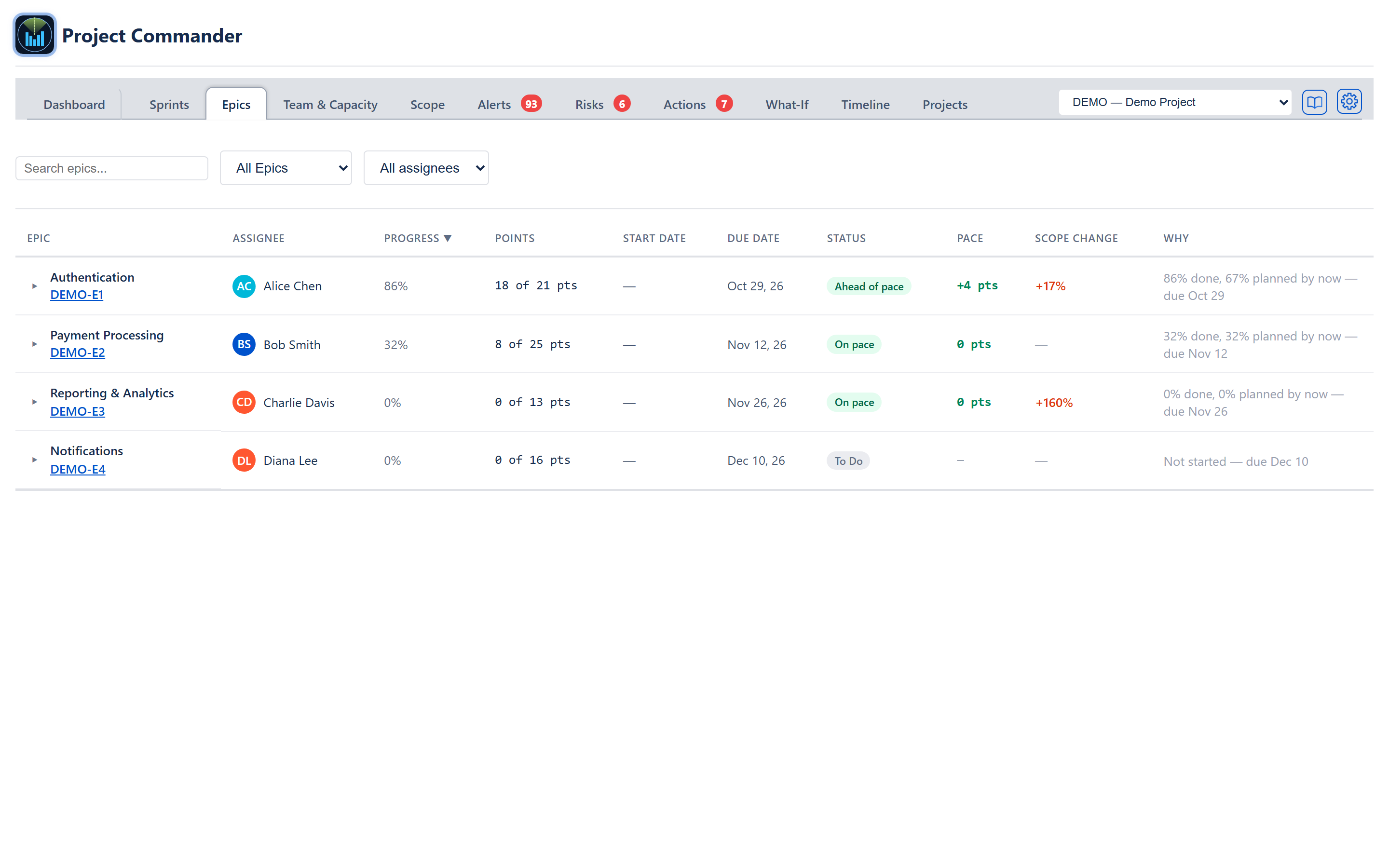
The Epics tab is presented as a flat list of epic rows, each clickable to expand a child-issue table beneath it.
Epic row columns
- Caret — a right-pointing arrow when the epic is collapsed, down-pointing when expanded.
- Epic — the issue summary; the Jira key beneath it as an underlined link. Clicking the key opens the issue in Jira without opening or closing the row.
- Assignee — a round avatar with the assignee's initials (e.g. AC, BS) in a colour derived from their name, plus the assignee's name. An epic with nobody on it reads Unassigned, the same word the issues underneath it use.
- Progress — the percentage as a number. (The bar that used to sit beside it was removed on 2026-08-24: the same fact was being shown twice, and the number is the one that can be read at a glance down a column.) The percentage is capped at 99% when the work adds up to complete but not every child issue is in a done status, so the row never reads 100% while a child issue is still open.
- Points / Hours / Days — X of Y pts (or hrs), done work of total work. The column heading and the calculation depend on the project's estimation mode (see below).
- Start Date — the date the epic was created in Jira, shown as Apr 12, 25 (the short month and day with a 2-digit year always included). — when Jira gave no created date.
- Due Date — the epic's due date. Same formatting as Start Date. — when missing.
- Status — a badge showing the epic's computed health band (see Status below). Green for Done, Ahead of pace, On pace and On Track; amber for At Risk; red for Behind pace, Behind and Overdue; grey for To Do.
- Pace — completed minus planned-by-now, in the project's unit, signed: −3 pts when the epic is 3 points behind where it should be by today, +2 pts when ahead. Red when negative, green otherwise (including 0 pts). Sortable, so the worst-slipping epic rises to the top. — when the epic reads Done, Overdue or To Do, and when there is no planned-by-now to compare against (see Status below).
- Scope Change — a signed percentage change versus a baseline (see Scope change below). Red for growth, green for shrink, grey for no change, and a grey — when no change could be measured.
- Why — the reason for the status beside it, in the epic's own figures: 35% done, 60% planned by now — due Oct 6, Past due Aug 14 — 40% done, Not started — due Oct 23, No issues linked yet, or, when no comparison could be made, 45% done, due Sep 25 — no dates, judged on share done. It is worked out from the same inputs as the status, in the same place, so the two columns can never disagree. Every pace band — Ahead of pace, On pace and Behind pace — states its figures here. Only Done needs no explanation, and its Why cell shows —.
Hover and done styling
Hovering a row tints the background (#FAFBFC). Epics whose Status reads Done render at 60% opacity so the open epics stand out.
Sorting
Every column header except Why is clickable. The table opens sorted by Progress, highest first. Clicking the sorted column again flips between ascending and descending; the active column shows a ▲ or ▼ next to its label. Clicking a different column starts that column descending. Epics that tie keep the order in which they were first found in the project's issues.
Child-issues table (expanded view)
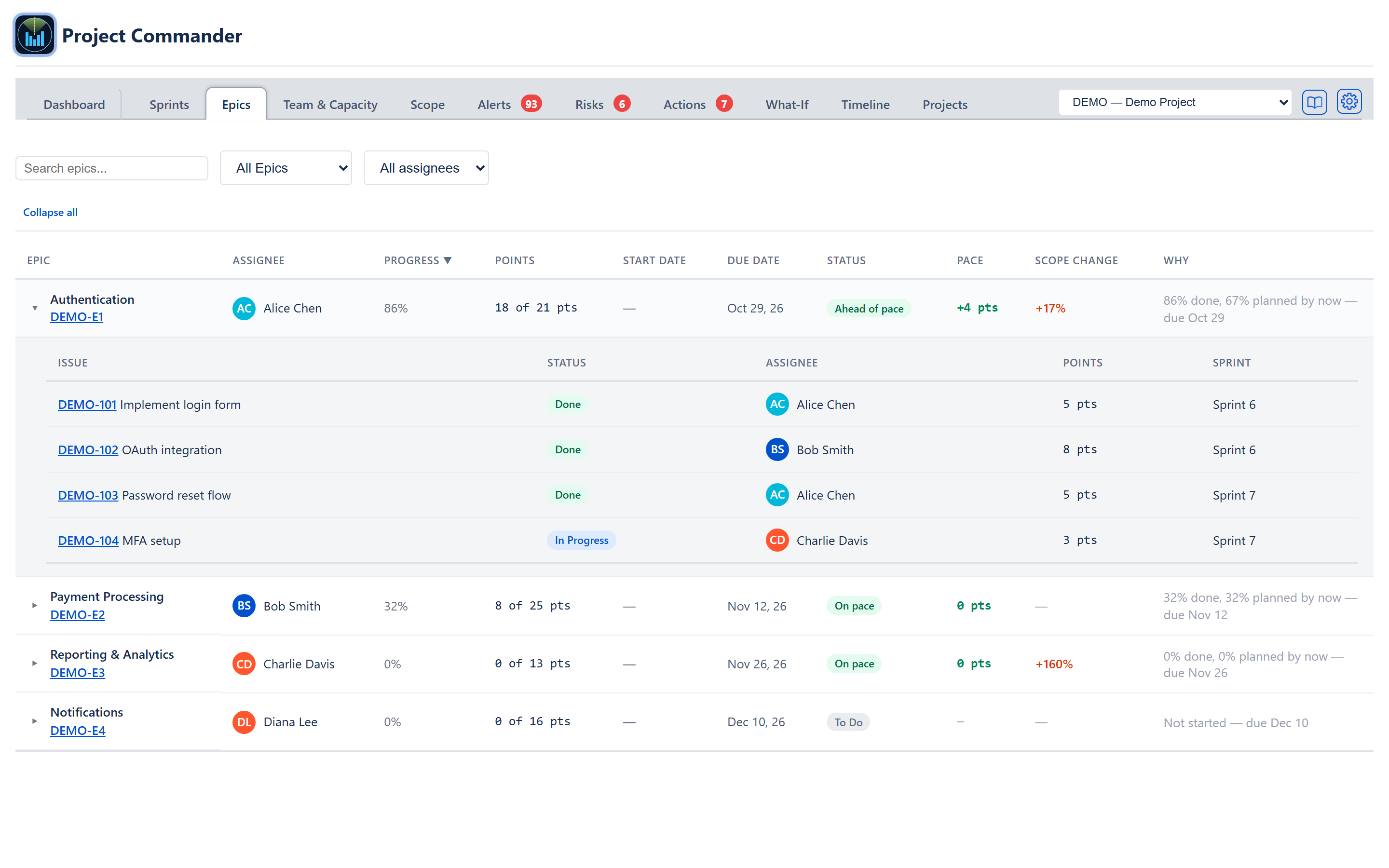
Clicking an epic row toggles a child table below it. Only one epic's children are open at a time — clicking a different epic's row collapses any other open epic.
Child table columns
- Issue — the Jira key as an underlined blue link, plus the issue summary.
- Status — a small pill showing the child's raw Jira status: green for done statuses, blue for In Progress, grey for everything else.
- Assignee — the same round avatar with initials as the epic row, plus the name; Unassigned when nobody is on it.
- Points / Hours / Days — the issue's own size, for example 5 pts or 6 hrs.
- Sprint (Sprint Mode on only) — the sprint name the issue currently lives in, or Backlog for unscheduled work. An issue carried over from a closed sprint into a later one shows the later sprint — the latest by date it appears in — the same sprint the Sprints tab shows it in.
Every child issue is listed, including cancelled ones, although cancelled issues are left out of the epic's totals (see Roll-up logic).
Child table styling
Inset grey background #F4F5F7, indented from the left, in the same text size as the epic table. No further nesting (sub-tasks under a story are not shown).
Status
The badge in the Status column shows a computed health band. Done (100% complete, or the epic's own Jira status is a done status), Overdue (past its due date and not done), and To Do (no issues linked, or 0% done with no child issue In Progress) are decided first, in that order.
For every other epic the band comes from its pace — how much of it should be done by now — worked out by the same rule the Dashboard's On Pace card uses for the whole project, pointed at this epic's own linked issues and its own dates. There is no second way of computing "planned by now" and no setting of its own: which rule applies follows the On Pace card's gear on the Dashboard exactly.
- Schedule pace — when the epic's issues carry dates: everything whose date has already passed should be done. An issue's date is its own due date if it has one, otherwise the end of the sprint it is in, otherwise its epic's due date (the app's one due-date rule, changed on 2026-09-10 to put the sprint ahead of the epic). So an epic whose issues sit in sprints is measured against those sprint end dates, and one whose issues are in no sprint has nothing planned until the epic itself is due, and reads On pace until then. Planned-by-now is that total; completed is what actually is done.
- Timeline pace — when they don't: a straight line from the epic's start (the earliest start date among its issues, else the earliest created date) to the epic's own due date. If 40% of that calendar has elapsed, 40% of the epic's work should be done. Today before the start means nothing is planned yet, so the epic reads On pace.
- Automatic (the default) picks schedule when any issue has a due date of its own (not one borrowed from its sprint or its epic), otherwise timeline. A rule fixed in the On Pace card's gear applies to the epics too.
The verdict is completed as a share of planned-by-now, in the app's one set of pace words: Behind pace under 95%, On pace within 5% either way of the plan, Ahead of pace more than 5% above it. It is the same rule and the same cut the Dashboard's On Pace? card uses, read from one place so the two screens cannot disagree (Don's decision, 2026-09-11).
Until that day this tab had three bands of its own — Behind under 70% of planned-by-now, At Risk from 70% to under 95%, On Track at 95% or more — so an epic at 80% read At Risk in amber while the Dashboard called that same share Behind pace in red. The amber band is gone from the pace verdict: anything under 95% now reads Behind pace, and the tab can say Ahead of pace, which it never could before.
When there is no "by now" to compare against — no due date on the epic and no dates on its issues, or no estimates at all — the epic falls back to the share-done rule (Behind under 30% done, At Risk under 60%, On Track from 60%) and the Why column says so. That is a different question — how much of the epic is finished, not whether it is keeping to a plan — so it keeps its own words rather than the three pace ones: no dates, judged on share done or no estimates, judged on issue count. The badge is never blank, and it never pretends to a comparison it could not make. Cancelled work is left out of both sides, as the Dashboard card leaves it out.
The Why column beside it states the figures that produced the band, so nobody has to guess what Behind pace means for a particular epic. The Pace column carries the same gap as a number.
Every epic that reads Behind pace also raises an alert on the Alerts tab, under Delivery risk as Epics behind pace, and counts in the Alerts badge (Don's decision, 2026-09-04). An epic judged on share done (Behind, At Risk, On Track) raises no such alert. Because the amber band went on 2026-09-11, an epic between 70% and 95% of planned now raises that alert where it did not before.
Scope change
The percentage is (current − original) / original × 100, where current is the epic's total work now and original is its total work at a baseline. How the baseline is set depends on which edition of the app is open:
- Inside Jira (the Forge app) — the first time the Epics tab is opened for an epic, the app saves a copy of that epic's issues and their sizes. That copy is the baseline from then on. Issues added since count as growth and issues removed since count as shrink, so the figure can be negative. On that first visit every epic reads 0%.
- The web app and demo mode — no copy is saved. The baseline date is the earliest start date among the project's active and future sprints; issues created after that date count as added scope, and the original total is the current total minus those added issues. Nothing is counted as removed, so the figure never goes below zero. When no issue was created after that date, or there is no active or future sprint to take a date from, the cell reads —.
Empty / loading / error states
- Loading — while the issue list is being read and no issues have arrived yet, a centred Loading epic data....
- Error — if the read fails before any issues have arrived, a red message Failed to load issues: <error>.
- No epics found — once the read completes but no issues with epic parents exist, the panel shows a large icon (📋), a No Epics Found heading, and the line No issues with epic parents were found. Make sure your issues are linked to epics in Jira.
Points vs. Hours mode
The whole panel respects the project's estimation mode, set in the Estimation Mode dropdown of the Projects tab's Add / Edit Project form.
- Points mode (default) — the column heading reads Points, rows read N pts, totals are rounded to one decimal.
- Time mode, hours — the heading reads Hours, rows read N hrs. Each issue's size is the first available of: Jira's original estimate; else remaining estimate plus time logged; else story points multiplied by the project's Hours per story point (the box in the Projects tab's Add / Edit Project form, shown on a time project; 4 when left blank).
- Time mode, days — the heading reads Days, rows read N days. The same sizes are divided by an 8-hour day.
An issue counts as done work at its full size once its status is a done status, and as no done work before that — logged time does not count towards done. So the epic's completion percentage is worked out the same way in every mode.
Roll-up logic
The epic's done and total values are sums over its child issues, with the same size rule applied to each. Cancelled or removed-from-scope issues are left out of both. Only issues whose direct parent is the epic are counted: a sub-task under a story is neither listed nor added in, and the story counts at its own estimate.
Numbers are rounded to one decimal place to keep the column tidy.
Cross-cutting modes and settings
- Estimation mode (points / hours / days) — drives the column heading, the unit, and the size rule, as described above.
- Sprint Mode on/off — the Sprint Mode checkbox in the Projects tab's Add / Edit Project form. It shows or hides the Sprint column inside the child table.
- Program view — when the project picker in the tab bar is set to Program view (offered when more than one project is registered), the tab lists the epics of every project together in one flat list. With a single project chosen, it lists that project's epics.
How the numbers are computed
- Progress per epic — done work ÷ total work × 100, rounded to a whole number, with the 100% → 99% cap applied when not every child issue is in a done status.
- Scope change — see Scope change above, and ALGORITHMS Appendix → Scope Trajectory.
- Status — the epic's computed health band, and the Why column's wording, both come out of one calculation (see Status above); ALGORITHMS Appendix → Sorting and Visual Rules covers the band colours.
- Progress percentage, Pace, Scope Change percentage, and the status band are the computed values rendered on this tab. The Epics tab does not render a per-epic velocity or forecast figure.
Effects on other parts of the app
- The Scope tab measures the whole project's added and burned work per period, from the project's own start; this tab's Scope Change is a per-epic percentage from the baseline described above. They are different measures and are not expected to show the same number.
- Sprint Mode controls the visibility of the Sprint column here. With Sprint Mode off, the Sprints tab is named Tasks instead.
- Estimation mode is set per project on the Projects tab; changing it changes the unit on every Epics row.
- Every Behind pace epic raises an Epics behind pace alert on the Alerts tab (see Status).
- Every issue key on this tab is a link that opens the issue in Jira, the same as on Sprints, Alerts, Risks and Actions.