 Project Commander Docs
← Back to site
Project Commander Docs
← Back to site
Scope Tab — Feature Guide
What it's for
The Scope tab tells the user how scope has changed over the life of the project, what's left, and whether the team is keeping up with — or falling behind — its own moving target. It exists because scope is rarely a constant: stories get added, estimates get revised, work gets pulled, and the deadline does not always move with them. The tab makes that movement visible.
It answers four questions: how much scope is in the project right now; how much of that has been done; how much it has grown or shrunk since a baseline date; and at the current pace, when will all the work finish.
The audience is delivery managers, programme leads, and engineering managers who own the deadline. The tab is a single project view; with Program view chosen in the header's project picker the scope numbers aggregate across projects but the sprint controls are hidden because cadences differ.
Header / stat cards
On a project with Sprint Mode on, an Include backlog tick box sits at the top of the tab, above the cards — the same project-wide setting the Dashboard shows. When it is off, open issues that are in no sprint are left out of every figure on the tab (done issues always count).
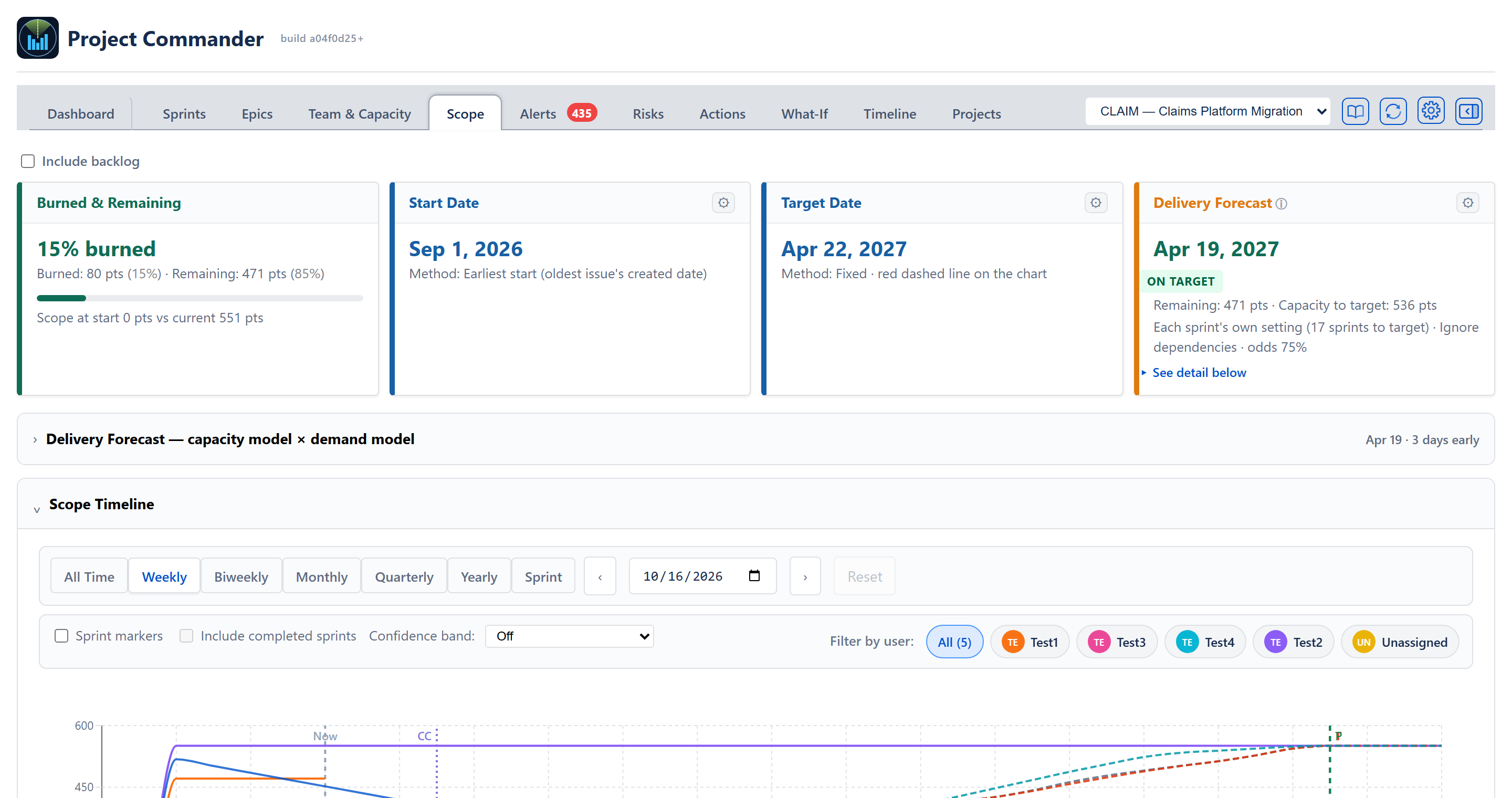
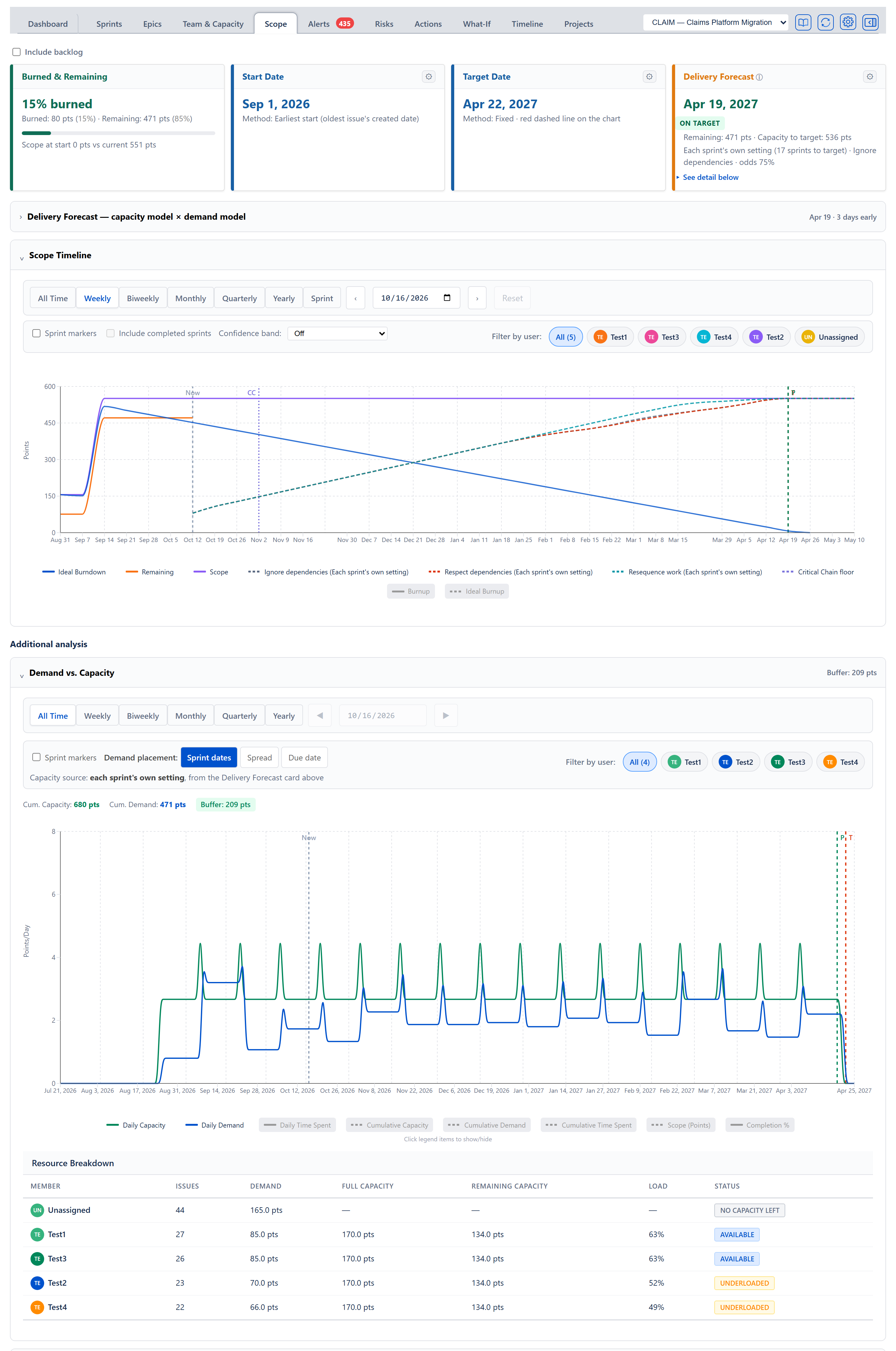
Four stat cards across the top, in this order: Burned & Remaining, Start Date, Target Date, Delivery Forecast.
Burned & Remaining card
Shows the breakdown of the current scope. Cancelled issues are left out: an issue Jira resolved as Won't Do, Won't Fix, Cancelled, Duplicate, Rejected, Invalid, Declined or Abandoned, or, when it has no resolution, one sitting in a removed status (see Scope events). The card follows the Filter by user chips on the Scope Timeline.
- Headline: the percentage burned (57% burned), or N pts left when nothing is either burned or remaining.
- One line beneath it: Burned: 255 pts (57%) · Remaining: 190 pts (43%) — the size of done issues and of not-done issues. The two percentages are shares of burned plus remaining, so they always add up to 100. In a time project, done work counts at its original estimate and remaining work follows the project's Remaining Work setting (Committed size or Live estimate).
- A progress bar filled to the burned percentage.
- When a start date resolves, a further line reads Scope at start X pts vs current Y pts (+N%). When the scope history cannot be rebuilt, the start figure reads unknown and the percentage is left off. (The percentage is shown in a single style — there is no amber/red threshold colouring on this figure.)
Start Date card
Anchors the timeline. The gear on this card opens a Date source choice:
- Fixed — an explicit calendar date entered by the user (a date box appears beneath the choice).
- Earliest start — the oldest issue's created date; the default.
- Earliest due — the issue with the earliest due date.
- Earliest sprint start — the start of the first sprint.
The card shows the resolved date (or Not set), with the method named on the line beneath it — Method: Earliest start (oldest issue's created date). Switching method re-anchors the chart and the ideal lines immediately. The Start Date and Target Date gears open and close together: clicking either shows both cards' Date source choices.
Target Date card
Anchors the deadline. Its gear offers three methods:
- Fixed — an explicit date.
- Latest due — the latest due date across the issue set.
- Latest sprint end — the last planned sprint's end date.
The resolved date (or Not set) is the headline, with Method: Latest due · red dashed line on the chart beneath it. The chart draws that red dashed line at the target, marked T, and the ideal lines run to it.
Delivery Forecast card
The same Delivery Forecast card the Dashboard uses, so the projected completion date for all remaining work reads identically across tabs. Since 2026-09-04 it is not just the same card but the same calculation: the target, the capacity model, the demand model, the grid and the odds come from the one model the Dashboard and What-If tabs call, so the three tabs cannot disagree (until then this tab kept its own copy of that calculation). With the chart's Sprint period chosen, every figure on the tab — the cards, the chart and the table — covers only the issues in the chosen sprint, and the Delivery Forecast card measures against that sprint's end while the Target Date card keeps showing the project's own target.
- Title: Delivery Forecast, followed by an ⓘ mark (what the card measures) and, when there is something the date does not cover, an amber ⚠ mark. Hovering the ⚠ gives the short version; clicking it opens the full sentences. It can say any of these (moved from lines under the date to this one mark on 17 September 2026):
- N pts of this plan carries no date — on a project with no sprints, how much work has no due date and is simply queued.
- This date leaves out N pts — work held by someone with no capacity on the Team & Capacity tab; the plan carries on without it rather than stopping, and the full text names each person and their amount.
- Cannot finish: Diana Lee has work and no capacity — the plan cannot finish at all because of that person's work.
- Primary value: a single date (green when on or before the target, orange up to a week late, red beyond that), or Complete when no work remains, or Never when the plan can't deliver the remaining work (no capacity, or scope growing at least as fast as the team burns it down), or, in red, Does not fit the plan when work is still left at the end of the last planned sprint. The forecast counts only the capacity of the sprints that are planned (on a project with no sprints, the planned periods); nothing is carried on into sprints nobody has planned, so such work has no date (Don, 6 October 2026).
- Directly beneath the date, the verdict in a coloured box: ON TARGET (green), or in red NOT ON TARGET · N DAYS LATE, NOT ON TARGET (when the work does not fit the plan), NO TARGET SET, or, when the date is Never, CANNOT FINISH (someone holds work with no capacity) or SCOPE OUTPACING DELIVERY (scope is growing faster than the team finishes it).
- One line beneath the verdict: Remaining: X pts · Capacity to target: Y pts — the work left, and the capacity between today and the target date, clipped at the target (a straddling sprint counts only its days on or before it).
- One caption line naming the capacity the date was worked out from, in the same words the Capacity model dropdown uses for it (Each sprint's own setting (3 sprints to target), Team capacity (4 people on the Team & Capacity tab)), then the demand model, the on-target odds and the likely finish range (… · Ignore dependencies · odds 20% · likely Nov 22 – Dec 20). When nobody on the Team & Capacity tab has a capacity typed, the project's own Sprint Capacity stands in and the caption says so. The odds and the likely range are left off when the work does not fit the plan, because there is no date to have odds about.
- When the work does not fit the plan, a red line says how much does not fit and roughly what to add: 21 pts don't fit in the planned sprints. To finish by Dec 18, 2026, add about 1 more sprint at 26 pts, or more capacity. The number of sprints is rounded up to the nearest half and worked at the plan's average sprint; when one person holds most of the leftover it is worked at their own rate and reads … Ann would need about 12.5 more sprints at their 4 pts a sprint - add capacity for Ann, or move work to someone with room. This is advice about what to add, never capacity the forecast counts. On a project with no sprints it says periods instead of sprints.
- When the plan holds capacity beyond the target, a further line states it: N pts capacity available after target date.
- Amber notices beneath these lines when supply-side data is missing: Efficiency not measured yet — nothing discounted (the Effective team capacity model when no closed sprint gives a usable reading of finished work divided by committed work; since Don's decision of 17 September 2026 nothing is then taken off, so it reads the same as Team capacity), and, when the Team capacity or Effective team capacity model comes out at zero while work remains, whichever of these three applies (added 2026-09-01): This sprint has no start and end date, so its capacity cannot be worked out. Set the sprint dates on the Sprints tab. — Nobody has been added on the Team & Capacity tab, so there is no team capacity to count. Add the people working on this project there. — The people on the Team & Capacity tab have no capacity typed yet. Fill in the Pts/Wk or Hrs/Wk column there. The same sentences appear beside the capacity figure in the sprint card's Team & Capacity section on the Sprints tab, in the Can We Deliver row in Project Statistics, in the Problems Tray, and in the text the AI is given.
- A ▸ See detail below link at the foot of the card that opens the capacity model × demand model section and scrolls to it.
- Settings (the gear on this card):
- Capacity model dropdown. With sprints: Each sprint's own setting, Effective team capacity, Team capacity, Velocity. With Sprint Mode off: Capacity per period, Effective team capacity, Team capacity, Throughput. Each option carries the figure behind it in brackets — for example Each sprint's own setting (3 sprints to target), Team capacity (4 people on the Team & Capacity tab) or Team capacity (2 of 4 people have a capacity typed), Effective team capacity (not measured). An option that cannot be used is greyed out with its reason (No sprints configured, No efficiency data, No team members configured, No completed sprints). Choosing Velocity or Throughput reveals a Use last N sprints (or periods) box, 1 to 10, shared with every other tab.
- Demand model dropdown: Ignore dependencies, Respect dependencies, Resequence work. Critical Chain only is not offered here: it ignores capacity, so it is a floor rather than a forecast, and it is shown only as its own column in the capacity model × demand model grid (proposal 126, October 2026).
- Scope growth method: a tick box (off by default) and a dropdown — Average (the project's own historical rate, shown in the option as Average (X pts/wk)) or Manual (a rate typed in a box beneath, in pts a week). When growth is at least the team's rate the card reads Never.
Capacity model × demand model grid
Below the cards, closed when the tab loads, a folding section titled Delivery Forecast — capacity model × demand model holds the same grid the Dashboard shows. Its header shows the selected pairing's finish date and its distance from the target (Dec 4 · 9 days late, … · 3 days early or … · on target) without being opened; with no finish date the header shows nothing beside the title. It opens either from its own header or from the See detail below link on the Delivery Forecast card: every pairing's finish date, gap to target, and on-target odds in one grid, with the Critical Chain floor as a merged column on the right. A square whose work does not fit in the planned sprints reads Does not fit the plan instead of a date, with how much does not fit beneath it (21 pts don't fit). Among the squares that count capacity, the soonest finish is flagged ★ EARLIEST and the latest ▲ LATEST; the Critical Chain floor is never flagged, because it ignores capacity. Clicking a square drives the Delivery Forecast card, and the demand model is a shared choice with the Dashboard and What-If tabs. When the dependency-ordered and resequenced columns cannot be calculated, the section shows only the plain capacity comparison with an on-screen note — The dependency-ordered and rebalanced columns couldn't be calculated for this project, so only the capacity view is shown. Technical detail for support: plus the underlying message in selectable text — so the reason can be copied for support without the browser console. When the whole comparison fails, the section says This comparison couldn't be calculated from the current project data. The Delivery forecast card above still shows the forecast for your selected models.
Scope timeline chart
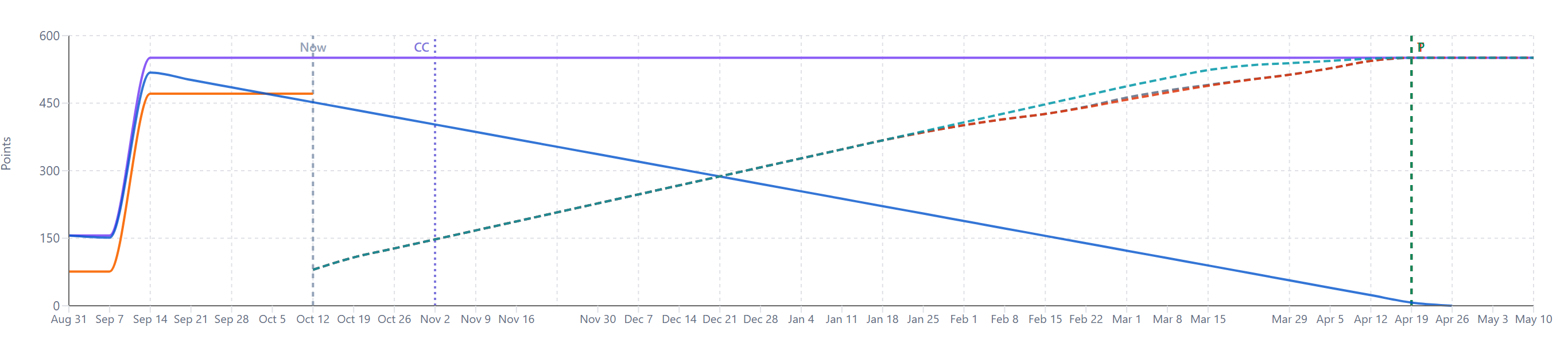
The primary chart, in a folding Scope Timeline section that is open when the tab loads. X-axis = time bucketed by the period selector; Y-axis = Points, or Hours (original estimate) / Days (original estimate) in a time project.
Period selector and navigation
Buttons across the top of the section: All Time, Weekly, Biweekly, Monthly, Quarterly, Yearly, Sprint. Weekly is selected when the tab opens; a week runs Monday to Sunday, as everywhere else in the app. Beside them, left/right arrows, a date box for choosing where the chart starts, and a Reset button that returns the chart to its automatic start (greyed out when there is nothing to reset). The arrows, date box and Reset are greyed out in All Time and Sprint.
With no date chosen, the chart starts at the date on the Start Date card. In All Time it starts at the oldest issue's created date, with one point per month. The chart runs forward past today far enough to show the target, the projected finish and the Critical Chain date.
Sprint narrows the whole tab to one sprint: a dropdown appears beside the button listing every sprint with dates (Sprint 7 (Sep 7 – Sep 20)), opening on the active sprint (or the latest closed one), and the chart shows that sprint's dates day by day, with the cards and the breakdown table counting only the issues in it. The Sprint button is shown only when the project has at least one sprint with dates, and not under Program view.
Core series
The chart renders a burndown view and a burnup view of the same scope data — together they tell the same story from two angles. A line can be hidden or shown by clicking its name in the legend under the chart; hovering a name explains it.
Burndown view (start-high, end-low):
- Scope (purple, solid) — total size of the issues, rebuilt period by period from each issue's change history (see Scope events), so the chart shows the scope as it stood at each point.
- Remaining (orange, solid) — Scope minus cumulative completed work, drawn up to today. Falls only when work is done; rises when scope is added faster than it is completed.
- Ideal Burndown (blue, solid) — the pace needed to reach zero at the target date: at each period, that period's scope times the share of time left until the target, starting from the first period with any scope. When scope grows, the line rises with it. Position of Remaining below the line = ahead of pace; above = behind.
Burnup view (start-low, end-high):
- Burnup (green, solid) — cumulative completed work over time. Mirrors the Remaining line: every point burned down lifts the Burnup line by the same amount.
- Ideal Burnup (green, dashed, paler) — the mirror of Ideal Burndown: at each period, that period's scope times the share of time already gone, reaching the full scope at the target date. It re-anchors when Scope grows so the target keeps tracking the moving goal.
- Burnup Forecast (green, dashed) — projected continuation of the Burnup line to the projected finish, from the first forecast line. Not drawn when the demand-model forecast lines are shown, because it would repeat the Ignore dependencies line.
The three Burnup series are hidden by default — turn them on from the chart legend.
Optional series
- Scope Growth (purple, dashed) — the historical add-rate carried forward from today until the forecast finishes. Shown when the Scope growth method tick box is on behind the Delivery Forecast card's gear.
- Forecast — a dashed line for each demand model, drawn from today and climbing to meet the Scope line on its own finish date: Ignore dependencies, Respect dependencies and Resequence work, each labelled with the chosen capacity model (Ignore dependencies (Each sprint's own setting)). The Critical Chain floor is drawn as a vertical dotted line marked CC, listed in the legend as Critical Chain floor so it can be hidden. The chart also marks today with Now, the target date with T (red dashed) and the projected completion with P (green dashed); hovering a marker gives its date. When the work does not fit the plan, or the plan cannot finish, there is no projected date and no P marker.
- Confidence band — a Confidence band: dropdown in the chart options, Off by default. Historical variability shades a range whose width comes from the team's own data — how much sprint velocity varies, how much scope changes week to week, and (time mode only) how far estimates have been off — so the early edge finishes sooner and the late edge later. Monte Carlo (P10–P85) runs the forecast 600 times with randomised velocity, capacity, estimate and scope; hovering the band reads 10% of runs had X pts remaining or less and 85% of runs had Y pts remaining or less. No band is drawn when the forecast never finishes.
Sprint markers
A Sprint markers tick box. When on, vertical lines mark sprint starts (solid) and ends (dashed), each with a small arrow that names the sprint on hover. A second tick box beside it, Include completed sprints, greyed out until markers are on, adds closed sprints. Both are shown only when Sprint Mode is on and the project has sprints, and are hidden in the Sprint period and under Program view.
Per-user filter
When the issues have any assignee, a row at the right-hand end of the chart options reads Filter by user: followed by chips: All (N) plus one chip per assignee (and Unassigned when some issues have nobody), each with that person's initials. It sits in the same place, in the same shape, as the people filter in the Demand vs. Capacity section below. The filter is multi-select — clicking chips adds and removes individual people; All is restored once no chip is selected. It also narrows the Burned & Remaining card and the Period Breakdown table. With exactly one person chosen, the chart draws that person's own Scope, Remaining, Ideal Burndown, Burnup and a Forecast from their own completion rate. With two or more chosen, the chart draws no lines.
Notices on the chart
- Loading scope history… while the change history is still arriving.
- When the change history cannot give a usable scope line although the issues have size, an amber notice explains why — Scope over time can't be drawn: N issues have no creation date…, …the change history for these issues couldn't be loaded…, or …can't be drawn from the available change history — each ending The scope totals above are still correct. The chart area then reads There's nothing to plot on the scope-over-time chart yet — it needs dated change history for these issues. The scope totals and forecast above are unaffected.
Additional analysis
Beneath the Scope Timeline, an Additional analysis heading groups the two remaining sections.
Demand vs. Capacity section
A folding Demand vs. Capacity section, closed when the tab loads (Don, 2026-09-04; it opened by itself from 2026-08-23 until then). Its verdict — Over by N pts, Balanced, or Buffer: N pts — sits in the section header, so the answer is on screen without a click; opening the section shows the chart and the Resource Breakdown table it holds. It plots the team's workload against its capacity day by day and flags the stretches where the plan asks for more than the team has.
Chart and controls
- Period bar — All Time (default), Weekly, Biweekly, Monthly, Quarterly, Yearly, with arrow navigation and a date box (both greyed out in All Time).
- Sprint markers tick box, and Include completed sprints once it is ticked.
- Demand placement buttons — Sprint dates (spread each issue's remaining work across its sprint's dates; shown only with Sprint Mode on and sprints present), Spread (spread from the issue's start date to its due date), Due date (place all of it on the due date).
- Capacity source line — Capacity source: Team capacity (or Effective team capacity (N%), or each sprint's own setting), from the Delivery Forecast card above. The chart follows the Capacity model set behind the Delivery Forecast card's gear on this same tab; it had buttons of its own until 2026-09-01, a few inches below the card's control, and the two could be set differently. When the card is set to Velocity (or Throughput), which is a rate of delivery rather than a capacity and cannot be drawn as daily bars, the chart shows each sprint's own setting and the line says so. On a project with Sprint Mode off the chart draws one capacity block per planning period, each worth the project's Sprint Capacity number, stepped by its Period Length; until 2026-09-01 it drew a single block covering the whole window.
- Per-assignee filter — Filter by user: with All (N) and one chip per person, single-select; picking one person re-runs the analysis with only their work and their capacity, so an individual's overload is visible even when the team as a whole has room. While one is picked, a count reads (N of M issues).
- A warning line counting issues without dates that can't be plotted: ⚠ N issues without dates — not shown in the chart.
- The same amber notice as the Team & Capacity tab when the team has members but none allocated to this project.
- The chart shows daily capacity and demand plus cumulative lines, time-spent and scope overlays (turned on and off from the legend), a summary strip — Cum. Capacity, Cum. Demand and the Over by / Balanced / Buffer verdict — and red overload flags on days where cumulative demand exceeds the capacity that can still absorb it. The time-spent line is drawn only from Jira work logs, which are read only for projects that estimate in time (Jira sends up to the 20 most recent per issue). Nothing is estimated where nothing is logged: in a time project with no work logs the line is empty and an amber notice says No time has been logged against this work, so there is no day-by-day line to draw… (Don's decision, 17 September 2026).
How overload is counted (remaining-capacity rule)
In Spread and Due date placement, open work is scheduled no earlier than today — so the capacity that the overload flags, the overloaded-periods list and the section's feasibility score count is also only the capacity from today forward. Capacity on days that have already passed was spent on the work that is now done; letting it offset future demand hid real overloads. The per-day bars still show each past day's historical capacity — only the overload/score arithmetic ignores it. In Sprint dates placement both demand and capacity spread across the full sprint windows, so nothing is clipped there.
Resource Breakdown table
Inside the Demand vs. Capacity section, below the chart, under a Resource Breakdown heading: one row per team member. The section is closed when the tab loads, so the table appears once the section is opened; closing the section hides the chart and this table together.
- Member — avatar and name.
- Issues — count of issues assigned to the person.
- Demand — the remaining estimates of their open issues.
- Full Capacity — their share of the whole analysis window, elapsed days included. This is context for time already spent.
- Remaining Capacity — Full Capacity scaled to the part of each issue's own window still ahead of today, by the share of that window's calendar time: a window wholly in the past contributes 0, a wholly future window contributes everything, a half-elapsed window contributes half. This column's capacity comes from the issues' own estimates and dates rather than from anybody's typed weeks, so there are no weeks behind it to count; the sprint cards, the Team & Capacity tab and the Delivery Forecast, which do have them, count the days still to come instead (9 October 2026).
- Load — Demand ÷ Remaining Capacity. Shows — when no capacity remains.
- Status — badge from the shared load bands, the same as the Team & Capacity tab: below 60% UNDERLOADED, 60–90% AVAILABLE, 90–115% OPTIMAL, above 115% OVERCOMMITTED. A person with open work and no capacity left to weigh it against reads NO CAPACITY LEFT in grey, never a load band, and when no capacity could be worked out for them at all the two capacity columns read — rather than 0 (Don, 7 October 2026). This is what every row shows under the Team capacity and Effective team capacity models, which give this table no capacity window; hovering the badge says to set the capacity model on the Delivery Forecast card or give the team weekly capacity on the Team & Capacity tab.
Period Breakdown table
The last section, a folding table titled [Period] Breakdown (Weekly Breakdown, Monthly Breakdown, All Time Breakdown, Sprint Breakdown, …), closed when the tab loads — opened it is the longest thing on the tab by a wide margin. Its header shows the span of periods that had any activity (Jun 14 – Sep 13 (weeks with activity)). Inside it, the same period buttons as the chart, then one row per period, including periods with nothing in them. A note under the table reads Click a period to list every issue that contributed to it.
Columns
- Period — the period label (e.g., May 10).
- Issue — on a period row, the count of issues that were added, re-estimated, removed or finished in that period (3 issues).
- Assignee — empty on a period row; filled on the issue rows beneath it.
- Added — work added in the period through new issues or estimate increases. Blue when non-zero.
- Burned — work completed (done, not cancelled) during the period. Green when non-zero (grey when zero).
- Completed — cumulative work completed by the end of the period.
Expansion
Clicking a period with issues (marked ▶) opens it to list every issue that contributed to it. Each row shows the issue's key (a link that opens the issue), summary, assignee with avatar, +X pts under Added and/or Burned (or -), and the issue's status badge under Completed. An issue can show under both Added and Burned in the same period if it was created and finished within it.
Scope events
Three kinds of event drive the timeline:
- Creation — an issue is created with a non-zero estimate; that estimate joins scope on the create date.
- Estimate change — an issue's story points (or original time estimate in time mode) is edited; the difference is added to scope on the change date.
- Status to "removed" — an issue now in a removed status (Cancelled, Won't Do, Won't Fix, Rejected, Duplicate, Invalid) has its estimate at that moment subtracted on the date it moved into that status. The chart goes by the status name only; the cards above also leave out an issue Jira resolved as cancelled while its status reads Done.
The Scope line is the running sum of these signed changes. The events come from Jira's change history, so they are tied to calendar dates, not sprint boundaries. When an issue's change history leaves it at zero although it has a size now, its current size is counted from its creation date instead, so real work never drops off the line.
Scope growth and "never finishes"
The Average option behind the Delivery Forecast card's gear shows the project's own growth rate in pts (or hrs/days) a week. It is worked out as: the original estimates of every issue not in a removed status, minus the original estimates of those that are, divided by the weeks from the oldest issue's creation date to today. It is taken over the issues the tab is counting (so the Include backlog tick box and the Sprint period change it) but does not depend on which other period the chart is showing.
Two signals fall out of this:
- When scope growth is at least the team's rate and the simulation never empties the queue, the Delivery Forecast card reads Never with SCOPE OUTPACING DELIVERY. This is preferred over an infinite date so the user gets an actionable signal.
- When the growth rate is high but the team's rate is higher, the forecast still completes but the projected end may sit further out than the no growth projection — or, if the added work no longer fits in the planned sprints, the card reads Does not fit the plan with how much does not fit.
Cross-cutting modes and settings
- Estimation mode — points mode reads story points; time mode reads the original time estimate in hours (or 8-hour days), with remaining work following the Remaining Work setting. The chart's Y-axis label and table units adapt.
- Sprint mode on/off — when off, the Include backlog tick box and the sprint markers are hidden, and the Delivery Forecast card offers the no-sprint capacity models. (The Start Date and Target Date choices, including Earliest sprint start and Latest sprint end, are still listed regardless of sprint mode.)
- Include backlog — the tick box at the top of the tab; decides whether open issues outside any sprint count in scope, the cards and the Scope Timeline chart. Backlog inclusion can change scope growth noticeably if the backlog was populated upfront rather than over time.
- Program view (chosen in the header's project picker) — the Sprint period and the sprint markers are hidden; the start date is the latest of the projects' own start dates; the forecast rolls each project up on its own team's capacity (with that project's allocation from the Team Allocation Matrix applied) and the program finishes with its slowest project, so the capacity model reads Per project.
Empty / error states
- Loading issues... — while issues are still arriving and none has arrived yet.
- Showing 2,400 of about 3,100 issues; the rest are still loading. — a line at the top of the tab while a big project is arriving in more than one call; the chart draws what has arrived and fills in as the rest lands. It changes to the narrow-your-filter message only when a single page of issues cannot be read inside the limit, and the issues already read stay on screen.
- Configure a JQL filter in the Projects tab to view scope data — when the project has no JQL configured.
- No issues found for JQL filter — when the JQL returns zero rows (the period buttons stay on screen).
- This sprint has no issues — pick another sprint or period above. — when the chosen sprint holds no issues.
- A failed issue read shows the error's own words.
- No timeline data available — inside the chart area when there is nothing to plot; see Notices on the chart for the explanations shown when the scope history cannot be rebuilt.
How the numbers are computed
- Burndown / Remaining / Scope lines — see ALGORITHMS section 1 (Delivery Forecast) and the Burndown Chart Data subsection of the Appendix.
- Scope growth rate — section 3 (Scope Growth Detection).
- Forecast lines / P50 / P85 — section 1 plus section 2 (Monte Carlo Delivery Confidence) for the band shading.
- Scope event reconstruction — Appendix → Scope Trajectory subsection.
- Period bucketing / partial-week proration — Appendix → Date and Timeline Math and ISO Week Conversion.
Effects on other parts of the app
- The Scope row in the Dashboard's Project Statistics table compares scope on the same start date with scope now and shows the change %, using the same start-date method and the same scope rebuild as the Scope at start line on the Burned & Remaining card.
- The Dashboard's Team Balance row and the Can We Deliver? per-member detail are computed by the same demand-vs-capacity engine as the Resource Breakdown table here, so each member's load % (remaining work ÷ remaining capacity, full capacity listed alongside) reads the same in both places.
- The Delivery Forecast card on the Dashboard uses the same forecast calculation and the same saved Scope growth method setting chosen here. Changing growth on the Scope tab changes the Dashboard's projected end immediately.
- The Risks tab's Mid-sprint scope creep suggestion does not use this tab's scope timeline: it compares the size of issues created after the active sprint started with the size of the rest of that sprint. It shares its warning threshold with the Dashboard's Scope row.
- Changes to Use last N sprints behind the Delivery Forecast card's gear are saved to the project and apply to every other forecast view.