 Project Commander Docs
← Back to site
Project Commander Docs
← Back to site
Alerts Tab — Feature Guide
What it's for
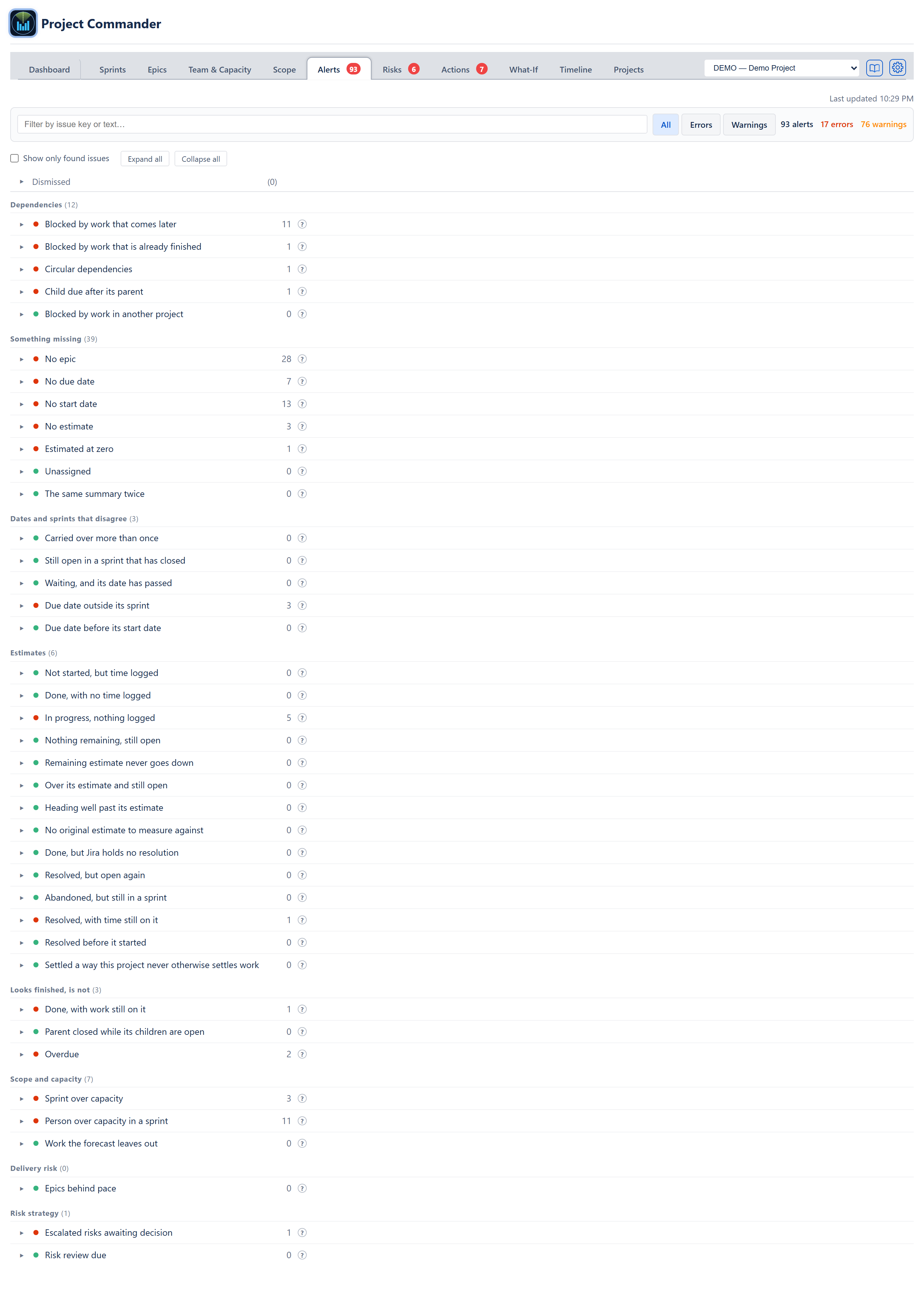
The Alerts tab tells you everything wrong with the issues in this project — one list, every check named, with what each one found beside it. It reads every issue in the project: the ones in sprints, the ones in the backlog, and anything else the project's issue filter returns.
The audience is scrum masters, project managers and release leads. Every finding here is produced by a rule with a single threshold — nothing on this tab is a guess, and no AI is involved. The number on the tab's own badge, the totals at the top of the tab, the Dashboard's Project Statistics row and the weekly digest all come from one calculation over the same checks, so they agree. The one exception is a check you wrote yourself (see Your own checks below): what it finds is counted in the totals at the top of the tab, but not in the badge, the Dashboard or the digest.
The tab changed shape on 19 September 2026. It used to be five folding domain bars, each holding folding cards. It is now one list: every check on screen at once under its group heading, whether it found anything or not. There are forty checks in eight groups, plus any you write yourself.
The top of the tab
Last updated and the time the issues were read sit at the top right, above everything else.
The filter row
One pale row, the full width of the tab.
- Filter by issue key or text… — narrows the list to the findings that mention what you typed: the issue key (including a key in the middle of a dependency loop), its summary or the note beside it. A check with nothing left after the filter drops out of the list.
- All (the default) / Errors / Warnings — the severity buttons. Errors leaves only the error findings, and only the checks holding one; Warnings the same for warnings. All brings everything back, including the checks that found nothing.
- N alerts · N errors · N warnings — the totals. Errors plus warnings always equal the total. A check that has no severity of its own counts its findings as warnings. These figures are the state of the project, so a filter never moves them: narrowing the list tells you about part of the project without changing what you know about the whole of it. Checks you have switched off and findings you have dismissed are not counted.
- Clear — appears at the end of the row while a filter is in use, and puts the box and the buttons back to showing everything.
When no check found anything and nothing is dismissed, the line 0 All clear! No alerts found. appears under the filter row. The checks are still listed underneath it, each with its green zero, as the evidence.
When every check has been switched off (in the settings gear, Alerts section), the totals read 0 and the line under the filter row says instead: Every check is switched off, so there is nothing to show. Turn checks on under the settings gear, in the Alerts section. A project nothing was asked about is not a clean project, so All clear never appears in that state.
The bar above the list
Directly under the filter row:
- Show only found issues — a checkbox. Ticked, it drops every check that found nothing, for a reader who wants the short list. It is on the screen rather than buried in the settings, because it is something you flip while reading rather than something you set up once. It starts unticked each time the tab opens.
- Expand all / Collapse all — on the same line. Expand all opens what is on screen, so with the checkbox ticked it opens only the checks that found something.
With the checkbox ticked and every check clean, the list says Nothing found. Every check ran and every one of them is clear.
The list
Every check is listed, in its group, with a coloured dot and a count.
A check that found nothing still shows, with a green dot and a zero. A check that found something shows a red dot. That is deliberate and it is the point of the whole design: a check that ran and found nothing must never look like a check that did not run. A missing line is the one thing a reader cannot notice.
Each group heading carries, in brackets, the number of different issues its checks found between them. An issue found by two checks in the same group is counted once there.
Each line carries the check's name, the number of issues it found, and a small ? after the count explaining in plain English what that check means. Every check starts closed; click one to see the issues behind its count. Each finding shows a mark saying whether it is an error or a warning (for the checks that grade their findings), the issue key as a link that opens the issue in Jira, its summary and a short note saying why it was found. Up to six are listed; beyond that the last line reads and N more. A circular dependency is drawn as the loop it is, keys joined by arrows, first key equal to last, and under it the check says what to do: To resolve: remove one of the "blocked by" links in the cycle, naming one link as an example.
A loop can run through an issue in another Jira project, when a "blocks" or "is blocked by" link points out of this project and another points back. The loop is still reported and drawn in full, but a key from the other project is plain text rather than a link, and a line under the loop says so — for example SHOP-12 is in another project and not on this board, so it is not counted among this project's issues. That issue is not counted in the group heading's number.
The groups, in the order they are drawn
Dependencies (5 checks) — Blocked by work that comes later · Blocked by work that is already finished · Circular dependencies · Child due after its parent · Blocked by work in another project.
A circular dependency counts as an error, not a warning: nothing in a loop can start until something in it finishes, so the plan cannot be delivered as written.
Blocked by work that comes later judges the timing against the blocked work's start date, taken by one rule: its own start date, then its parent epic's, then the start of the sprint it is in. A start borrowed from the epic or the sprint counts the same as one typed on the issue. Each pair of issues is reported once, with the first of these that applies:
- Error — the blocker is due after the blocked work starts (Blocked by DEMO-41 which finishes 3 days after this starts).
- Error — the blocker sits in a sprint that starts on or after the day the blocked work's sprint ends (Blocked by DEMO-41 which finishes after this sprint ends).
- Error — the blocked work's start date has arrived and the blocker is still open (start date passed but blocker still open).
- Warning — no start date can be found anywhere, so the timing is unknown, and the blocker is not finished (Blocked by DEMO-41 (unresolved)).
- Warning — the blocker or the blocked work has no due date of any kind, not its own, not its sprint's end, not its epic's (the timing cannot be worked out, naming which of the two has none).
Something missing (7) — No epic · No due date · No start date · No estimate · Estimated at zero · Unassigned · The same summary twice. Finished issues are left out of every check in this group: a finished issue with no epic, date, estimate or owner has nothing left to do. No epic, No due date, No start date and No estimate also leave out an unfinished issue still sitting in a sprint that has closed; that issue is counted under Still open in a sprint that has closed instead.
Unassigned counts every unfinished issue with nobody on it, wherever it sits: in an open sprint, in the backlog (while Include backlog is ticked in the settings gear's Alerts section), on a project with no sprints at all, or left behind in a sprint that has closed.
No epic is asked only on a project where at least some work sits under an epic, and never of an epic itself. An unfinished issue with no epic and no date of any kind — none of its own, no sprint to give it one — is not listed under No epic; it shows under No due date.
Estimated at zero and No estimate are told apart on purpose. A typed zero is a decision; never having been sized is an omission. One issue is never reported as both.
Dates and sprints that disagree (5) — Carried over more than once · Still open in a sprint that has closed · Waiting, and its date has passed · Due date outside its sprint · Due date before its start date.
Estimates (14) — Not started, but time logged · Done, with no time logged · In progress, nothing logged · Nothing remaining, still open · Remaining estimate never goes down · Over its estimate and still open · Heading well past its estimate · No original estimate to measure against · Done, but Jira holds no resolution · Resolved, but open again · Abandoned, but still in a sprint · Resolved, with time still on it · Resolved before it started · Settled a way this project never otherwise settles work.
These read Jira's own grouping of a status rather than the word written on it, so a column called "Shipped" that Jira treats as done is treated as done here too.
Looks finished, is not (3) — Done, with work still on it · Parent closed while its children are open · Overdue.
Scope and capacity (3) — Sprint over capacity · Person over capacity in a sprint · Work the forecast leaves out.
Delivery risk (1) — Epics behind pace.
Risk strategy (2) — Escalated risks awaiting decision · Risk review due.
The last three groups hold the six checks that need something beyond the issues themselves — a capacity model, the roster, the forecast, or the risk register — which is why they sit after the others.
Your own checks — anything you wrote yourself appears last, under a heading of its own rather than folded silently into one of the others.
Every check says what it means. A small ? sits after the count on each row; rest on it and it tells you what that check looks for and why it matters. All forty carry one. A check you wrote yourself has none, and its row keeps the mark's place empty so the counts still line up.
What you can do with a finding
Each finding inside an opened check carries its buttons at the end of the line, with a gap before it. Every row's buttons begin at the same place, whatever the issue key, summary or explanation happen to be.
- Create risk — opens the Risks tab with its Add risk form already filled in from this one finding. Seven checks use wording written for their kind of problem, with their own suggested probability and impact: Blocked by work that comes later, Circular dependencies, Child due after its parent, No estimate, Done, with work still on it, Overdue and Epics behind pace. Every other check builds the risk from the check's own name and the issue it found (No due date: 1 issue), with a suggested probability and impact of 3 each, the middle of the scale, and the description saying in as many words that this is a starting point rather than the app's own assessment — set them yourself.
- Create action — adds an action item for this finding to the Actions tab, reading Resolve followed by the issue key and the check's note. It goes into the active sprint, or the next future sprint when there is no active one, or any sprint that is not closed, or the project when there is no open sprint at all. A green notice at the top right of the screen says where it went — Action created in Sprint 7 from … alert on DEMO-12 — and goes after four seconds.
- Open the risk — shown instead of the two buttons above on the findings in the Risk strategy group, because what they found is a risk rather than a Jira issue. It opens the Risks tab with that risk scrolled into view.
- Dismiss — see below.
Dismissing a finding, and getting it back
Each finding carries a Dismiss button — including a dependency loop, which carries its own Dismiss on the line with the loop. The one exception is a finding from a check you wrote yourself, which cannot be dismissed. Dismissing takes that finding off its check, off the count and off the badge.
It is not gone. A folded Dismissed line sits at the top of the list, directly under the bar with the checkbox, with its count in brackets after the word — Dismissed (0) when you have set nothing aside, so you can always see that it looked. Open it and each one shows the issue, its summary, which check found it, and a Restore button; with nothing dismissed it reads Nothing dismissed. Restoring puts the finding back on its check and the count back with it.
The list is folded shut because on most days there is nothing to say about it, and it exists at all because a finding that vanishes with no way back is one nobody dares dismiss.
Choosing which checks to run
The Settings gear in the tab bar opens the settings screen, which has a section headed The Alerts tab with five parts. These are your own answers: they change what you see and nothing for anyone else looking at the same project, and each is kept the moment you click it — there is no Save to press for this section.
Which checks to run, and in what order. A line reads N of 40 checks are on. Below it every check is listed under its group, each with a tick box and a drag handle (⋮⋮). Unticking one takes it off the tab and out of every count that reads it — the badge, the tab's own totals, the Dashboard's row and the Projects table. Within a group the checks can be dragged into the order you want to read them; a check cannot be dragged out of its group, so a heading never comes to sit above something it does not describe. The buttons Turn every check on and Put them back in their usual order undo both. With every check off, a line warns that the tab has nothing to show and its count reads zero, which is not the same as a project with no problems.
How it reads. Two buttons: The order you put them in (the default) or Most found first. On the Alerts tab the groups always stay in their usual order; Most found first puts the checks that found the most at the top of each group.
What to include. Every sprint the checks saw the last time they ran is listed with its state and a tick box, all ticked until you untick one; the list is empty, with a line saying so, until the checks have run once. An Include backlog tick box, on by default, decides whether work in no sprint is checked too.
What your columns mean. Every status column the checks saw the last time they ran, each with a dropdown saying what the checks should take it to mean: As Jira has it (the default, naming Jira's own group for it), Not started, In progress, Waiting on something or Finished. Waiting on something is a fourth group Jira does not have — work that is not finished and that nobody is moving — and it is worth being told about on its own. Leave a column as Jira has it unless Jira has it wrong. Changing one changes what every check says, including the nine carried over from the old alert categories.
Your own checks. A question of your own, written the way you would write it in Jira's search box, with a name for it: two boxes, What to call it and the question, and an Add button. It is asked of this project and the answer joins the list under Your own checks. Each one you have added is listed with its question beside it and a Remove button that takes it off again.
What it does not do
It does not judge, guess or interpret. Every line is a rule with one threshold, run over the issues as they are. Work nobody has sized is reported as unsized, never given a size. A date nobody typed is reported as missing, never invented.
It is the issue-by-issue counterpart to the Risks tab, where the risks the app suggests from the project's sprints, velocity, capacity and forecast live: everything on this tab would read the same tomorrow given the same issues.